
What's New
Keep up with the latest releases and improvements.
Move emails between projects
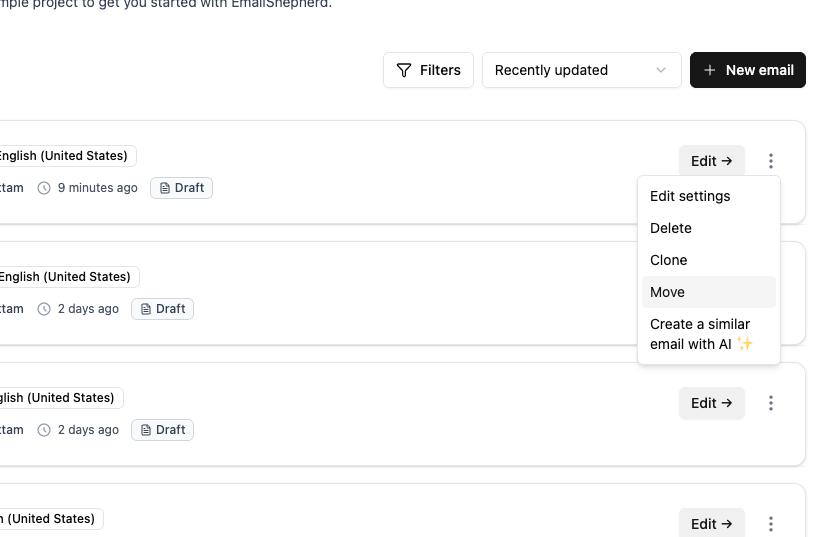
You can now move emails to a different project. Select Move from an email's menu to reorganize your work.
Granular export permissions
You can now control who can export to HTML, JSON, and connectors separately, instead of a single all-or-nothing export permission. Give designers access to HTML downloads while keeping connector exports limited to integration owners, or tailor access however your team works.
Redesigned export page
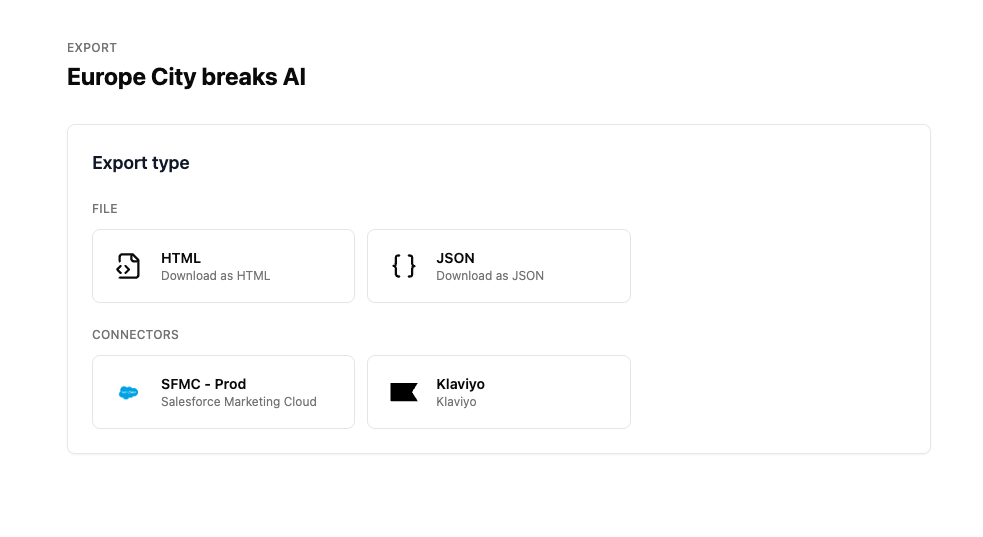
We gave the export page a fresh look. Same exports, smoother experience.
AI role permissions
You can now manage access to AI features with role-based permissions. Control which team members can use chat copilot, image generation, background build agents, and AI reviews.
Claude Opus 4.7 support
You can now select Claude Opus 4.7 when configuring an Anthropic AI provider.
Download PDFs and PNGs at mobile size
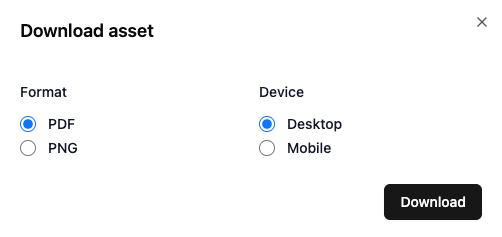
When you download a PDF or PNG of an email from the editor, you can now choose between Desktop and Mobile, so you can share the exact layout your recipients see on their phones.
Pick the device in the Download modal alongside the format, and you're done.
Jump to the subject or preheader field from the preview
Click the subject or preheader line in the email preview and you'll jump into its field in the settings tab, cursor already there.
Pin a dynamic content profile to a connector
Set a dynamic content profile on any export connector, and every export through it will use that profile automatically. Handy when a connector always targets the same audience or environment — set it once on the connector instead of choosing it on every export.
Image Optimization
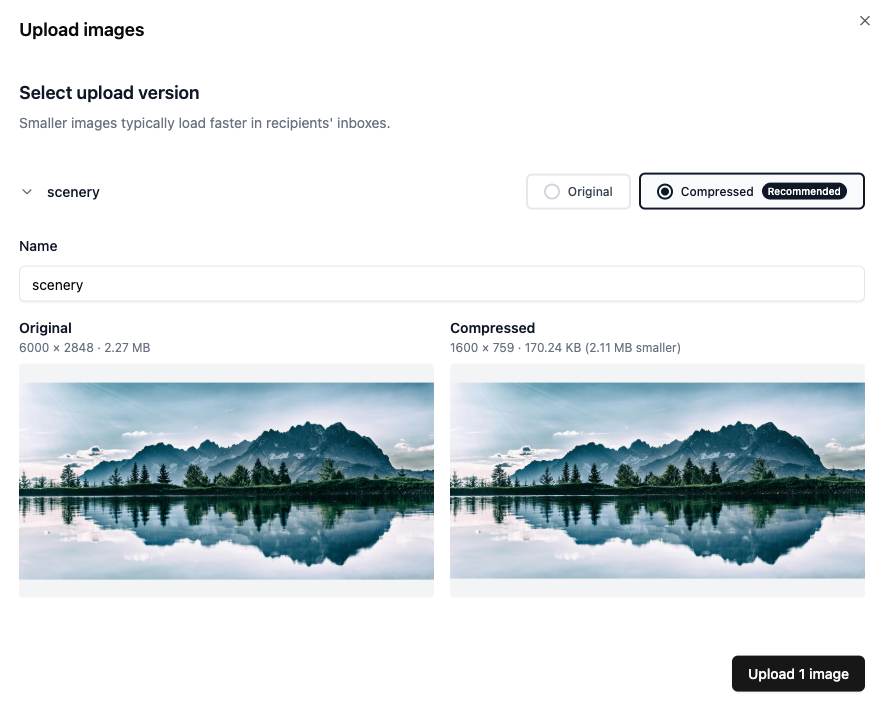
On upload, images are now automatically optimised. You're presented with both versions — the original and the optimised one — so you can choose which to keep.
Reference other emails in AI chats
You can now attach other emails within a chat with your AI agent, providing a rich source of context.
Type
@in the AI chat input to reference another email from your workspace. The agent picks up the referenced email's content as context, so you can compare, adapt, or cross-reference between emails in a single conversation.