AWS S3 CDN Connector Setup Guide
In this article, you will learn how to set up an AWS S3 CDN connector. Once this is set up, when you export an email you will be able to export images from the image library to an AWS S3 bucket, with all image URLs automatically rewritten to point to your CDN.
Which Images Are Exported?
Section titled “Which Images Are Exported?”The CDN connector only exports images that have been uploaded to your EmailShepherd image library. If you’ve inserted an image using an external URL, that image will not be re-uploaded—the original URL will be preserved in the exported email.
To set up the connector, navigate to Connectors > CDN Connectors > Add Connector.
Enter a name and select AWS S3 as the integration type.
You will be prompted to enter the following details:
S3 Configuration
Section titled “S3 Configuration”-
Bucket Name: The name of the AWS S3 bucket to export images to.
-
Prefix: An optional prefix to add to the S3 key of the exported image. For example, if you enter
images/, the exported image will be saved toimages/abcd-efgh-ijkl-mnop.jpgwithin the bucket.
Each image in your image library has a unique filename generated by EmailShepherd (e.g., abcd-efgh-ijkl-mnop.jpg). This filename stays the same across exports, so if multiple emails use the same image, it only needs to exist once in your bucket. If the image already exists, it will be overwritten.
AWS Credentials & Permissions
Section titled “AWS Credentials & Permissions”-
AWS Access Key ID: The access key ID for an IAM user with access to the S3 bucket.
-
AWS Secret Access Key: The secret access key for the IAM user.
-
Region: The AWS region where the bucket is located (e.g.,
us-east-1,eu-west-2).
Required IAM Permissions
Section titled “Required IAM Permissions”The IAM user must have the following permissions on the target S3 bucket:
| Permission |
|---|
s3:ListBucket |
s3:PutObject |
URL Rewriting
Section titled “URL Rewriting”When you export an email, EmailShepherd uploads images to your S3 bucket and rewrites the image URLs in your email HTML. The following settings control how those URLs are constructed.
-
Base URL: The base URL of the CDN or domain that serves files from your S3 bucket. This is typically a CloudFront distribution URL (e.g.,
https://d1234abcd.cloudfront.net) or a custom domain you’ve configured to point to CloudFront (e.g.,https://cdn.yourdomain.com). -
URL Path Prefix: The path to prepend to the filename in the final URL. In many cases this will match the Prefix above, but depending on your CDN configuration they may differ. If you’re unsure, check with your infrastructure team.
How URL Rewriting Works
Section titled “How URL Rewriting Works”When an image is exported, EmailShepherd constructs the final URL as:
{Base URL}{URL Path Prefix}{filename}For example, with the following configuration:
| Setting | Value |
|---|---|
| Base URL | https://cdn.yourdomain.com |
| URL Path Prefix | /images/ |
An exported image with filename abcd-efgh-ijkl-mnop.jpg would have the final URL:
https://cdn.yourdomain.com/images/abcd-efgh-ijkl-mnop.jpgOnce you’ve entered all the details, click Save.
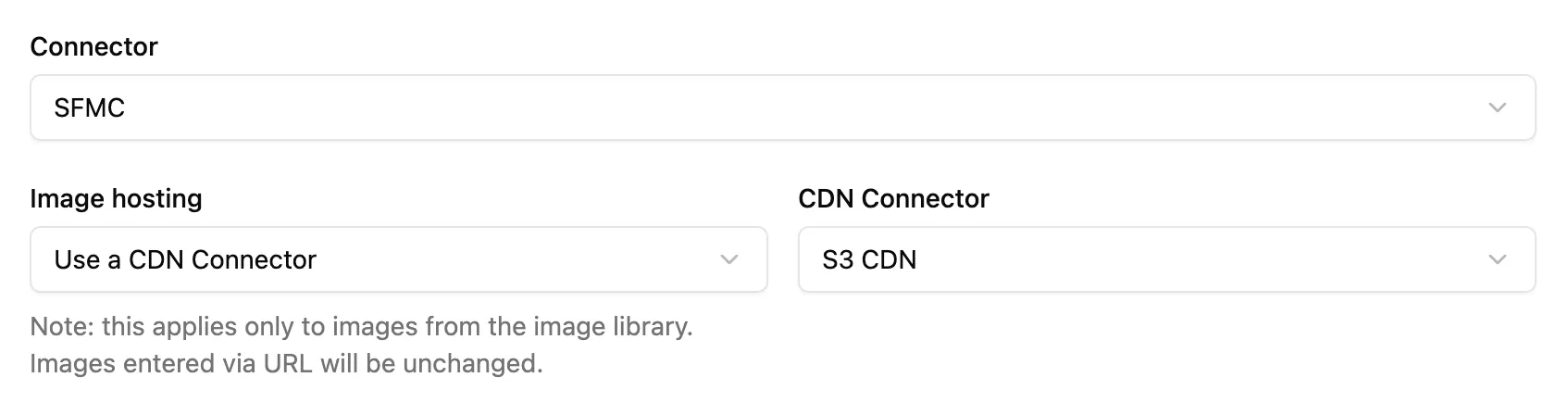
When you export an email, select Use a CDN Connector under Image Hosting and choose your connector from the dropdown.