How to build an email in the editor
This article shows you how to build an email in the editor: adding components, editing their content, and setting the subject and preheader.
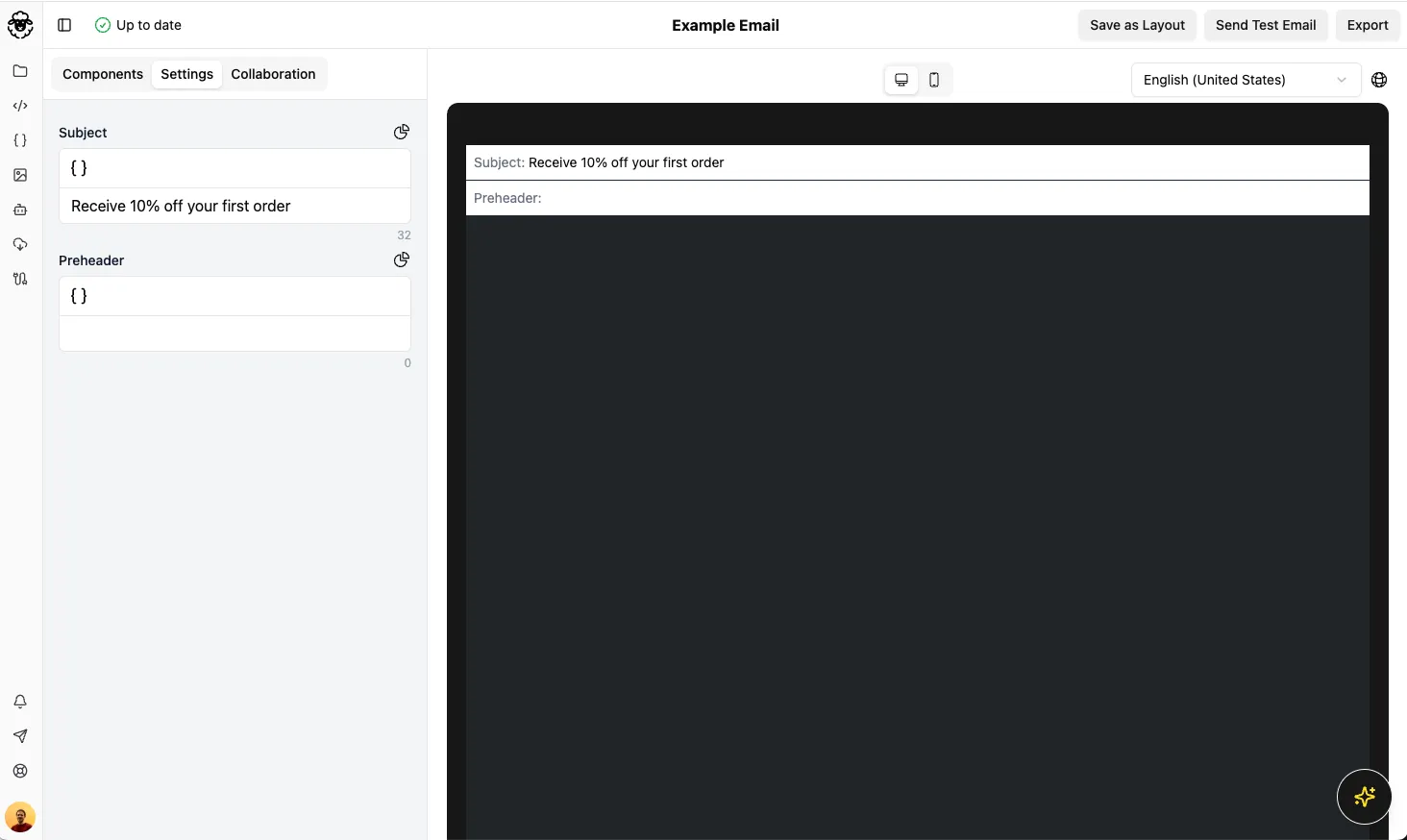
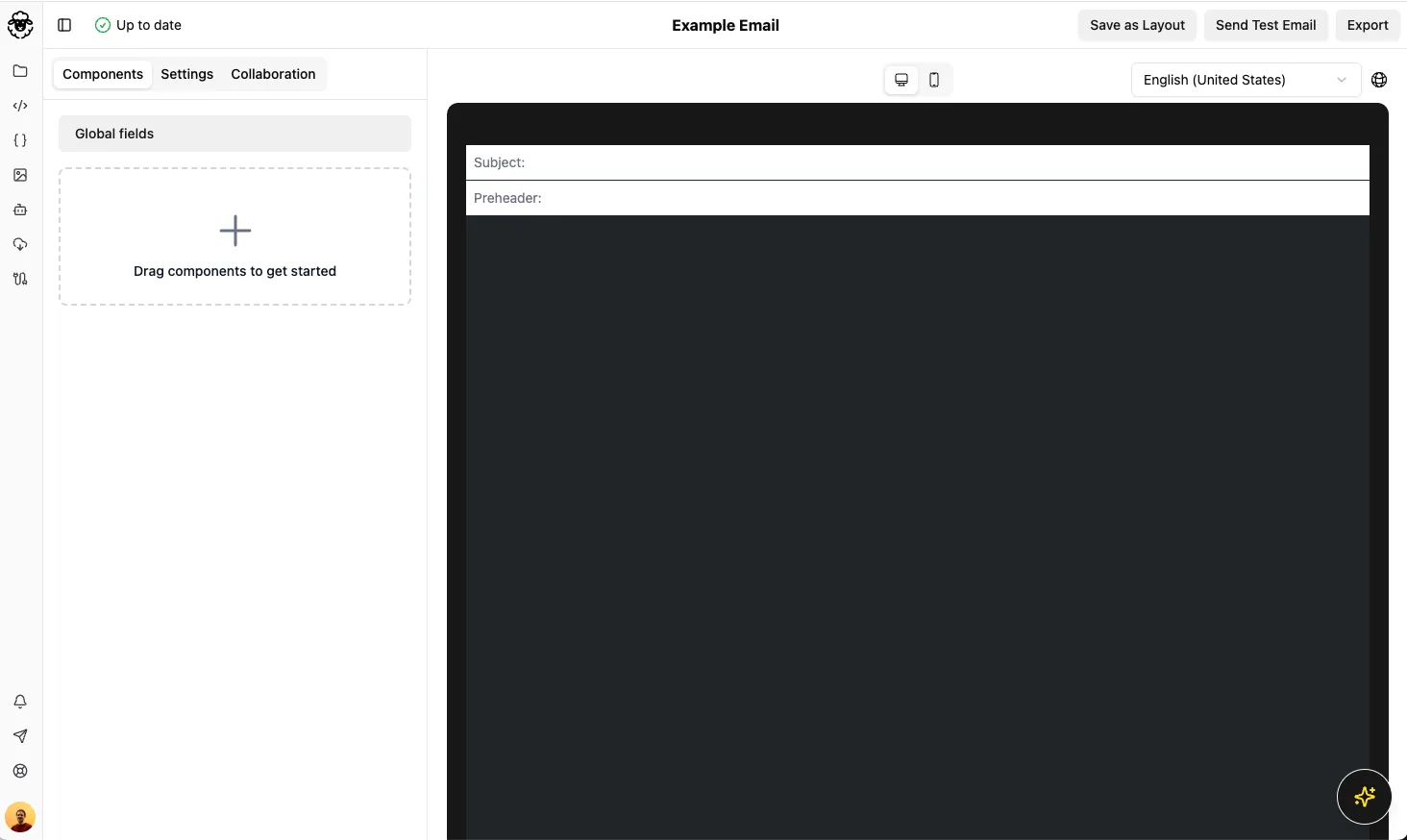
The editor has a sidebar on the left, where you add and edit content, and a live preview of your email on the right. The sidebar has a Components tab for the body of the email and a Settings tab for the subject and preheader.
Before you begin
Section titled “Before you begin”You need an email to work on. See How to create your first email.
Add a component
Section titled “Add a component”Components are the building blocks of your email, such as a header, a hero image or a block of text.
-
In the Components tab, click the box that says Drag components to get started. Once your email has content, the box says Add more components.
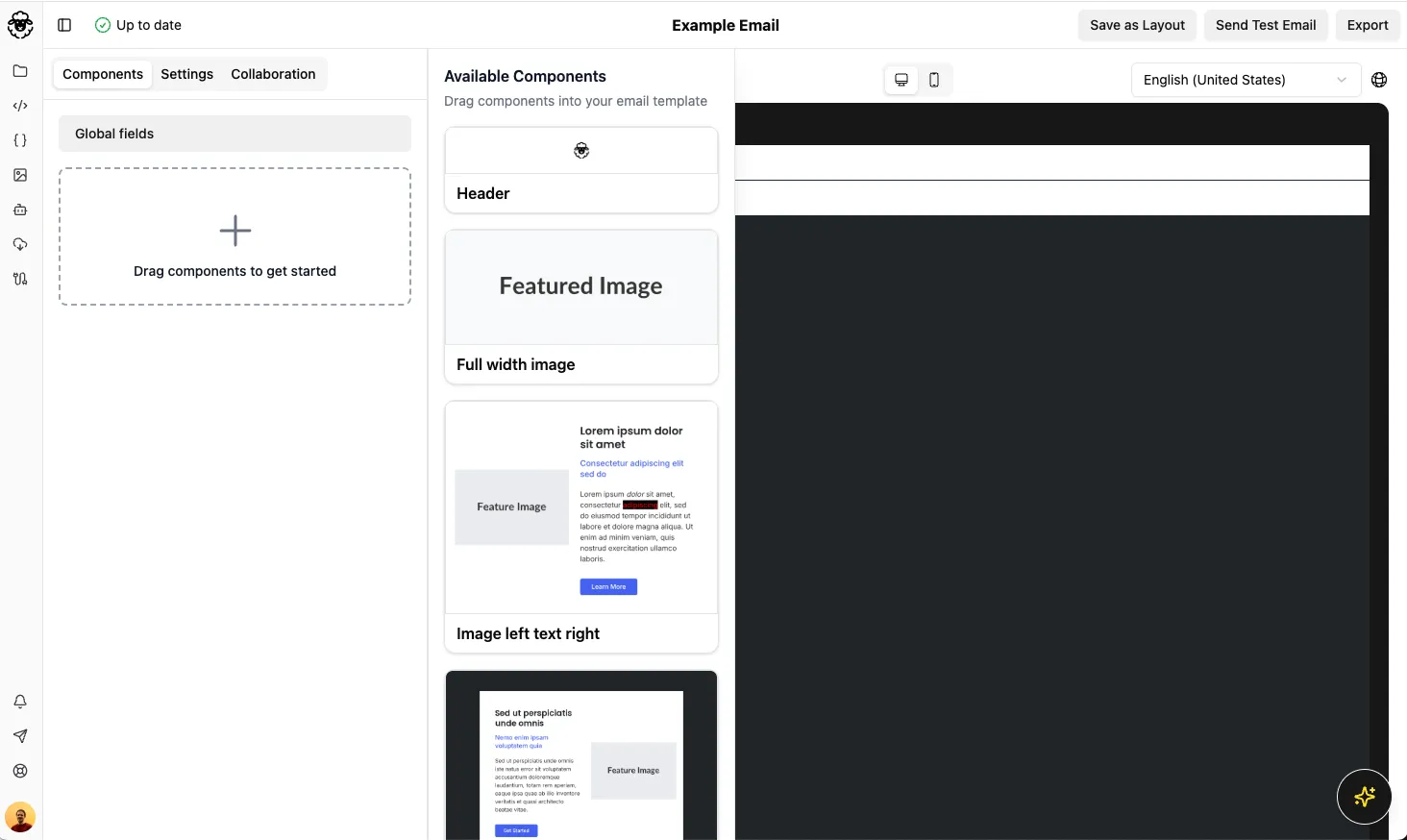
The Available Components panel opens, showing the components in your Email Design System (EDS).
-
Drag a component from the panel into the box in the sidebar.
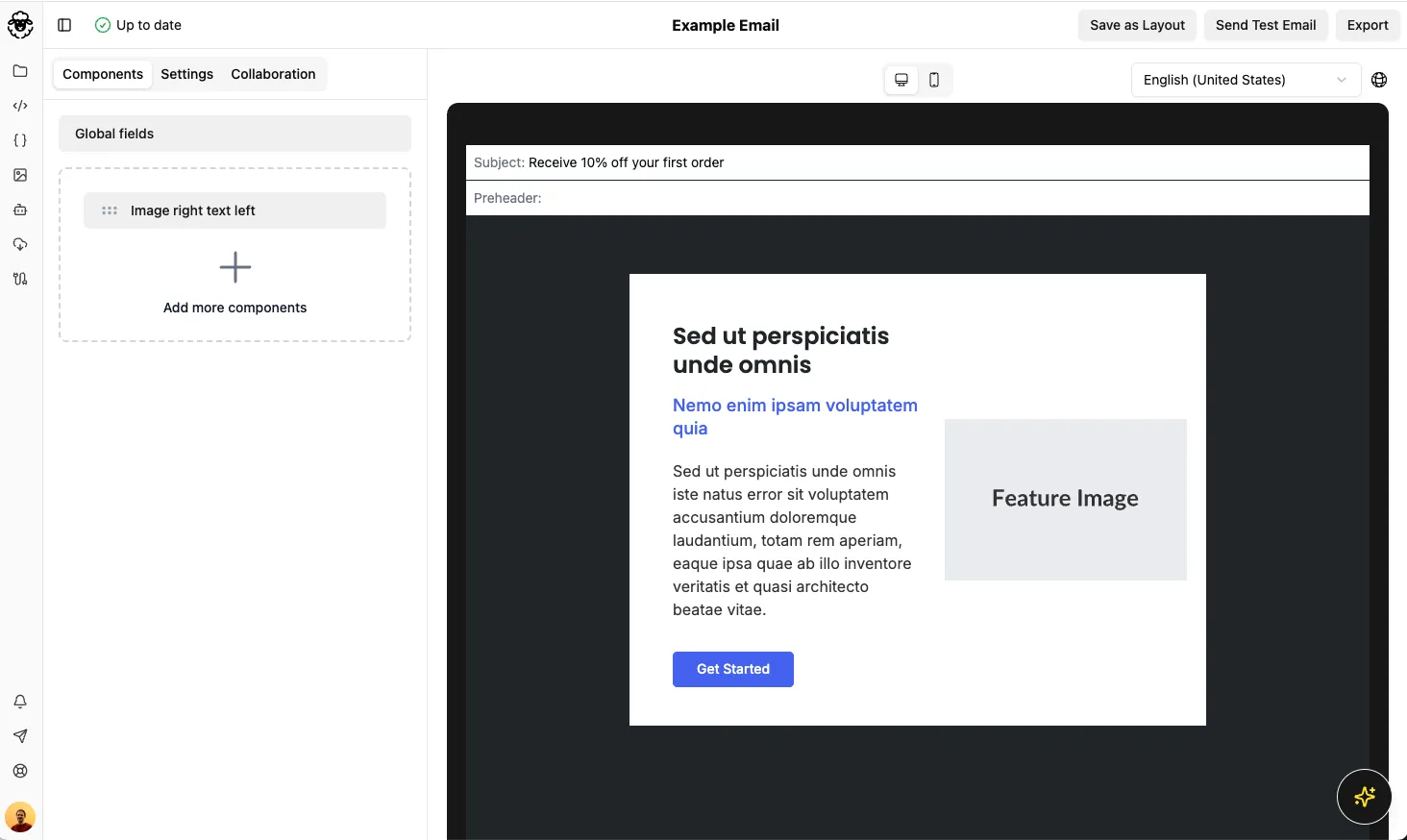
The component appears in the sidebar and in the preview.
Edit a component’s content
Section titled “Edit a component’s content”-
Click the component in the sidebar, or click it in the preview.
The sidebar shows the component’s fields, such as its text, images and links. Your EDS decides which fields each component has.
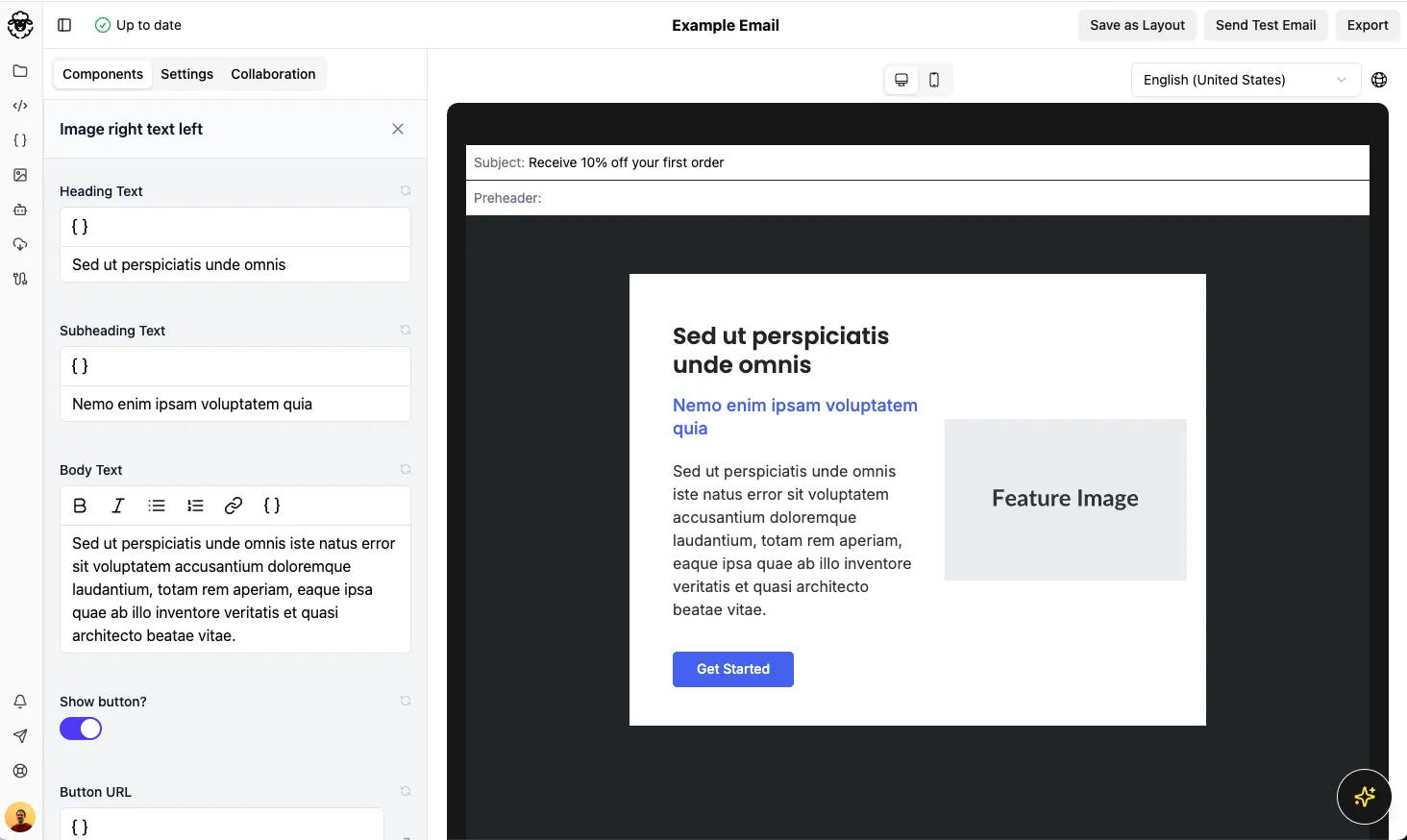
-
Edit the fields. The preview updates as you type.
-
Click Close to go back to the list of components.
You can also edit global fields by clicking Global fields at the top of the components list.
Set the subject and preheader
Section titled “Set the subject and preheader”-
Click the Settings tab.
-
In Subject, enter the email’s subject line.
-
In Preheader, enter the email’s preheader.