How to comment on an email and mention teammates
This article shows you how to comment on an email, reply to comments, mention teammates and resolve comments.
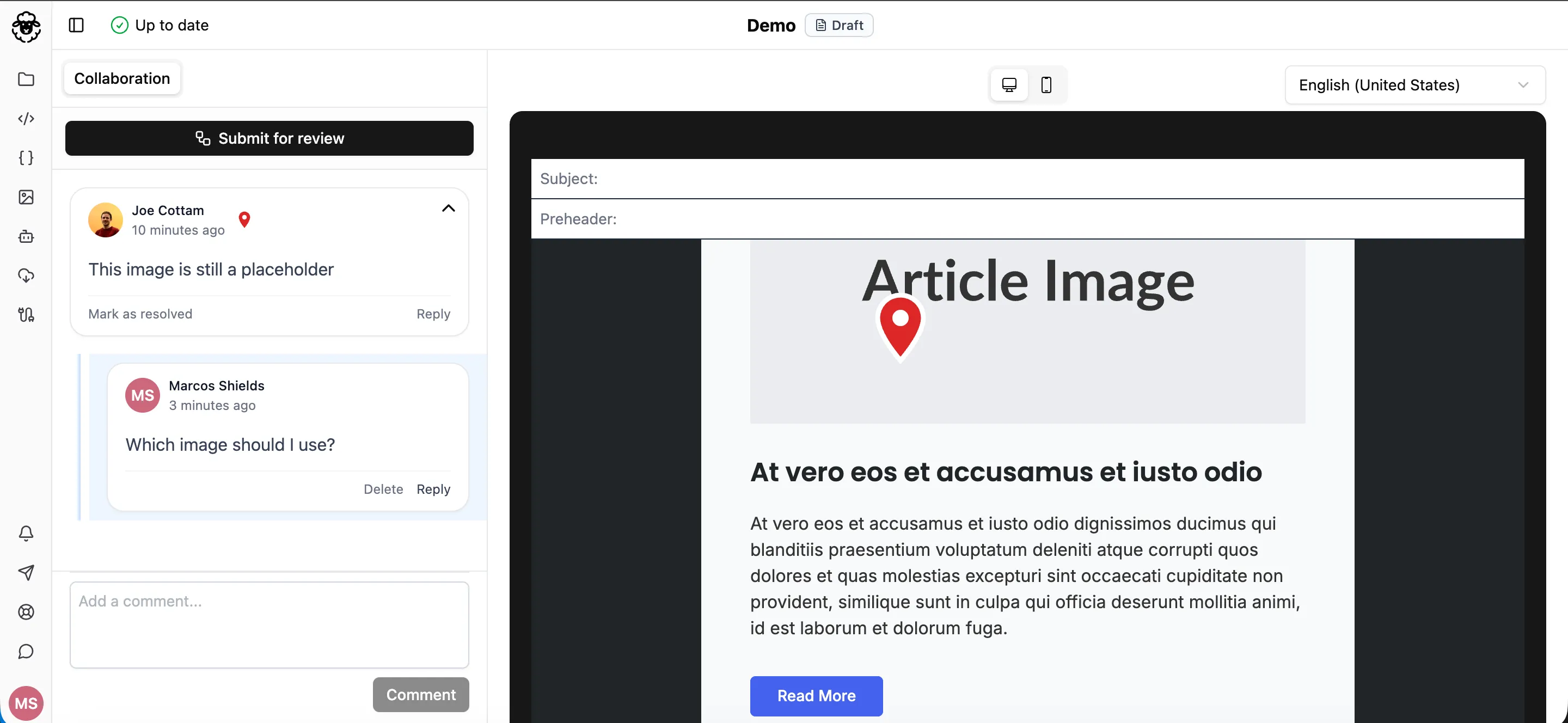
Comments let you and your team discuss an email in the editor. You can comment on selected text, pin a comment to a particular part of the email, or add a general comment in the sidebar.
Open the comments
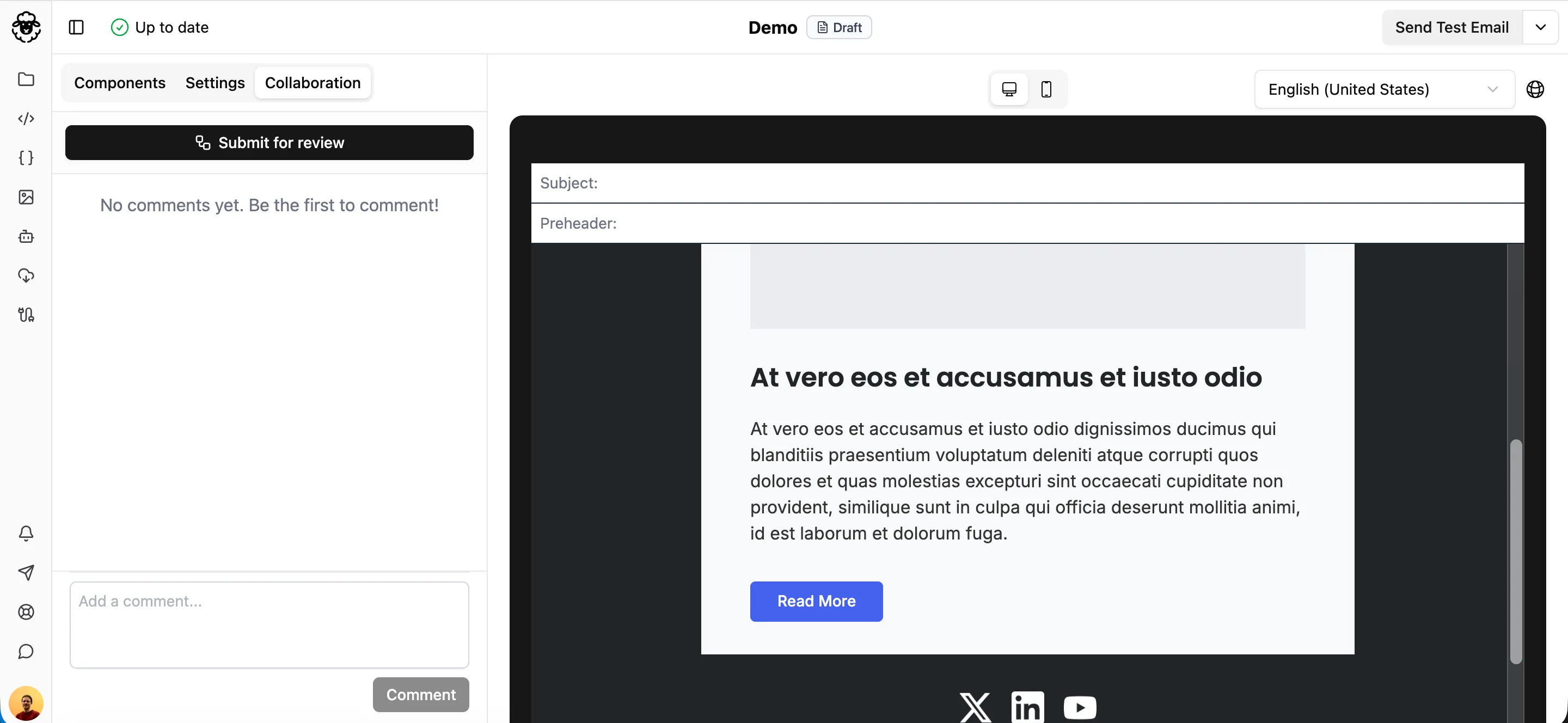
Section titled “Open the comments”In the editor, click the Collaboration tab. The sidebar shows comment threads for the open locale. If the email has more than one locale, turn on All locales to see comments, pins and text highlights across all locales.
Comment on selected text
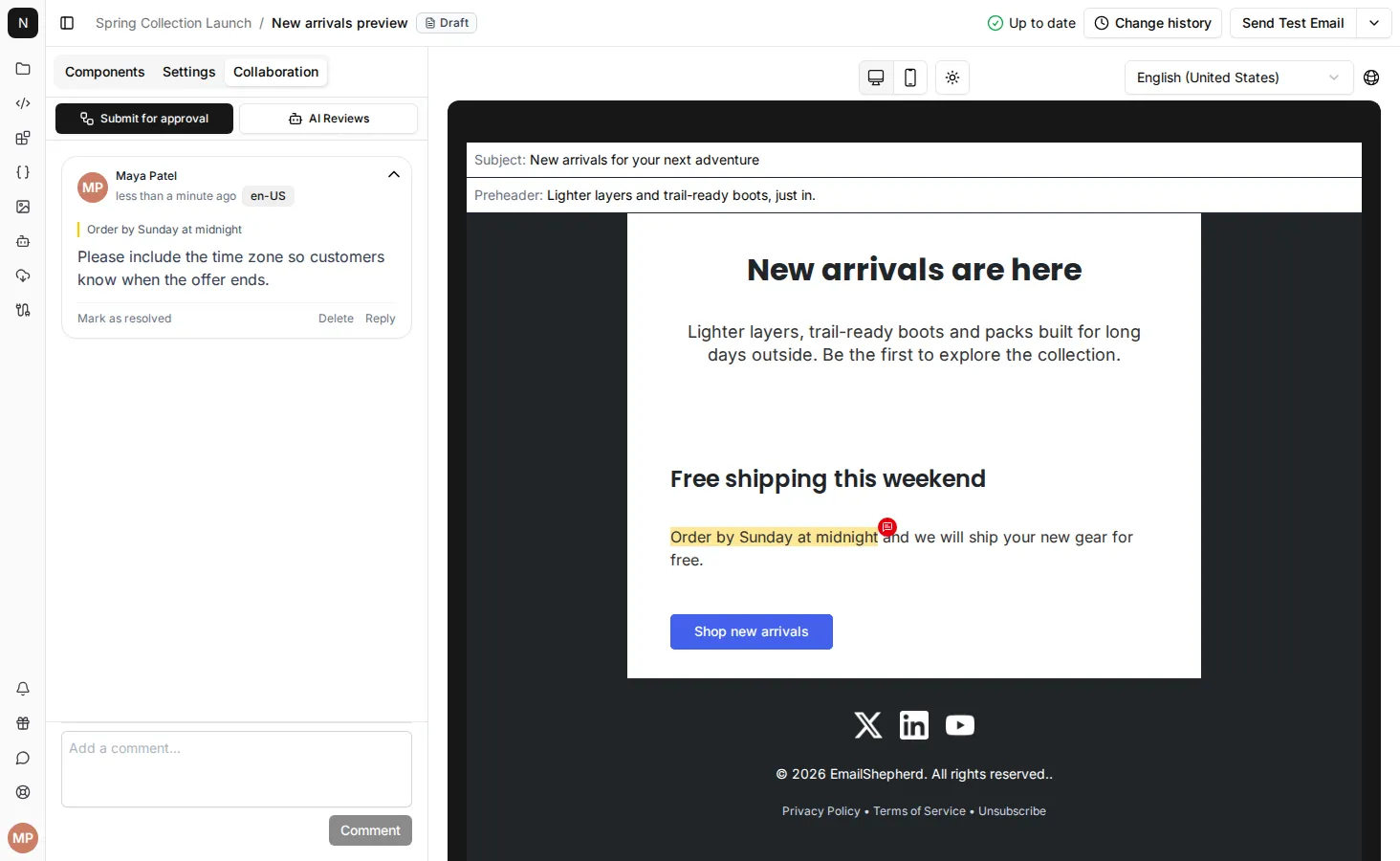
Section titled “Comment on selected text”- With the Collaboration tab open, select the text in an email component that you want to comment on.
- Type your comment in the form that appears.
- Click Submit.
The text is highlighted in the preview. Click the comment marker beside the highlight to open the comment, or click the quoted text in the sidebar to jump to it.
Pin a comment to the email
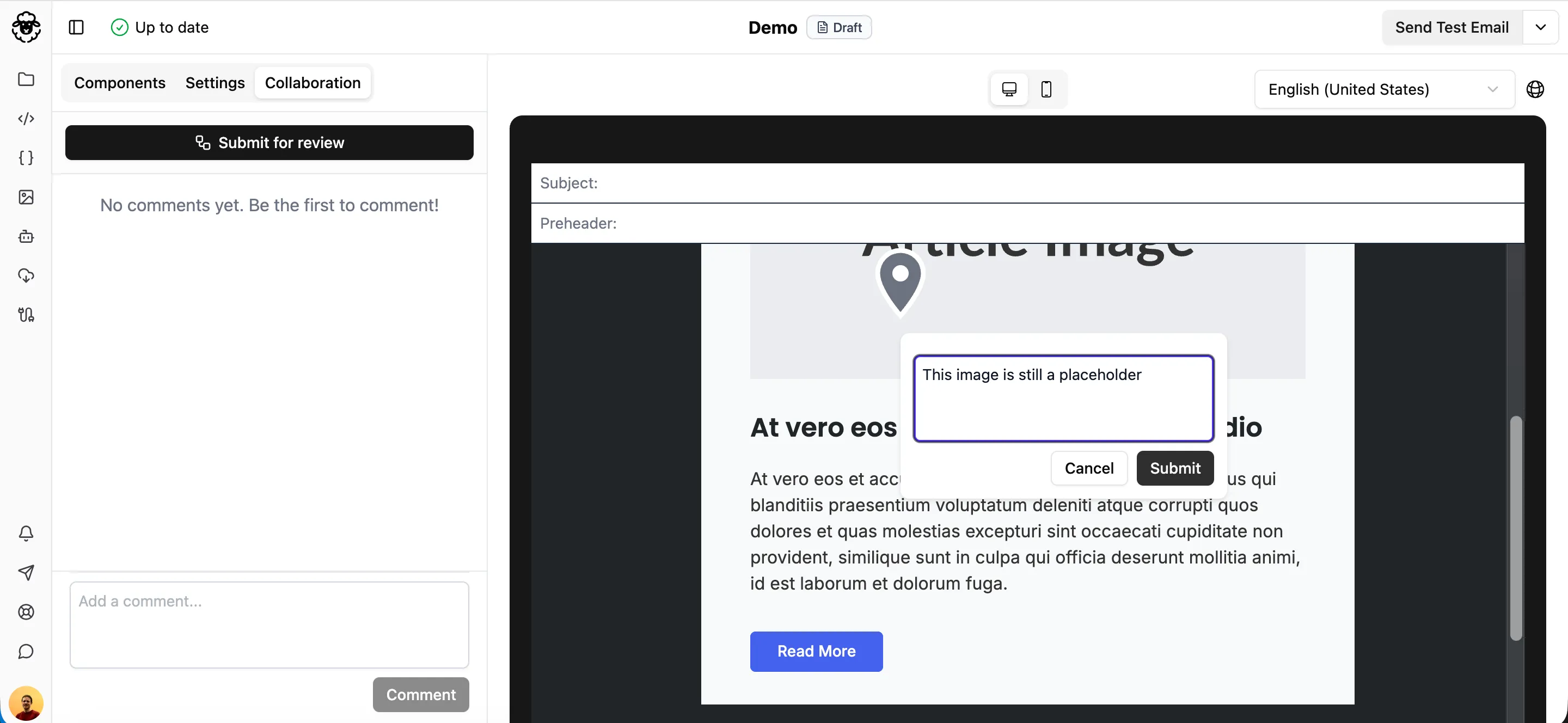
Section titled “Pin a comment to the email”- With the Collaboration tab open, click anywhere on the email preview where you want to leave feedback.
- Type your comment in the pin that appears.
- Click Submit.
Hover over a comment in the sidebar to highlight its pin on the email, or hover over a pin to highlight the comment. This makes it easy to see what each comment refers to.
Add a comment in the sidebar
Section titled “Add a comment in the sidebar”- In the Add a comment… field at the bottom of the sidebar, type your comment.
- Click Comment.
Reply to a comment
Section titled “Reply to a comment”Each new comment starts its own thread, and team members can reply to keep discussions organized.
- Under the comment, click Reply.
- Type your reply.
- Click Reply.
Replies are grouped under the original comment.
Mention a teammate
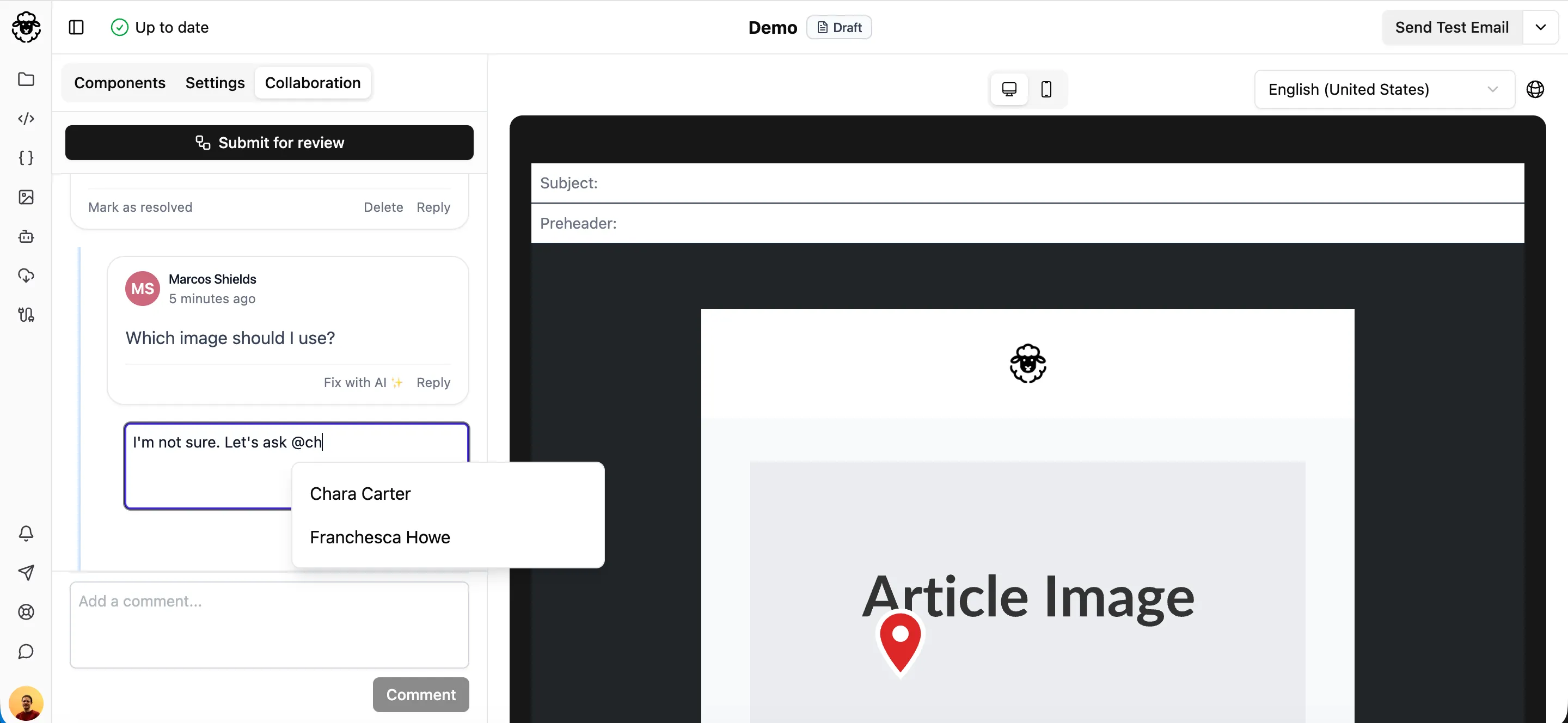
Section titled “Mention a teammate”- In any comment or reply, type
@. - Select a teammate from the dropdown.
They’ll receive a notification about the mention.
You’ll be notified when:
- Someone mentions you with
@. - Someone replies to a comment thread you’re participating in.
Resolve a comment
Section titled “Resolve a comment”Mark comment threads as resolved once feedback has been addressed or the discussion is complete.
- On the comment thread, click Mark as resolved.
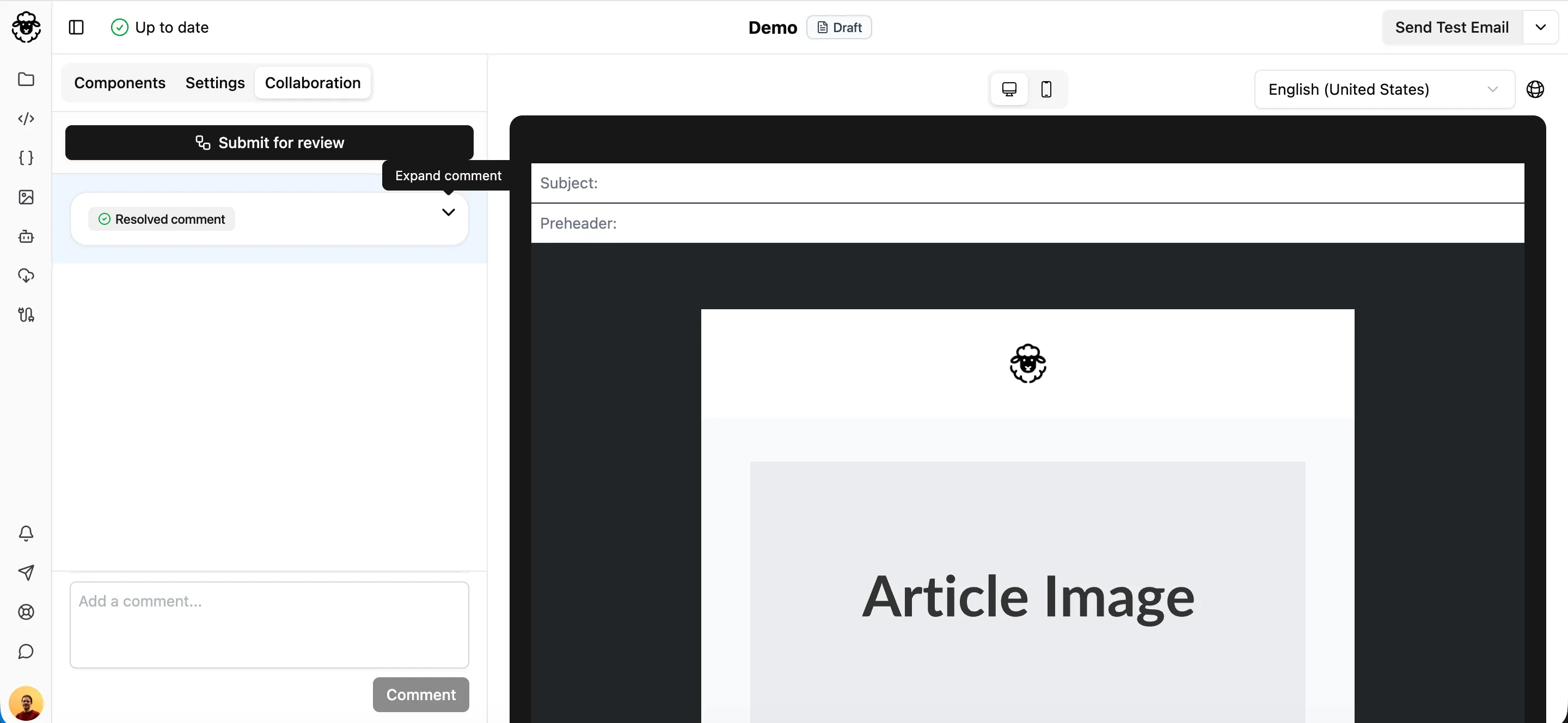
The pin is removed from the email, and the thread collapses to Resolved comment in the sidebar. To read it again, click the arrow beside it.
To reopen a thread, expand it and click Mark as unresolved. If it was a pinned comment, the pin reappears on the email.