

How to save and use layouts
This article shows you how to save an email as a layout, and then create new emails from it.
A layout is a saved copy of an email’s components and content. If you regularly send emails with a similar format, such as a weekly newsletter, you can start each new email from a layout instead of adding the same components and content every time.
Save an email as a layout
Section titled “Save an email as a layout”-
Open the email you want to save as a layout.
-
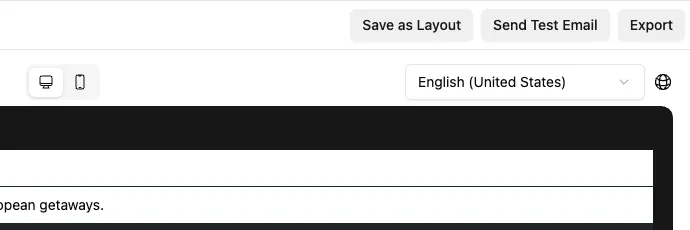
In the top bar, click the arrow beside the main action button, then select Save as Layout.
-
In Name, enter a name for the layout, e.g. “Weekly newsletter”.
-
Click Save layout.
The layout keeps the email’s Email Design System (EDS) and brand profile.
Create an email from a layout
Section titled “Create an email from a layout”-
Start creating a new email.
-
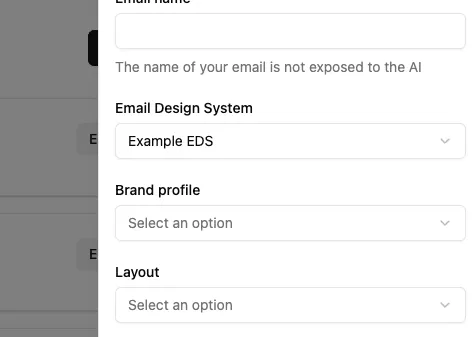
In Layout, select the layout you want to start from.
-
Fill in the rest of the form and create the email.
The new email starts with the layout’s components and content, which you can then edit. Changes you make to the email don’t affect the layout.
You can also set a default layout for a project, so it’s pre-selected each time someone creates an email there. See Set email defaults.
Rename or delete a layout
Section titled “Rename or delete a layout”- In the sidebar, click Email Design Systems, then open the Email Design System the layout was saved with.
- Select the Layouts tab.
- Open the menu beside the layout and select Rename or Delete.
- Rename: enter the new name, then click Save.
- Delete: click Delete to confirm.
To check what a layout contains, click View layout.