Skip to content

How to create your first email

This article shows you how to create an email and open it in the editor, ready for you to add content.

Every email in EmailShepherd lives in a project and is built from the components in an Email Design System (EDS). When you create an email, you choose which EDS it uses, so the editor knows which components to offer you.

You need a project to put the email in. If you don’t have one yet, see How to create a project.

  1. In the sidebar, click Projects, then click the project you want to add the email to.

  2. Click New email. If you can also create folders, click Create, then Email.

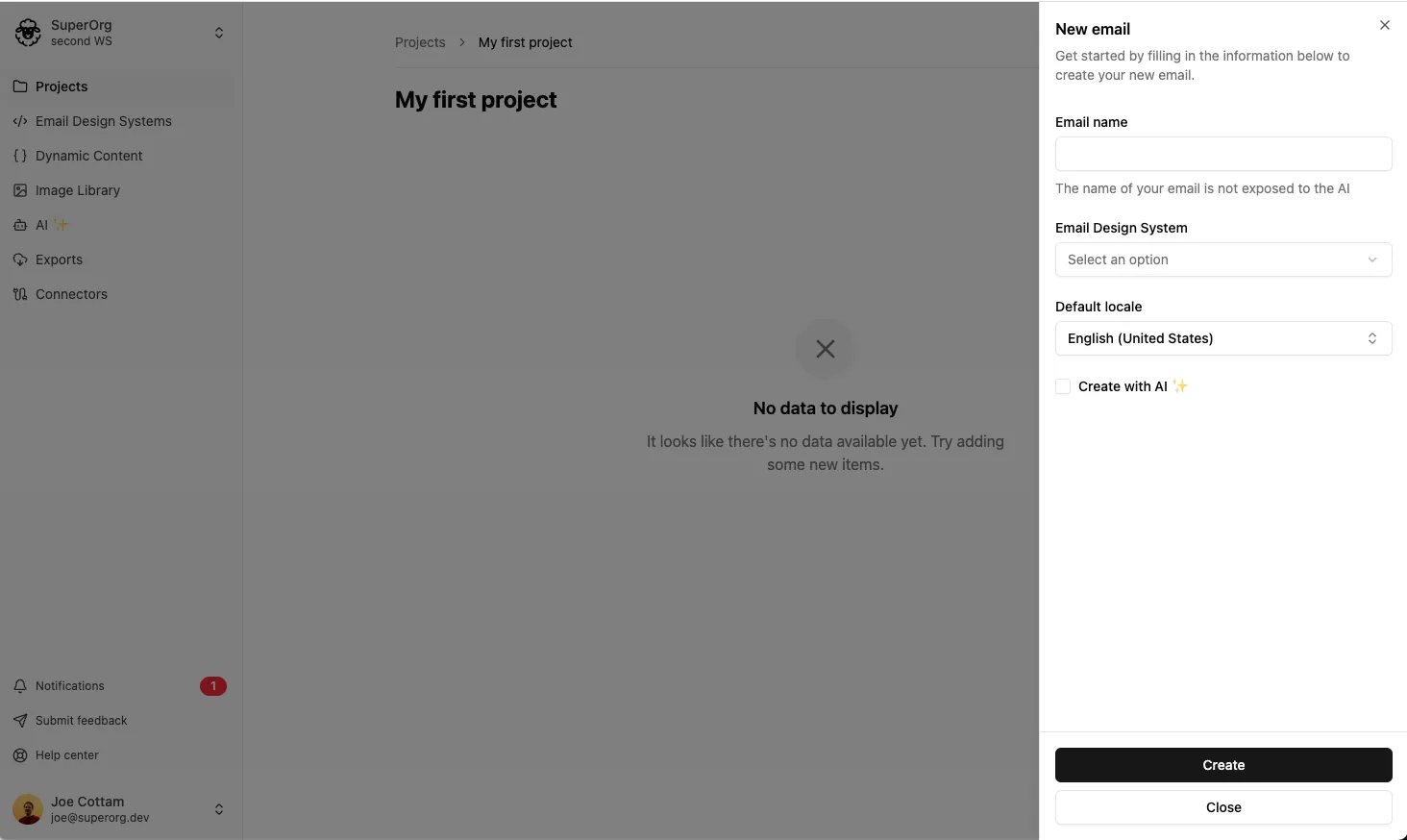
    The New email form

  3. In Email name, enter a name for the email, e.g. “October newsletter”.

  4. In Email Design System, select the EDS the email will use. If you’re just trying things out, choose the built-in EDS. You can create your own EDS later.

  5. If the EDS has brand profiles, select one in Brand profile. To learn more, see Brand profiles.

  6. Optionally, in Layout, choose a layout to start from instead of a blank email. This only appears if your EDS has layouts. See How to save and use layouts.

  7. In Default locale, select the main language of the email.

  8. Click Create.

The email opens in the editor. Next, learn how to build an email in the editor.