

How to use a conditional in an email
This article shows you how to add a conditional to a component, subject or preheader, so different recipients see different content.
A conditional splits content into branches, one for each group of recipients. For example, a loyalty program email might have a gold members branch, a silver members branch and an everyone else branch. You write the content for each branch, and when the email is exported, EmailShepherd adds the ESP code that decides which branch each recipient sees.
Before you begin
Section titled “Before you begin”You can use a reusable conditional that’s already set up in your workspace, or set up an inline conditional just for this email. To set up a reusable conditional, see How to create a conditional. That article also explains how branches and syntax work.
Add a conditional to a component
Section titled “Add a conditional to a component”When you add a conditional to a component, EmailShepherd creates a copy of the component for each branch. You can then edit each copy separately.
-
Open the email and open the component.
-
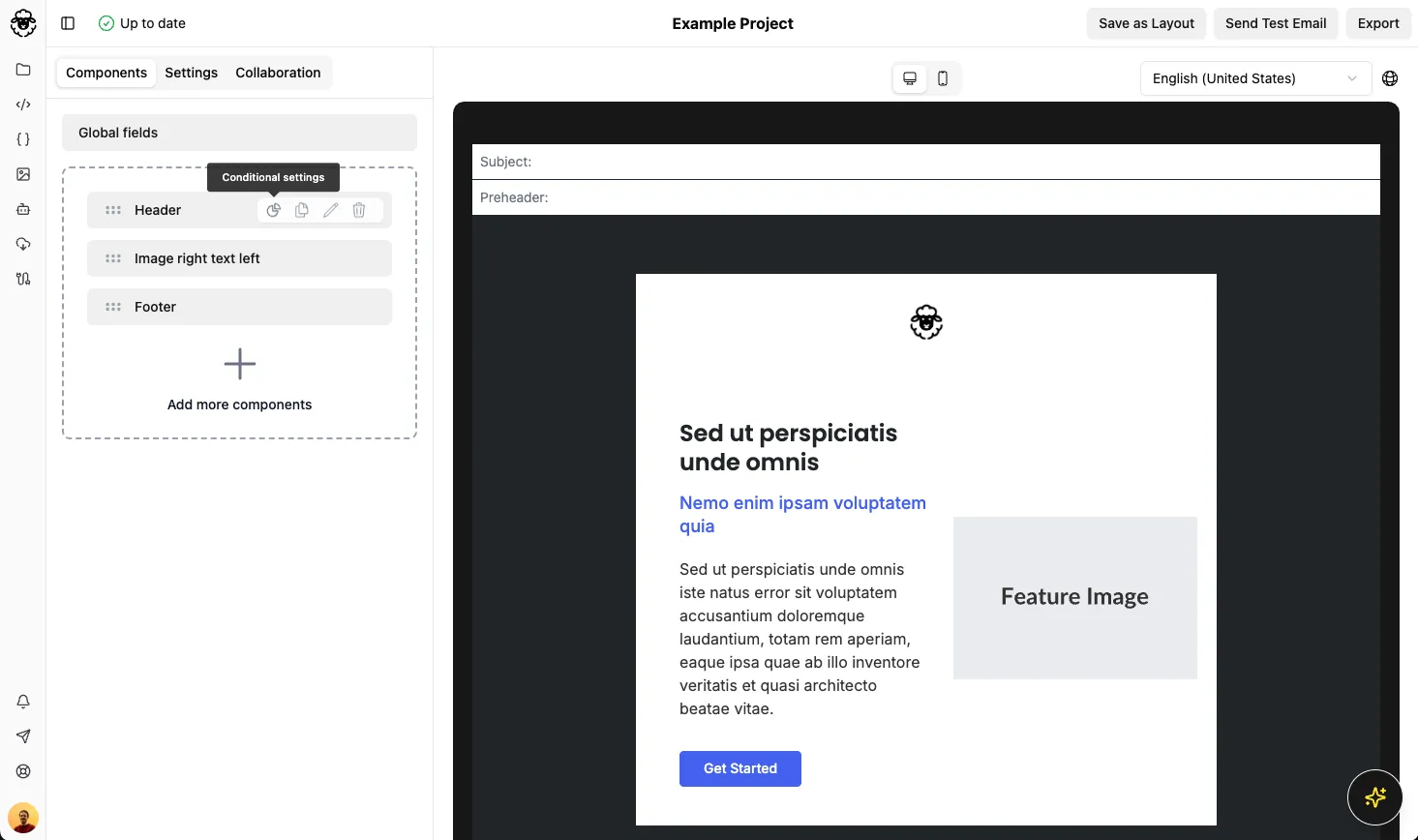
Click the pie chart icon (Conditional settings).
-
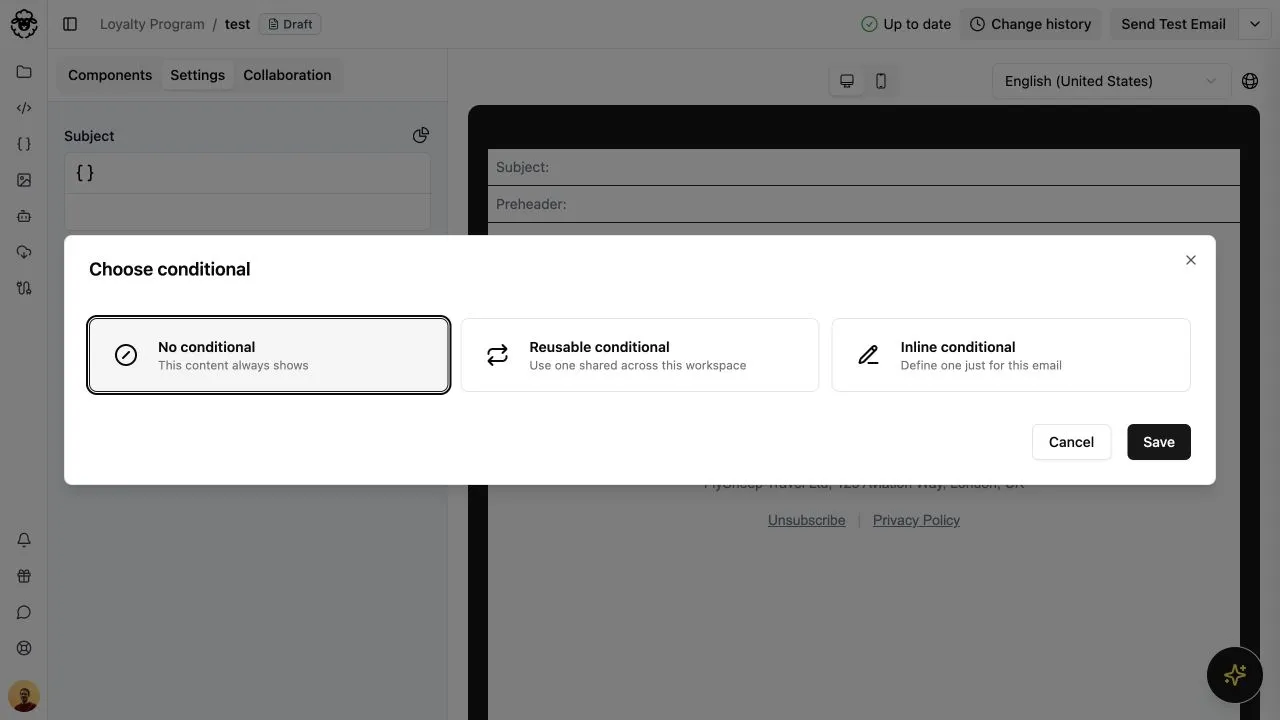
In Choose conditional, select the type of conditional:
- Reusable conditional: use one that’s shared across your workspace. Choose it from the list.
- Inline conditional: set one up just for this email. See Set up an inline conditional.
-
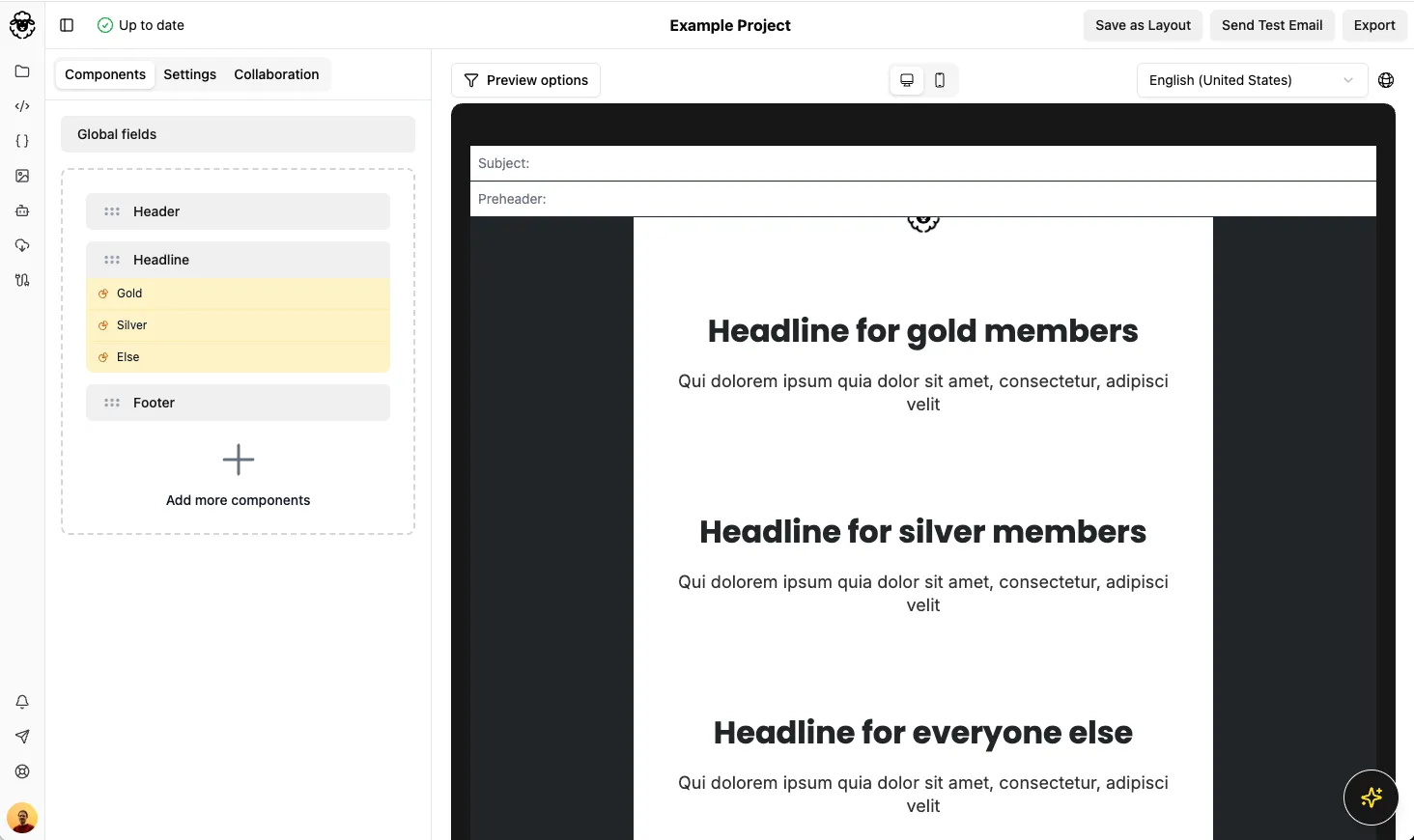
Click Save. The component list and the preview now show a copy of the component for each branch.
-
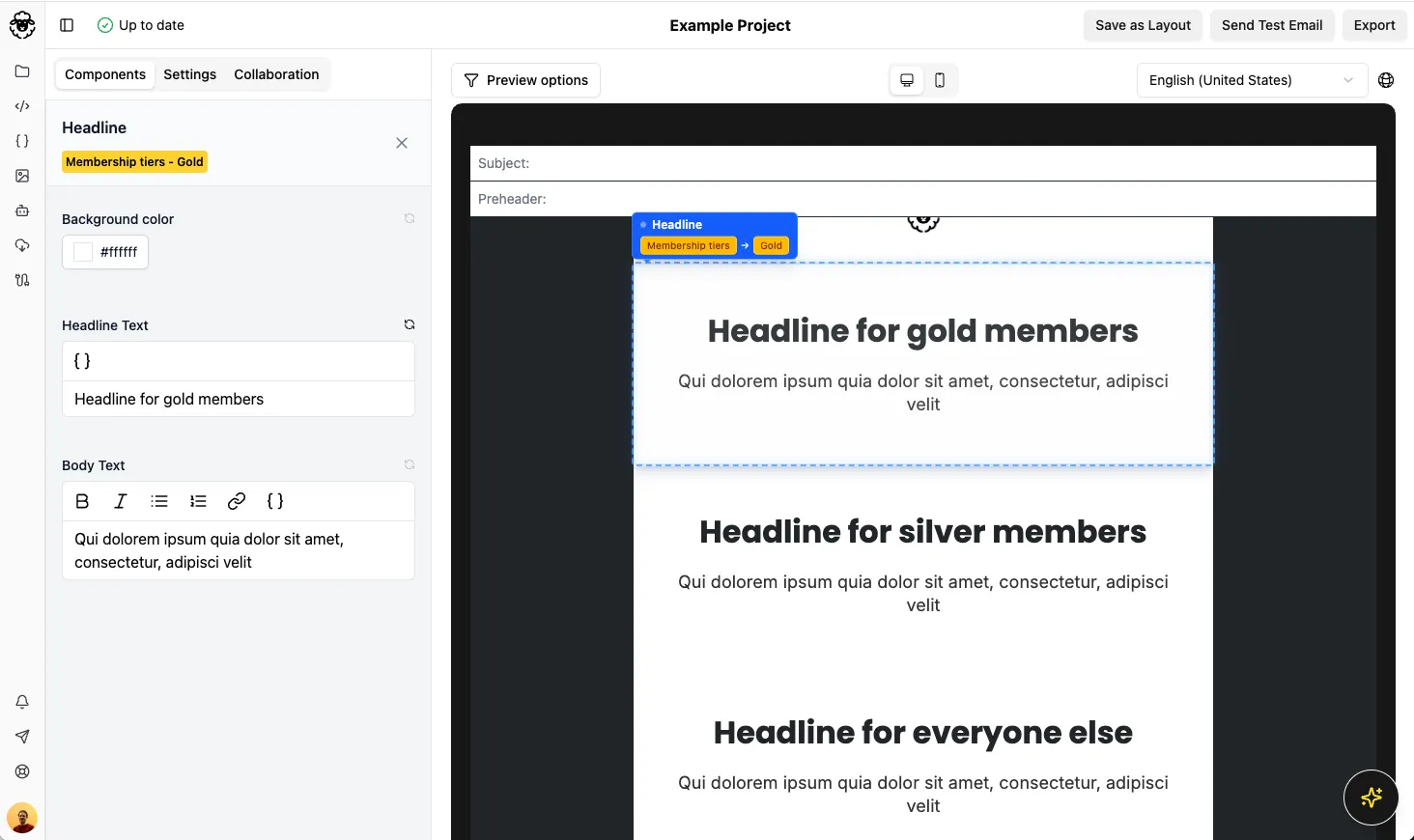
In the component list, select each branch and edit its content.
To remove the conditional, open Choose conditional again and select No conditional.
Add a conditional to a subject or preheader
Section titled “Add a conditional to a subject or preheader”The list of reusable conditionals only shows the ones set up to be used in a subject and preheader.
-
Open the email and select the Settings tab.
-
Click the pie chart icon (Conditional settings) beside the subject or preheader.
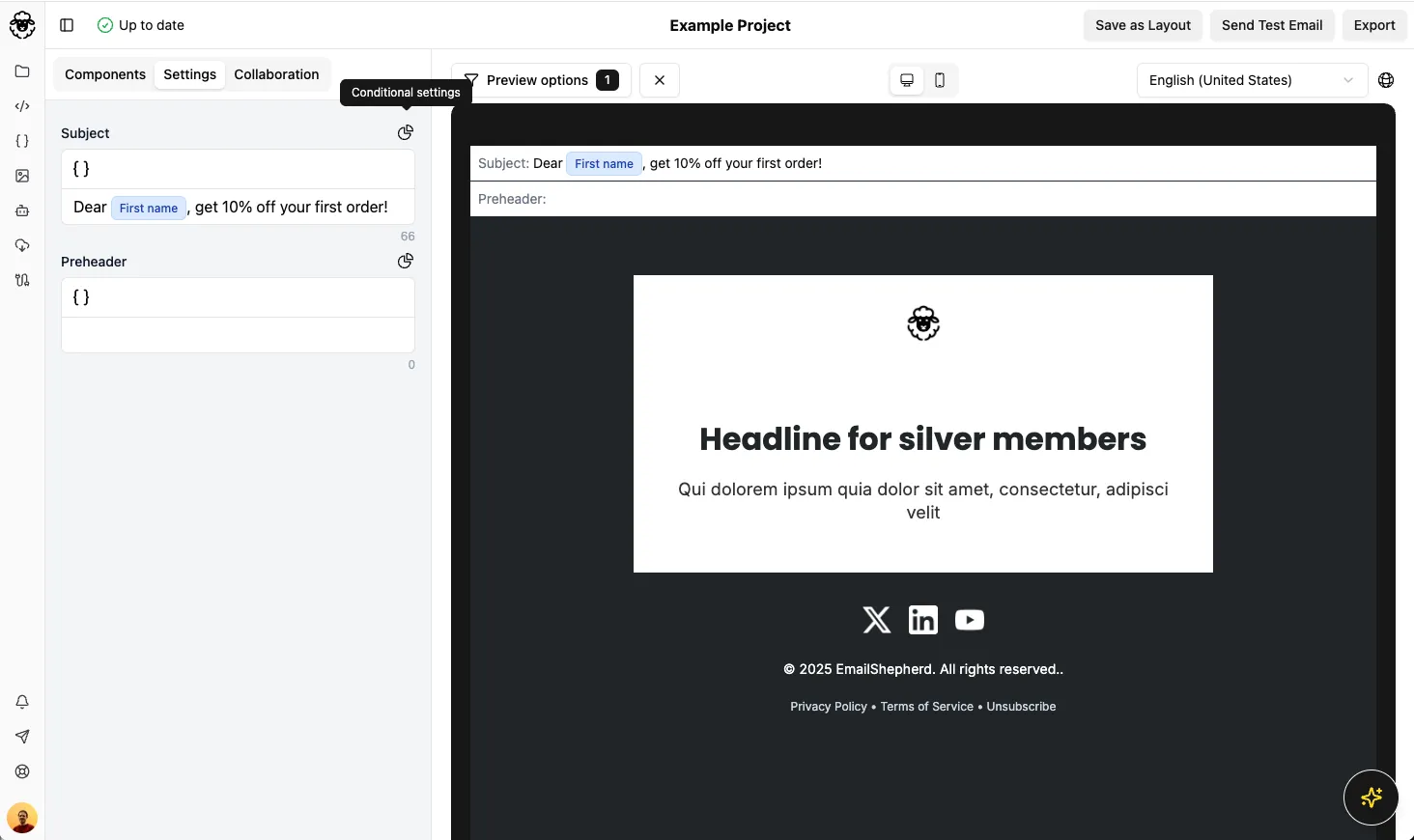
-
In Choose conditional, select Reusable conditional and choose one from the list, or select Inline conditional and set one up.
-
Click Save.
-
Enter the subject or preheader for each branch.
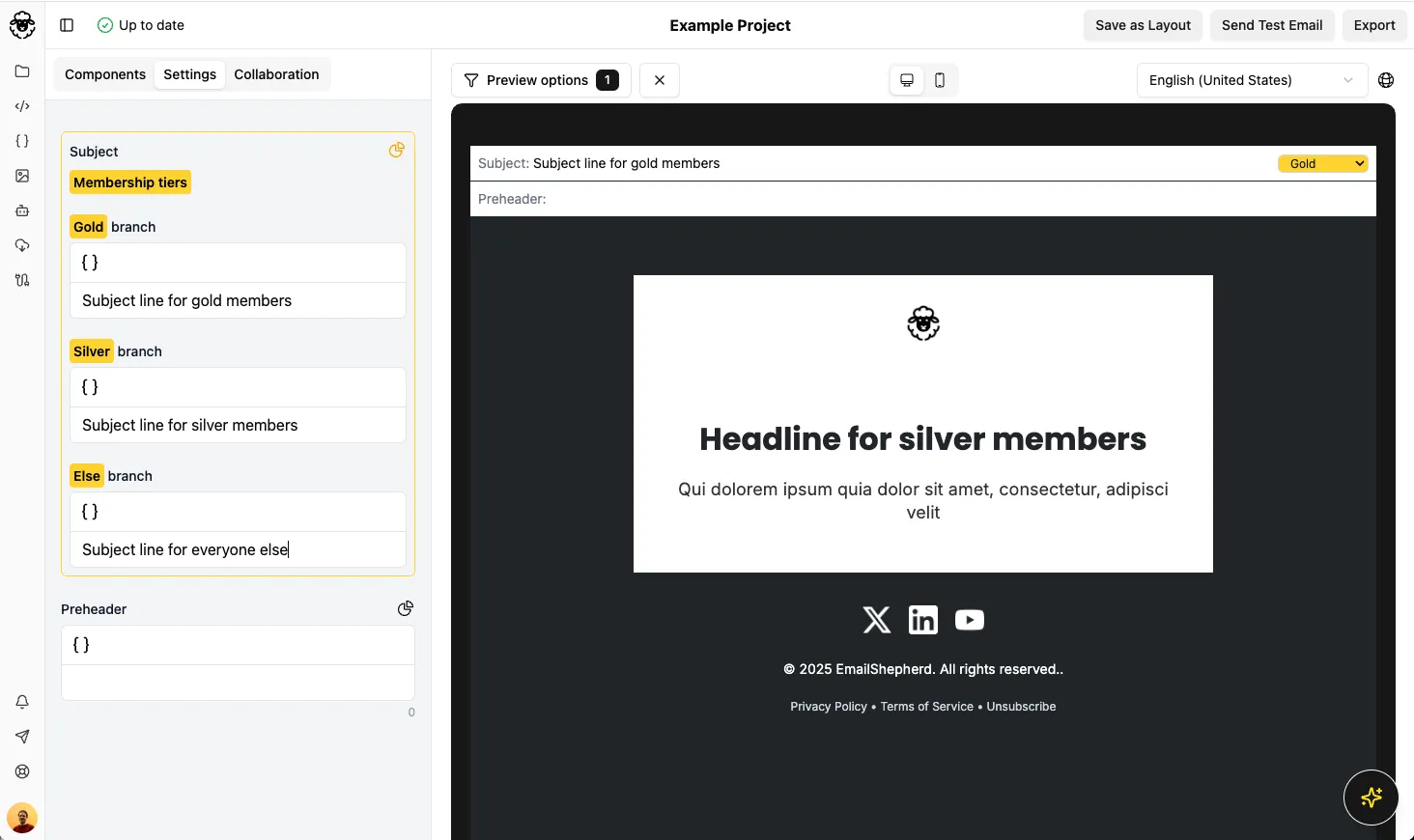
Set up an inline conditional
Section titled “Set up an inline conditional”An inline conditional is set up in the email and only used there. You set it up from Choose conditional, after selecting Inline conditional.
- Under Branches, enter a label for each branch, e.g. “Gold members”. Click Add branch to add another one.
- Under Syntax, enter the syntax that starts each branch, then the closing syntax.
- If you export to more than one ESP and one needs different syntax, select that ESP’s dynamic content profile tab, click Customize syntax and enter the syntax. To go back to the default, click Use default syntax.
- Click Save.
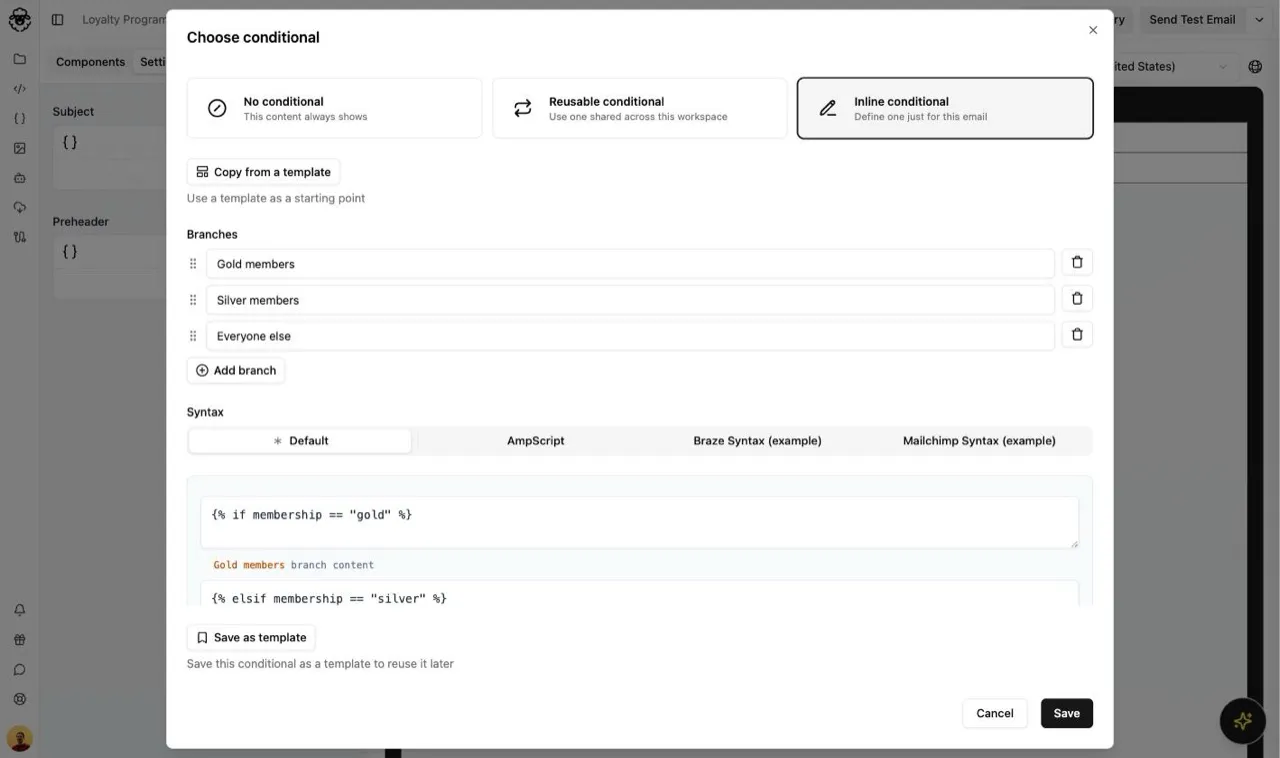
Save an inline conditional as a template
Section titled “Save an inline conditional as a template”If you’ll need a similar inline conditional in other emails, save it as a template to start from next time.
- Below the branches, click Save as template.
- In Name, enter a name for the template.
- Click Save template.
To start from a template, click Copy from a template and choose it from the list. This copies the template’s branches and syntax, which you can then change without affecting the template.
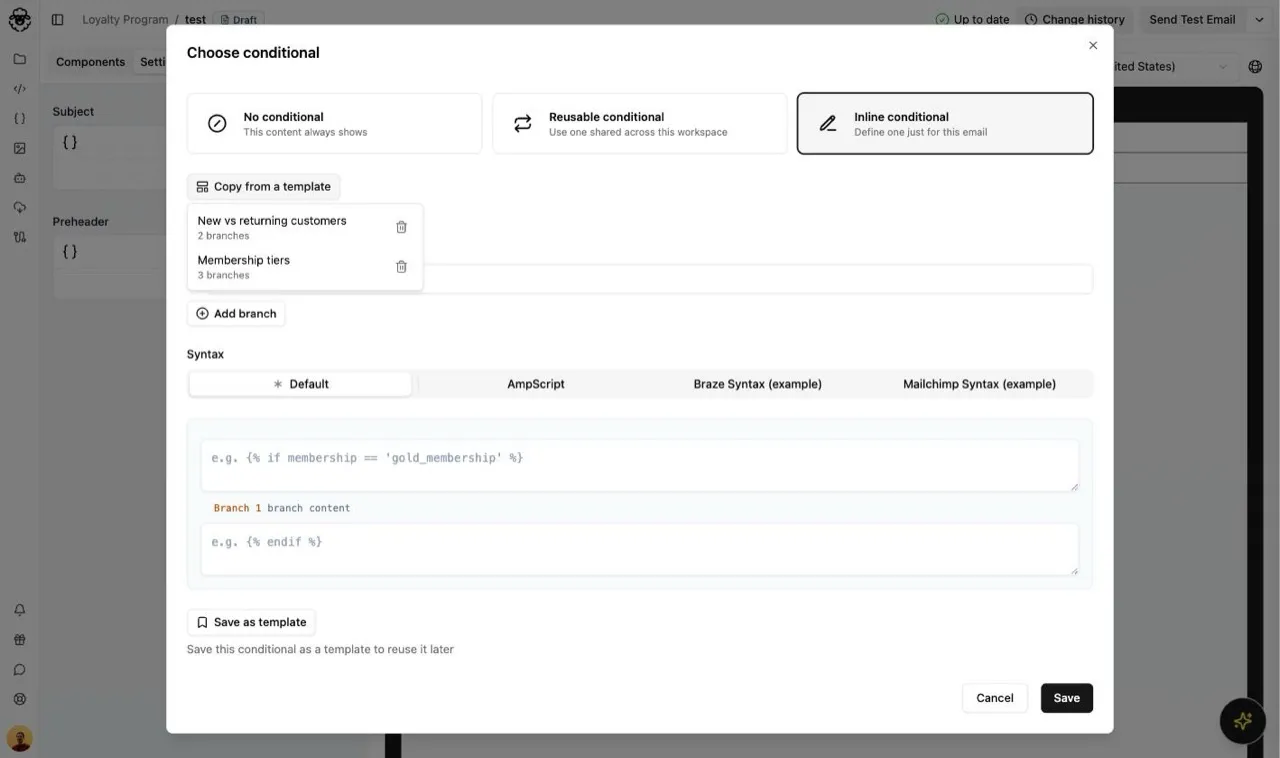
To delete a template, click the delete icon beside it in the list.
Preview one branch at a time
Section titled “Preview one branch at a time”By default, the preview shows every branch. To check what one group of recipients will see, see How to preview personalization tags and conditional content.