

Component Builder
This article shows you how to use Component Builder, and how your changes are saved and applied.
Component Builder is where you build and edit everything in an Email Design System (EDS): components, their templates and fields, design tokens and custom styles.
Open Component Builder
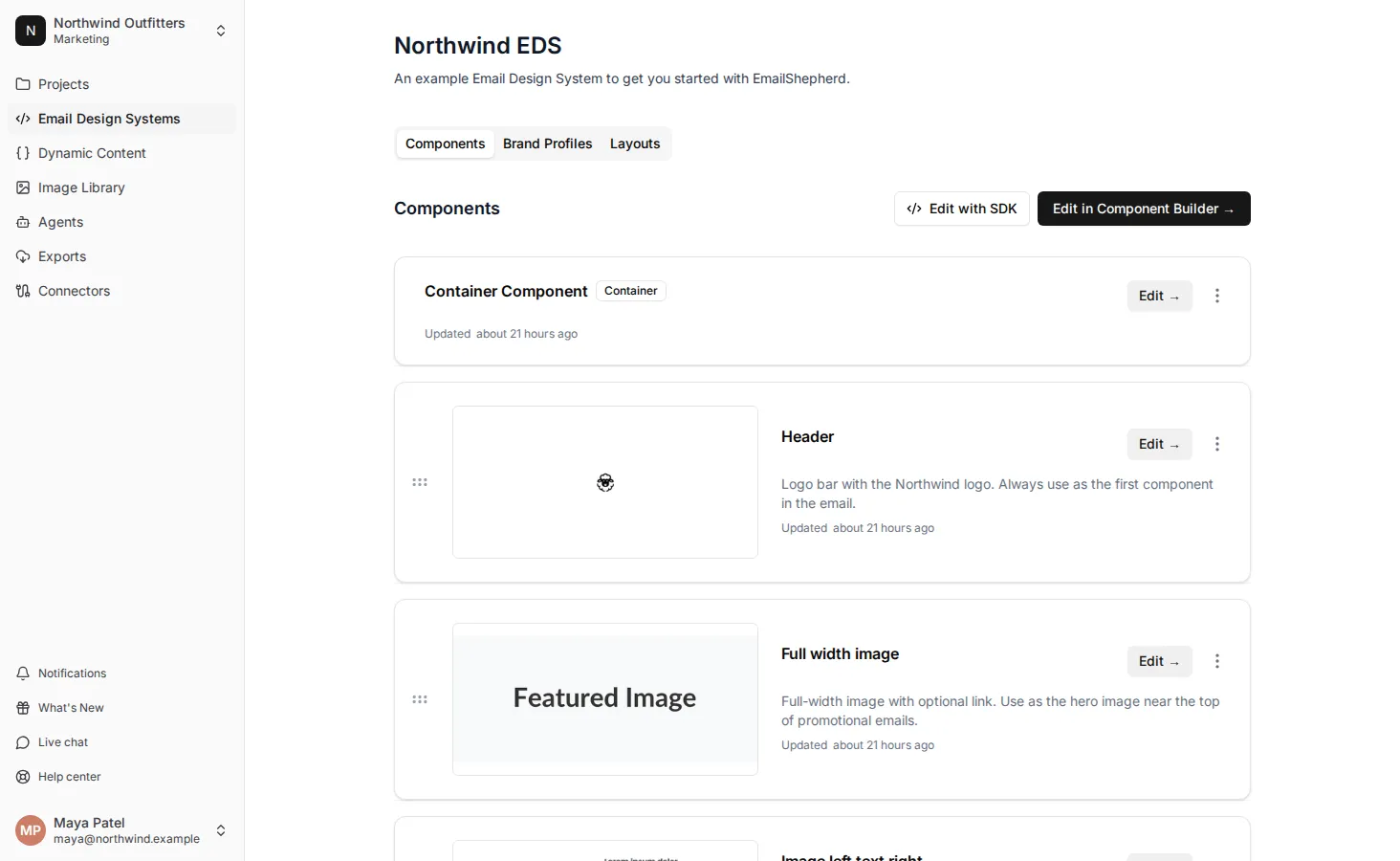
Section titled “Open Component Builder”- In the sidebar, click Email Design Systems.
- Click the EDS you want to edit.
- On the Components tab, click Edit in Component Builder. To go straight to one component, click Edit on that component instead.
Find your way around
Section titled “Find your way around”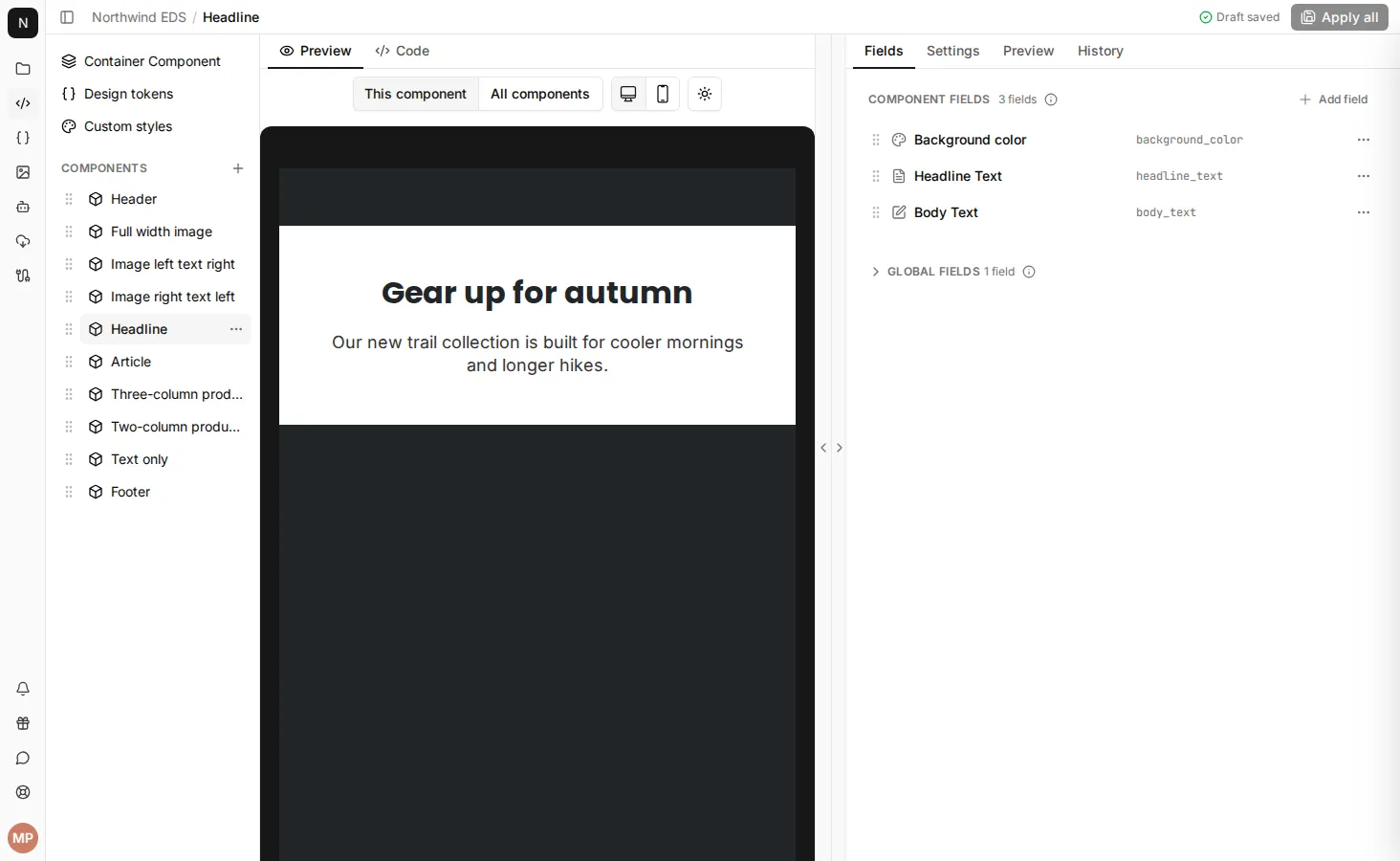
Component Builder has three panels:
- The left panel lists everything in the EDS. Click an item to open it:
- Container Component: the outer shell of every email.
- Design tokens: shared values for your components.
- Custom styles: extra formatting options for rich text fields.
- Components: every component in the EDS, in the order they appear in the email editor.
- The middle panel shows the component you’re working on. Switch between the Preview and Code tabs to see the component or edit its template.
- The right panel has four tabs for the component:
- Fields: the fields people can edit in the email editor.
- Settings: the component’s label, description and availability.
- Preview: a second preview, so you can see the component while you edit its code.
- History: earlier versions of the component.
To give the middle or right panel more room, click the arrows on the divider between them.
The bar along the top shows which component you’re on, whether your draft is saved, and the Apply all button.
Preview your components
Section titled “Preview your components”The preview updates as you edit, using each field’s default value as sample content. Use the controls above the preview to change what you see:
- This component shows only the component you’re working on, inside the container. All components shows every component in the EDS, one after another. On the container component, Container only shows the container on its own.
- The desktop and mobile buttons switch the preview width.
- The dark mode button lets you choose:
- Light: how the email looks with dark mode off.
- Dark: applies the email’s own dark mode styles, as email clients like Apple Mail and Outlook on the web do.
- Forced dark: simulates email clients that recolor the email themselves, like Gmail and other Android apps.
Save and apply your changes
Section titled “Save and apply your changes”Everything you change in Component Builder is saved automatically to your own draft. The top bar shows Saving draft… while it saves, then Draft saved.
Your draft is private to you. Nobody else sees your changes, and emails keep using the current version of the EDS, until you apply them. You can close Component Builder and come back later, and your draft will still be there.
Anything you’ve changed but not yet applied has a blue dot next to it in the left panel. The Apply all button shows how many items have changes.
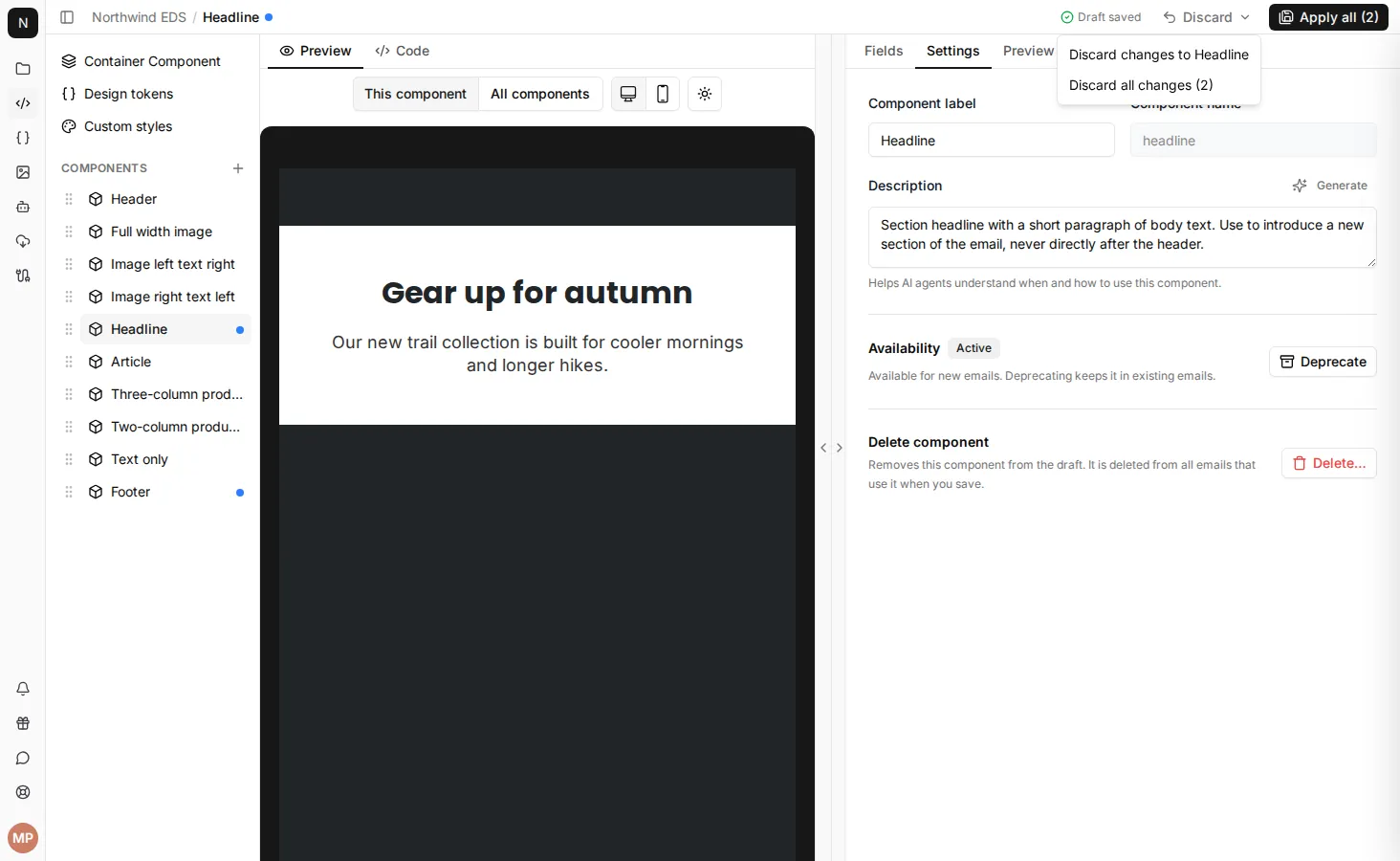
To apply your changes:
- Check your changes in the preview.
- In the top bar, click Apply all, or press Ctrl+S (Cmd+S on a Mac).
All of your changes are applied together, across every component, the design tokens and the custom styles.
You can’t apply your changes while a template has errors. See Fix template errors.
Discard your changes
Section titled “Discard your changes”To throw away your changes and go back to the last applied version:
- In the top bar, click Discard.
- If more than one item has changes, choose:
- Discard changes to [item]: discards only the item you have open.
- Discard all changes: discards every change in your draft.
- Confirm by clicking Discard changes or Discard all changes.
When someone else applies changes first
Section titled “When someone else applies changes first”If someone else applies changes to a component, the design tokens or the custom styles while you have a draft of them, you’ll see a message that there’s a newer version. Items with a newer version have an amber dot in the left panel.
Open each item and choose:
- Use latest version: throws away your draft of that item and uses the version that was just applied.
- Keep draft: keeps your changes. When you apply them, they replace the other person’s changes.
You need to choose for every item with a newer version before you can apply your changes.