

Roles and permissions
This article explains what each built-in role can do, how to create your own roles, and lists every permission.
Every user in your organization has one role. The role decides what they can do, such as edit emails, change an Email Design System or invite users. Which projects they can see is decided separately, by the teams and workspaces they belong to.
Built-in roles
Section titled “Built-in roles”EmailShepherd has four built-in roles:
- Viewer: for people who review emails. Can see and comment on emails, but can’t change anything.
- Editor: for people who build emails. Can create, edit and publish emails.
- Developer: for people who build and maintain your Email Design Systems. Can do everything an Editor can, and set up Email Design Systems, dynamic content and connectors.
- Admin: for people who run your organization. Can do everything, including managing users, roles, teams and workspaces, and can see every team’s projects.
For exactly what each role can do, see Permissions.
To give a user a different role, see Change a user’s role.
Create a custom role
Section titled “Create a custom role”If none of the built-in roles fits, create a custom role with exactly the permissions you need.
- In the top-left of the sidebar, click your organization’s name, then select Organization settings.
- Select the Roles tab.
- Click Create new role.
- In Name, enter a name for the role, such as
Designer. - Under Permissions, tick each permission the role needs. To tick every permission in a group, click Select all beside the group.
- Click Create.
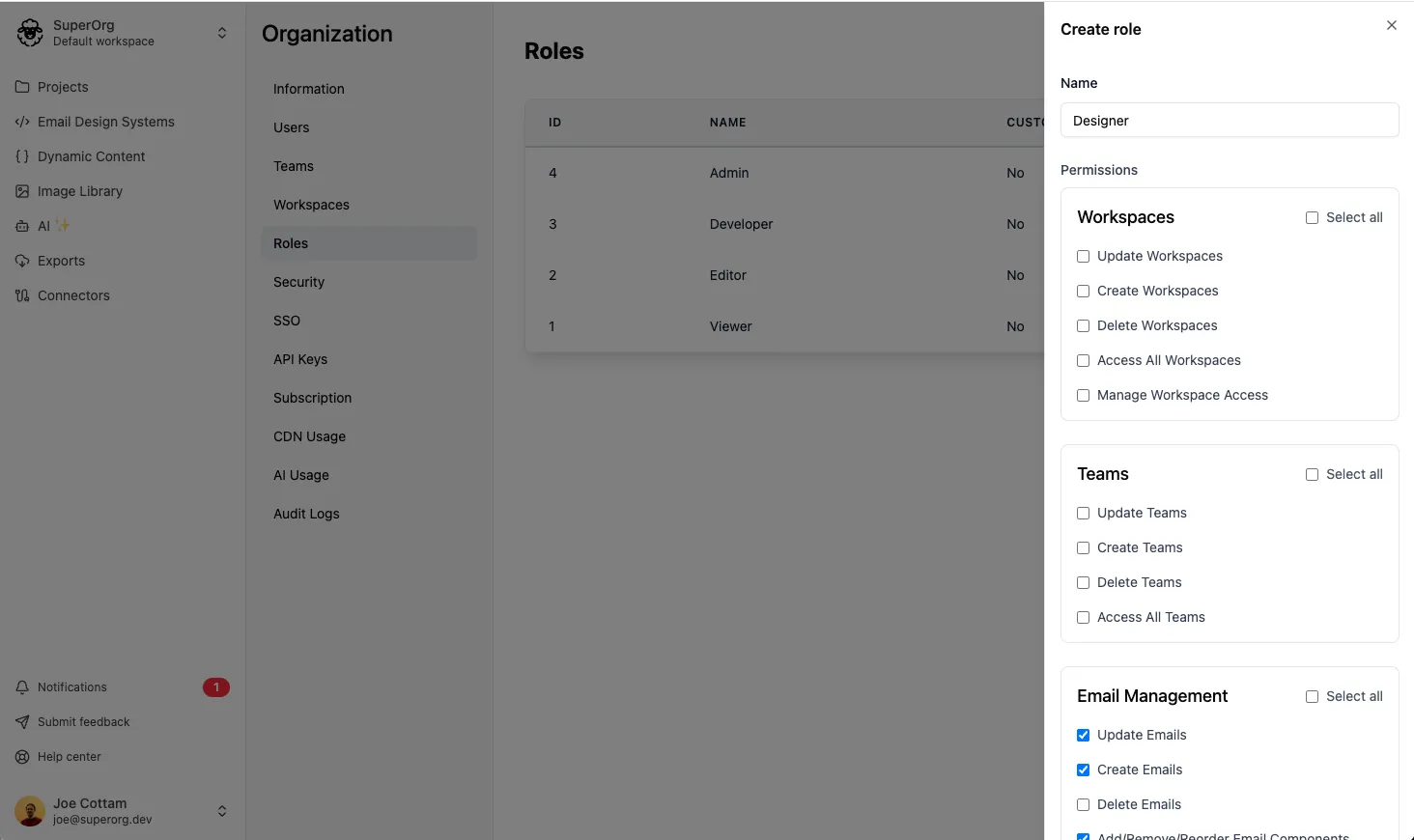
You can now assign the role to users.
Edit a custom role
Section titled “Edit a custom role”- In Organization settings, select the Roles tab.
- Beside the role, click the edit icon.
- Change the Name or the permissions.
- Click Save.
The changes apply straight away to every user with the role.
You can’t edit the built-in roles. To change what they can do, create a custom role instead.
Delete a custom role
Section titled “Delete a custom role”You can only delete a role that no users have. First, give each user with the role a different role.
- In Organization settings, select the Roles tab.
- Beside the role, click the delete icon.
- Confirm that you want to delete it.
Permissions
Section titled “Permissions”This table lists every permission, using the names shown when you create a custom role, and which built-in roles have it.
| Area | Permission | Viewer | Editor | Developer | Admin |
|---|---|---|---|---|---|
| Workspaces | Update Workspaces | No | No | No | Yes |
| Workspaces | Create Workspaces | No | No | No | Yes |
| Workspaces | Delete Workspaces | No | No | No | Yes |
| Workspaces | Access All Workspaces | No | No | No | Yes |
| Workspaces | Manage Workspace Access | No | No | No | Yes |
| Teams | Update Teams | No | No | No | Yes |
| Teams | Create Teams | No | No | No | Yes |
| Teams | Delete Teams | No | No | No | Yes |
| Teams | Access All Teams | No | No | No | Yes |
| Email Management | Update Emails | No | Yes | Yes | Yes |
| Email Management | Create Emails | No | Yes | Yes | Yes |
| Email Management | Delete Emails | No | Yes | Yes | Yes |
| Email Management | Add/Remove/Reorder Email Components | No | Yes | Yes | Yes |
| Email Management | Add/Remove Conditionals from Components | No | Yes | Yes | Yes |
| Email Management | Add/Remove Locales from Emails | No | Yes | Yes | Yes |
| Email Management | Submit Emails for Approval | No | Yes | Yes | Yes |
| Email Management | Publish Emails | No | Yes | Yes | Yes |
| Email Management | Force Publish Emails | No | No | No | Yes |
| Email Management | Convert Emails to Draft | No | No | No | Yes |
| Image Library | Update Library Images | No | Yes | Yes | Yes |
| Image Library | Create Library Images | No | Yes | Yes | Yes |
| Image Library | Delete Library Images | No | Yes | Yes | Yes |
| Projects | Update Projects | No | Yes | Yes | Yes |
| Projects | Create Projects | No | Yes | Yes | Yes |
| Projects | Delete Projects | No | Yes | Yes | Yes |
| Email Folders | Manage Email Folders | No | Yes | Yes | Yes |
| Email Design Systems | Update Email Design Systems | No | No | Yes | Yes |
| Email Design Systems | Create Email Design Systems | No | No | Yes | Yes |
| Email Design Systems | Delete Email Design Systems | No | No | Yes | Yes |
| Brand Profiles | Update Brand Profiles | No | No | Yes | Yes |
| Brand Profiles | Create Brand Profiles | No | No | Yes | Yes |
| Brand Profiles | Delete Brand Profiles | No | No | Yes | Yes |
| Content Blocks | Update Content Blocks | No | No | Yes | Yes |
| Content Blocks | Create Content Blocks | No | No | Yes | Yes |
| Content Blocks | Delete Content Blocks | No | No | Yes | Yes |
| Layouts | Update Layouts | No | Yes | Yes | Yes |
| Layouts | Create Layouts | No | Yes | Yes | Yes |
| Layouts | Delete Layouts | No | Yes | Yes | Yes |
| Component Presets | Manage Component Presets | No | Yes | Yes | Yes |
| Dynamic Content Profiles | Update Dynamic Content Profiles | No | No | Yes | Yes |
| Dynamic Content Profiles | Create Dynamic Content Profiles | No | No | Yes | Yes |
| Dynamic Content Profiles | Delete Dynamic Content Profiles | No | No | Yes | Yes |
| Personalization tags | Update Personalization Tags | No | No | Yes | Yes |
| Personalization tags | Create Personalization Tags | No | No | Yes | Yes |
| Personalization tags | Delete Personalization Tags | No | No | Yes | Yes |
| Conditionals | Update Conditionals | No | No | Yes | Yes |
| Conditionals | Create Conditionals | No | No | Yes | Yes |
| Conditionals | Delete Conditionals | No | No | Yes | Yes |
| Link Tracking Profiles | Update Link Tracking Profiles | No | No | Yes | Yes |
| Link Tracking Profiles | Create Link Tracking Profiles | No | No | Yes | Yes |
| Link Tracking Profiles | Delete Link Tracking Profiles | No | No | Yes | Yes |
| Connectors | Create Connectors | No | No | Yes | Yes |
| Connectors | Update Connectors | No | No | Yes | Yes |
| Connectors | Delete Connectors | No | No | Yes | Yes |
| Organization | Update Organization | No | No | No | Yes |
| Organization | Manage Billing | No | No | No | Yes |
| Organization | Manage API Keys | No | No | Yes | Yes |
| Organization | Manage OAuth Apps | No | No | No | Yes |
| Organization | View Audit Logs | No | No | No | Yes |
| Organization | Manage Organization SSO Settings | No | No | No | Yes |
| Organization | Manage App Configuration | No | No | No | Yes |
| Users | Update Users | No | No | No | Yes |
| Users | Create Users | No | No | No | Yes |
| Users | Delete Users | No | No | No | Yes |
| Roles | Update Roles | No | No | No | Yes |
| Roles | Create Roles | No | No | No | Yes |
| Roles | Delete Roles | No | No | No | Yes |
| AI | Access AI Chat Copilot | No | Yes | Yes | Yes |
| AI | Can create emails using background agents | No | Yes | Yes | Yes |
| AI | Can trigger AI Reviews | No | Yes | Yes | Yes |
| AI | Generate AI Images | No | Yes | Yes | Yes |
| AI Agents | Manage Agents | No | Yes | Yes | Yes |
| MCP Connectors | Manage MCP Servers | No | No | Yes | Yes |
| Test emails | Send Test Emails | No | Yes | Yes | Yes |
| Test emails | Manage Test Lists | No | No | Yes | Yes |
| Exports | Create HTML Exports | No | Yes | Yes | Yes |
| Exports | Create JSON Exports | No | Yes | Yes | Yes |
| Exports | Create Connector Exports | No | Yes | Yes | Yes |
| Collaboration | Commenting on emails | Yes | Yes | Yes | Yes |
| Feeds | Manage Feeds | No | No | Yes | Yes |
| Review Groups | Manage Review Groups | No | No | No | Yes |