

How to view and restore an earlier version of an email
This article shows you how to view an email’s change history, preview earlier versions and restore one.
EmailShepherd saves your work automatically as you edit, and keeps earlier versions of the email in its change history. If something goes wrong, you can go back to an earlier version.
View the change history
Section titled “View the change history”- Open the email in the editor.
- In the top bar, click Change history.
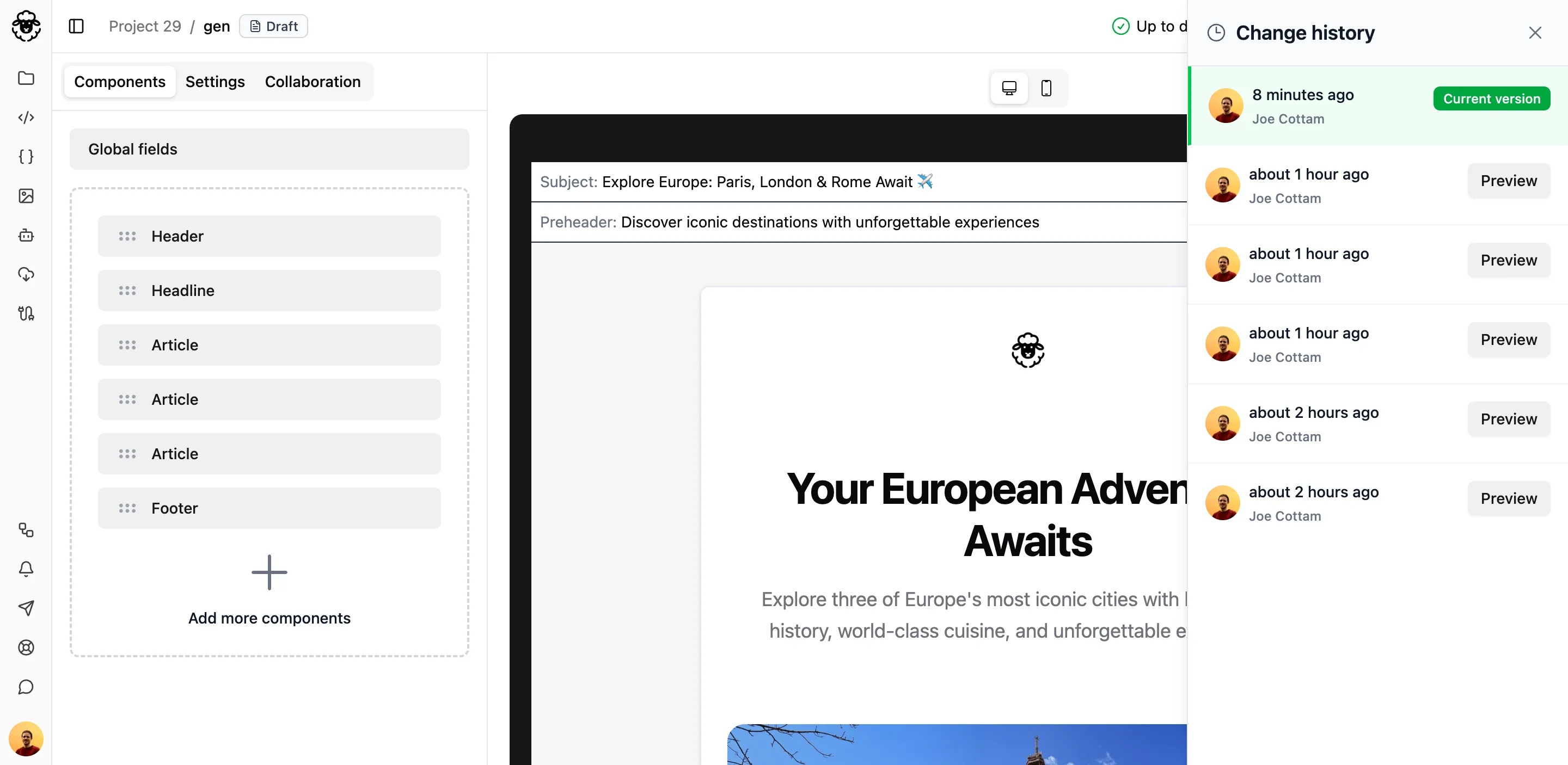
The panel lists saved versions, with the most recent at the top. Each version shows when it was saved and who made the change.
Preview and restore a version
Section titled “Preview and restore a version”- In the Change history panel, find the version you want to see.
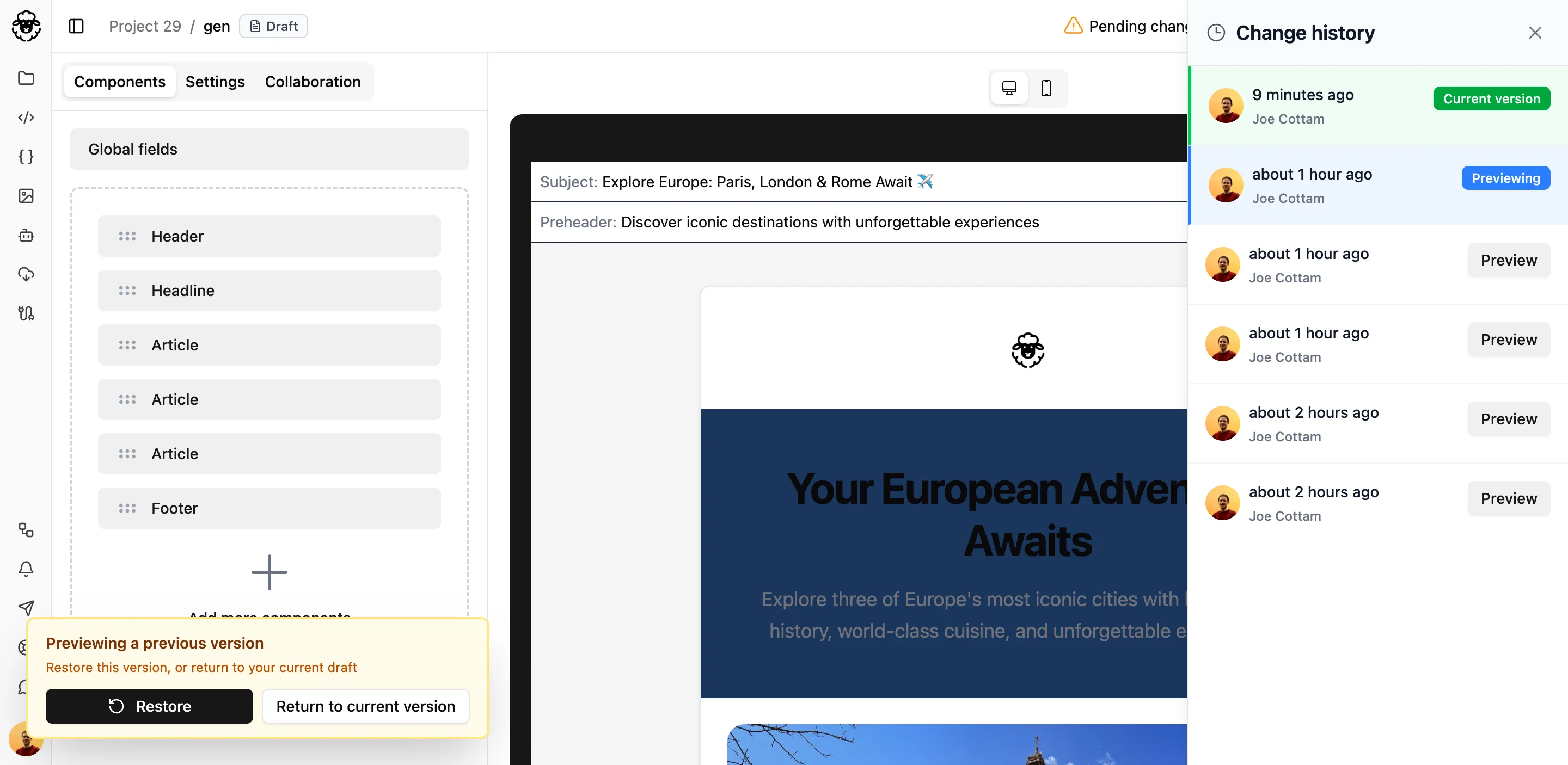
- Click Preview. The editor shows that version, with a banner at the top.
- In the banner, choose what to do:
- Restore: make this version the current version of the email.
- Return to current version: go back to the email as it was, without changing anything.
Restoring a version doesn’t delete anything. The version you replaced stays in the change history, so you can restore it again later.
How long versions are kept
Section titled “How long versions are kept”Recent changes are kept in full. Older versions are gradually thinned out, keeping the latest version in each period:
| Age of the version | What’s kept |
|---|---|
| Less than 1 hour | Every version |
| 1 to 24 hours | One version per 10 minutes |
| 1 to 7 days | One version per hour |
| More than 7 days | One version per day |