

How to build and edit emails with AI chat
This article shows you how to use AI chat in the email editor to build a new email or make changes to an existing one, and how to review what the AI changes.
AI chat lets you describe what you want in plain language, and a Build Agent builds it with the components in your Email Design System. You can ask for a whole email from a brief, or for a small change such as a new subject line or a different image. The agent can:
- Add, remove, reorder and fill in components.
- Use your personalization tags and conditionals.
- Find images in your image library, or generate new ones.
- Read a web page you give it the address of.
- Edit the content for every locale in the email, and add new locales.
- Follow the instructions in your skills, and use tools from your MCP Connectors.
Nothing is saved to your email until you accept it.
Open AI chat
Section titled “Open AI chat”-
Open an email in the editor.
-
Click the sheep button in the bottom-right corner (Open AI Copilot Chat).

The chat panel opens on the right, and picks up your last conversation about this email.
If your workspace has more than one Build Agent, choose the agent at the top of the panel. Changing the agent starts a new chat.
Ask the AI to build or change your email
Section titled “Ask the AI to build or change your email”-
Type what you want in the message box. For example:
- “Build a launch email for our new running shoe, with a hero image, three product features and a button to the product page.”
- “Change the subject line to something shorter.”
- “Swap the hero image for one with a beach.”
- “Translate the new paragraph into every locale in this email.”
-
Press Enter to send your message. To start a new line instead, press Shift+Enter.
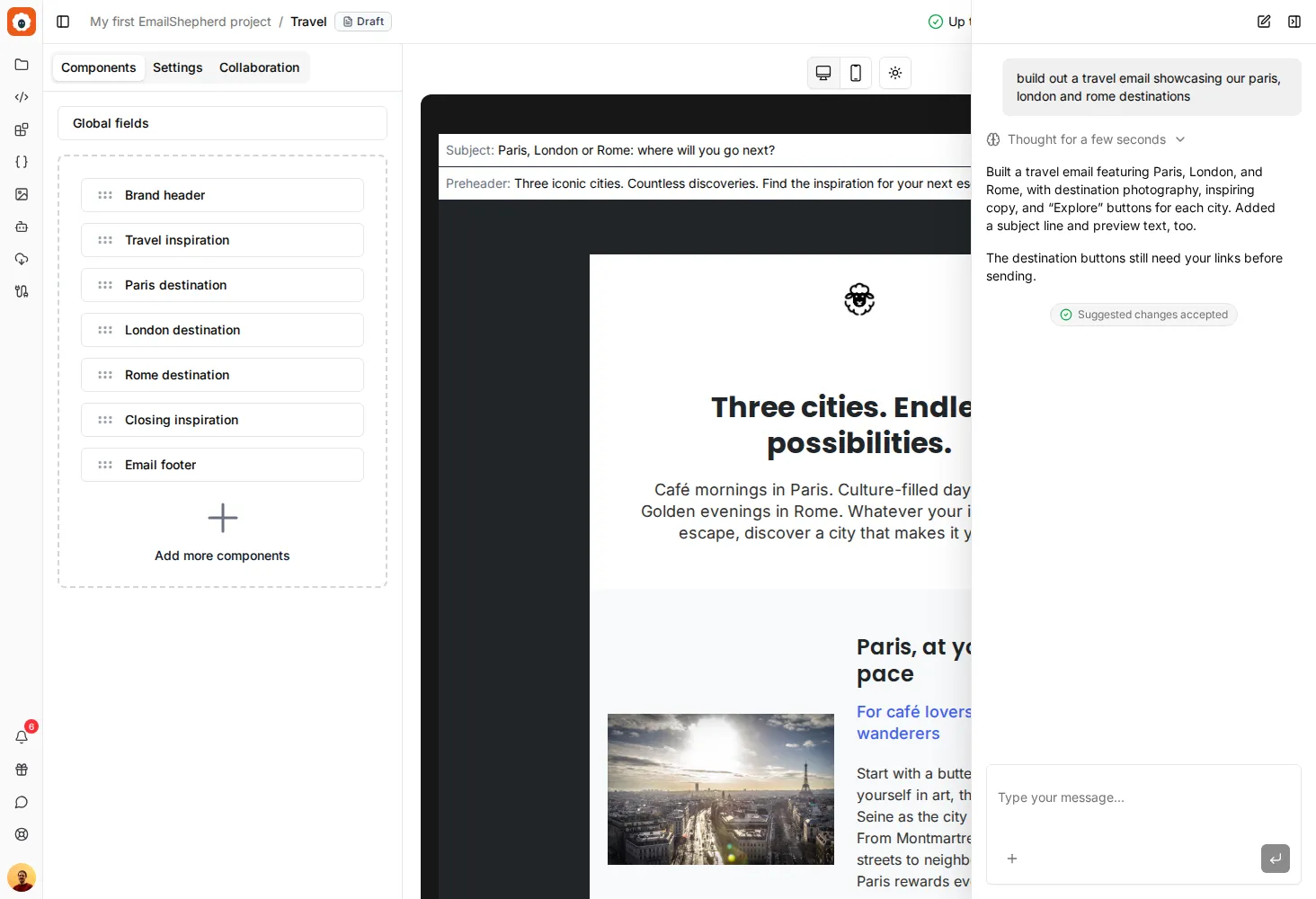
The agent works through your request and shows each step as it goes. When it’s finished, review its changes.
To refer to another email, type @ followed by the email’s name.
Give the AI more to work with
Section titled “Give the AI more to work with”Click + beside the message box to add context to your message:
- Attach photos or files: add a brief, a screenshot or a design to work from. You can attach up to 3 files per message: images,
.txt,.docx,.csvor.xlsxfiles. Each.docxor.xlsxfile can be up to 2 MB; other files can be up to 1 MB each. You can also drag files into the chat or paste them. - Attach email: add one of your existing emails, for example as an example to follow.
- Attach skill: make sure the agent reads a particular skill for this message. You can attach up to 5. The agent also reads the skills assigned to it whenever they’re relevant, without you attaching them.
To let the agent use an MCP Connector, such as one for Notion, click the tools (wrench) icon and turn the connector on. The first time you turn on a connector, you sign in to that service.
Accept or reject the changes
Section titled “Accept or reject the changes”When the agent has finished, a banner appears in the bottom-left of the editor: AI has suggested changes to your email. The preview shows the email with the changes.
- Click Accept to save the changes to your email.
- Click Reject to discard them.
If you leave the editor before you decide, the changes are waiting for you when you come back.
Approve actions
Section titled “Approve actions”Some actions need your approval before the agent can carry them out, such as generating an image or using a tool from an MCP Connector. When this happens, the chat shows Approval needed to perform this action.
- Click Approve to let the agent carry on.
- Click Reject if you don’t want the agent to do it.
Fix a reviewer’s comment with AI
Section titled “Fix a reviewer’s comment with AI”If someone has left a comment on your email, or an AI review has found a problem, you can ask the AI to fix it.
- Open the comment.
- Click Fix with AI.
The chat opens with the comment attached, ready for you to send.
Start a new chat
Section titled “Start a new chat”To start again with no previous messages, click + (New Chat) at the top of the chat panel.
Long conversations are summarized automatically, so the agent can keep going. You’ll see Conversation compacted in the chat when this happens.