
Change History
EmailShepherd automatically saves your work as you edit, so you can always go back to a previous version if needed.
Viewing Change History
Section titled “Viewing Change History”To view the change history for an email:
- Open the email in the editor
- Click the Change history button in the top toolbar
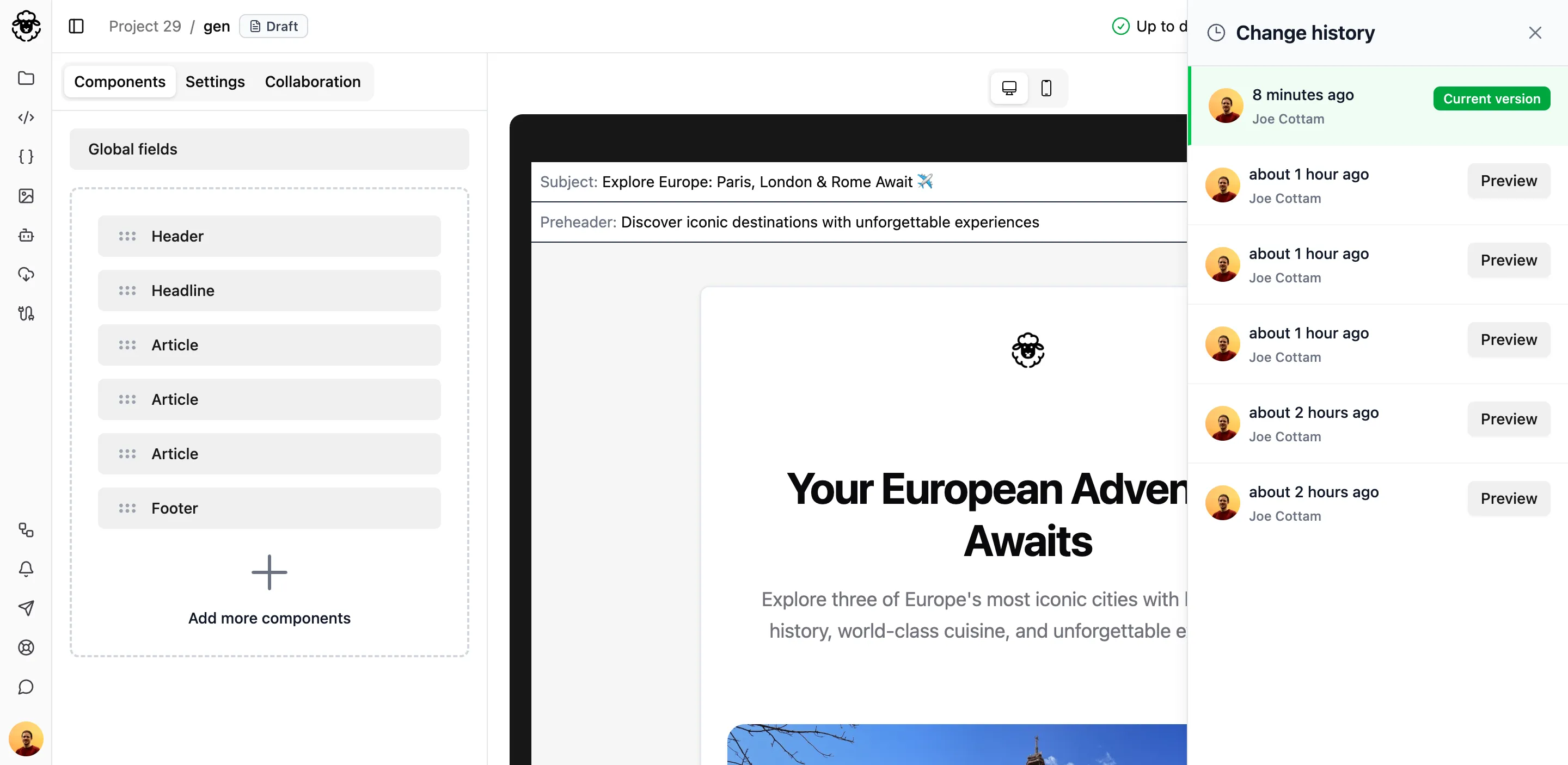
The panel displays saved versions with the most recent at the top. Each entry shows when the change was saved and who made it.
Previewing and Restoring Versions
Section titled “Previewing and Restoring Versions”To preview a previous version:
- Find the version you want to see
- Click Preview
The editor will show that version. A banner appears with two options:
- Restore - Make this the current version
- Return to current version - Go back to where you were
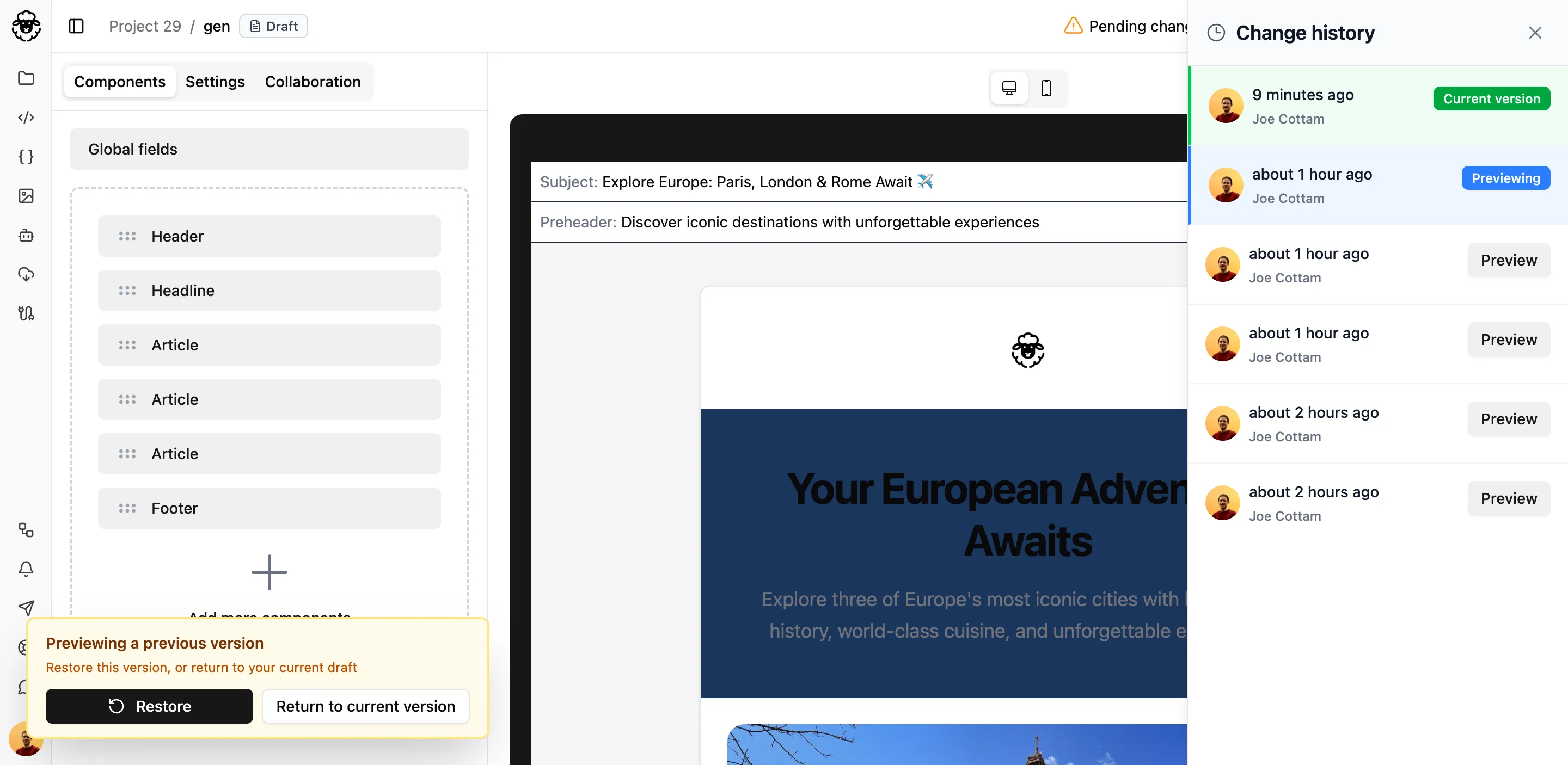
Restoring a version doesn’t delete anything - you can always restore to any other version afterwards.
How Long Are Versions Kept?
Section titled “How Long Are Versions Kept?”Recent changes are kept in full detail. Older versions are gradually consolidated:
| Time Period | What’s Kept |
|---|---|
| Last hour | Everything |
| 1-24 hours | One version per 10 minutes |
| 1-7 days | One version per hour |
| Older than 7 days | One version per day |
This means you’ll always have access to recent work in detail, plus regular checkpoints going back as far as you need.