
Organizing emails with folders
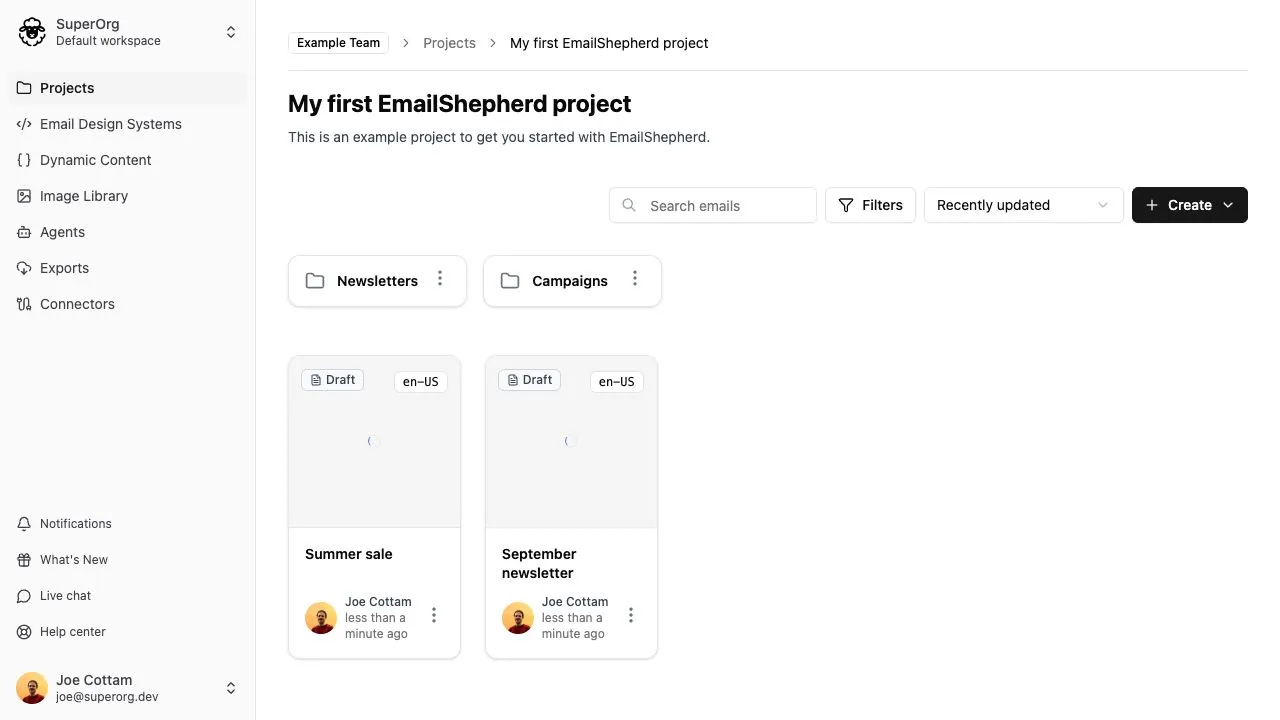
Folders help you keep the emails in a project organized. You can also place folders inside other folders, which is useful when a project contains several campaigns, regions, or types of email.
Before you begin
Section titled “Before you begin”- You need the Manage Email Folders permission to create, rename, move, or delete folders.
- Folders can be nested up to three levels deep.
- You can create up to 20 folders at each level.
- Folder names can contain up to 50 characters.
- Each folder at the same level must have a unique name.
Create a folder
Section titled “Create a folder”- Open the project where you want to add the folder.
- Select Create, then select Folder.
- Enter a folder name.
- Select Create.
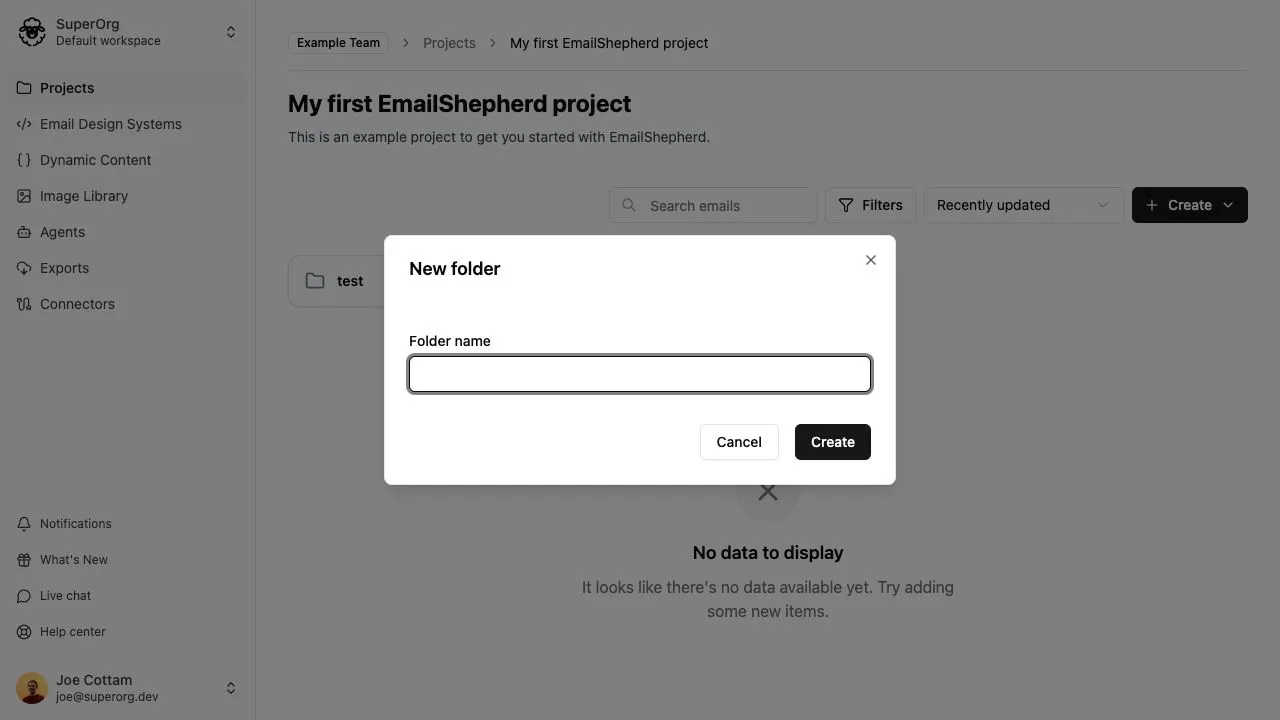
When you create a folder while viewing another folder, the new folder is created inside the folder you are viewing.
Open and navigate folders
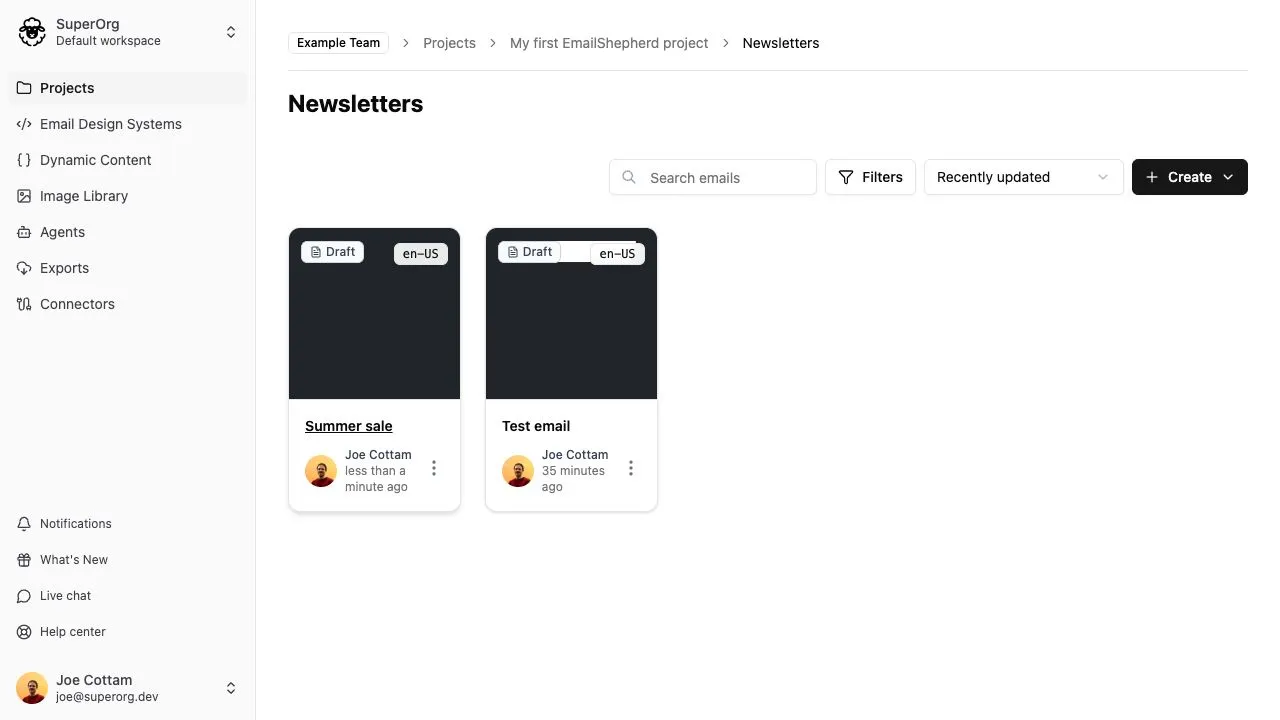
Section titled “Open and navigate folders”Select a folder to open it. The breadcrumb trail at the top of the page shows where you are and lets you return to any folder or project above the current one.
Folders can contain both emails and other folders.
Move an email into a folder
Section titled “Move an email into a folder”To move an email using drag and drop:
- Find the email and destination folder in the project.
- Drag the email card onto the folder card.
- Release the email when the folder is highlighted.
The email is moved into the folder. Select the folder to view it.
You can also move an email without dragging it. Open the email’s More menu (the three dots), select Move, choose a destination, then select Move.
Move a folder into another folder
Section titled “Move a folder into another folder”Drag a folder card onto another folder card, then release it when the destination folder is highlighted. The folder and everything inside it move together.
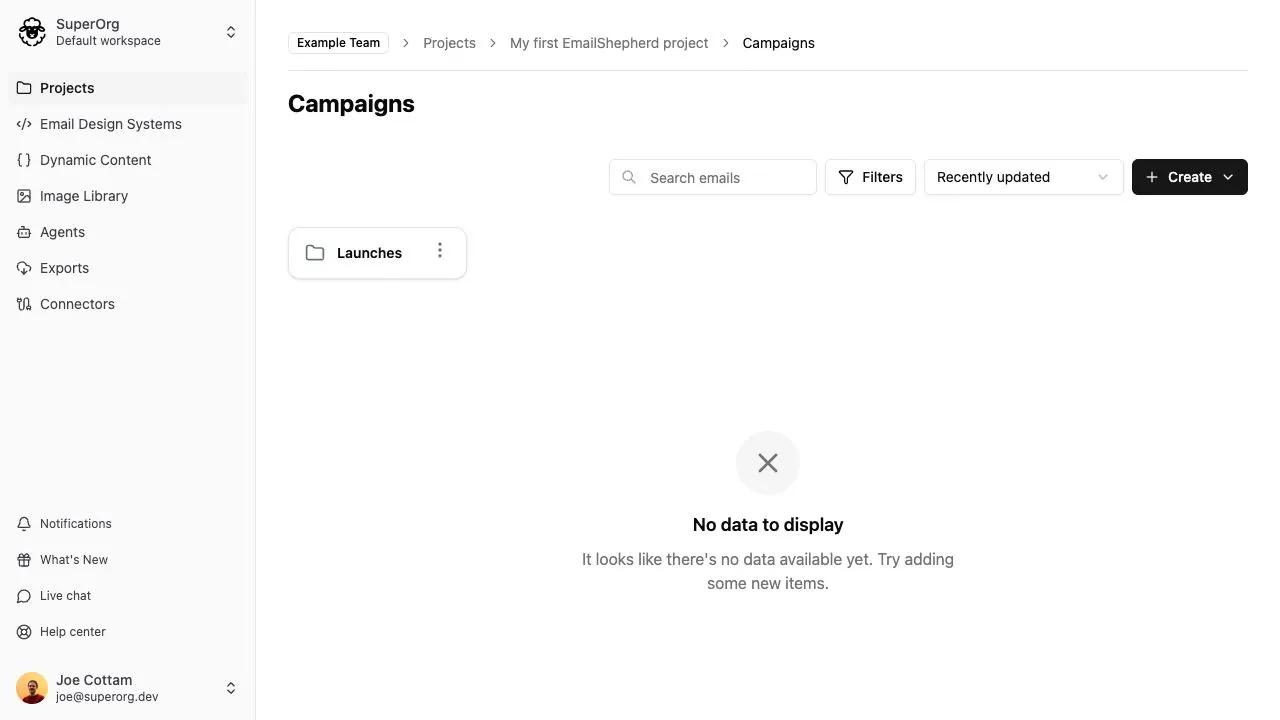
You can also open the folder’s More menu, select Move, choose a destination, then select Move.
Move an item back to the project
Section titled “Move an item back to the project”To move an email or folder out of its current folder:
- Open its More menu.
- Select Move.
- Select the project name in the destination picker.
- Select Move.
Rename a folder
Section titled “Rename a folder”- Open the folder’s More menu.
- Select Rename.
- Enter the new folder name.
- Select Save.
Delete a folder
Section titled “Delete a folder”You can only delete an empty folder. Move or delete any emails and folders inside it first.
- Open the folder’s More menu.
- Select Delete.
- Confirm that you want to delete the folder.