

How to save and use component presets
This article shows you how to save a component as a preset, add presets to your emails, and manage the presets you’ve saved.
A component preset is a component saved with its content filled in, so you can reuse it in other emails. For example, you might save a footer with your social links, a hero with your standard promo copy, or a product card that’s already translated. A preset keeps:
- The content in every locale you’ve filled in, so you can add a translated block to a new email without translating it again.
- Any conditional content set on the component.
Save a component as a preset
Section titled “Save a component as a preset”- In the editor, expand the component you want to save in the sidebar.
- In the component’s header, click the bookmark icon (Save as preset).
- In Name, enter a name for the preset, e.g. “Footer with social links”.
- Click Save preset.
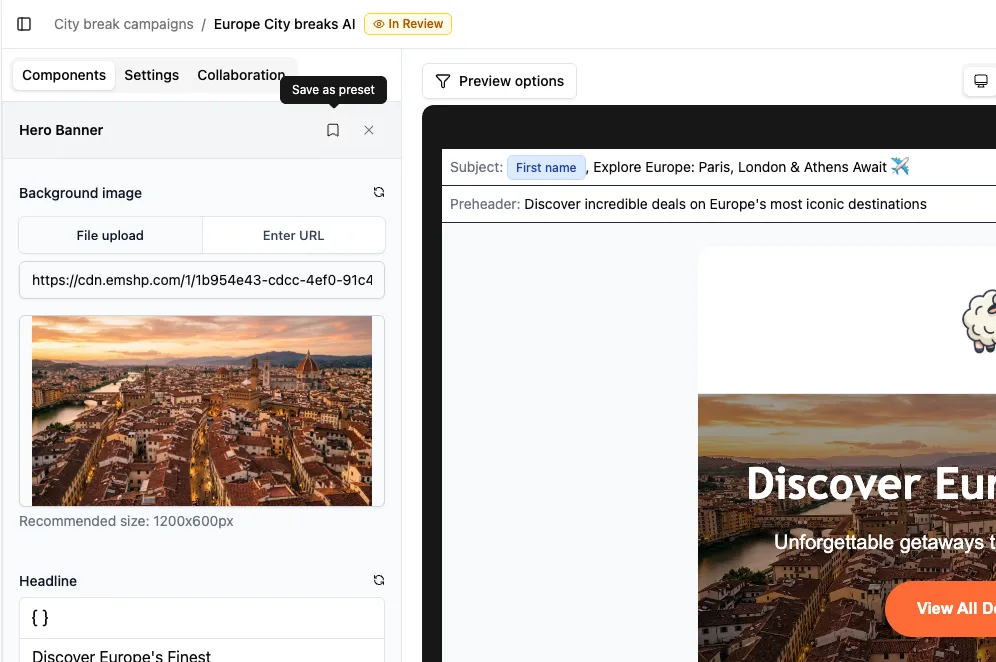
Add a preset to an email
Section titled “Add a preset to an email”- In the editor, click the drop zone in the components list to open Available Components.
- Select the Presets tab. This tab only appears once at least one preset has been saved.
- Drag the preset into your email.
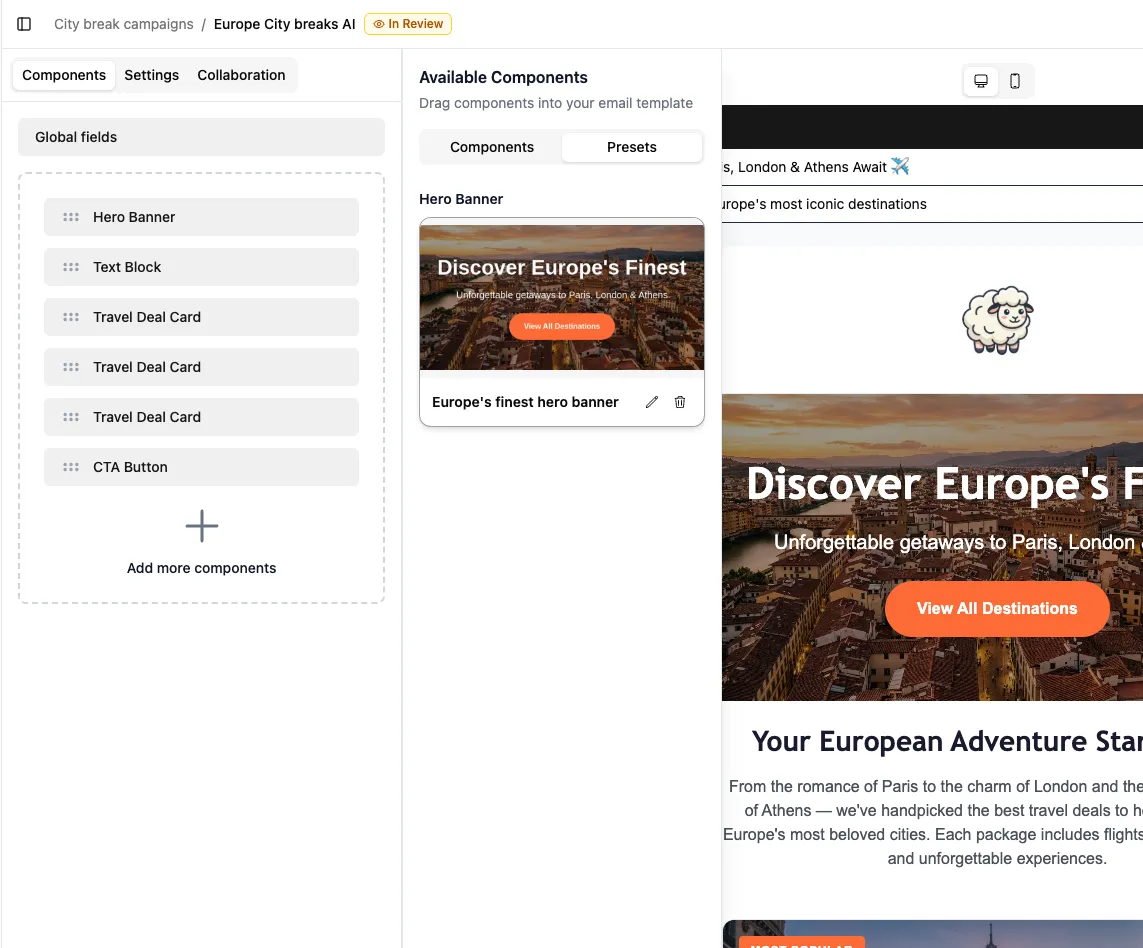
Once it’s in your email, you can edit the content like any other component. Your changes don’t affect the saved preset.
Rename or delete a preset
Section titled “Rename or delete a preset”- Open Available Components and select the Presets tab.
- On the preset’s card, click the pencil icon (Rename) or the trash icon (Delete).
- Rename: enter the new name, then click Save.
- Delete: click Delete to confirm.