

How to preview an email on mobile and in dark mode
This article shows you how to use the controls above the email preview to check your email at different screen sizes and in dark mode.
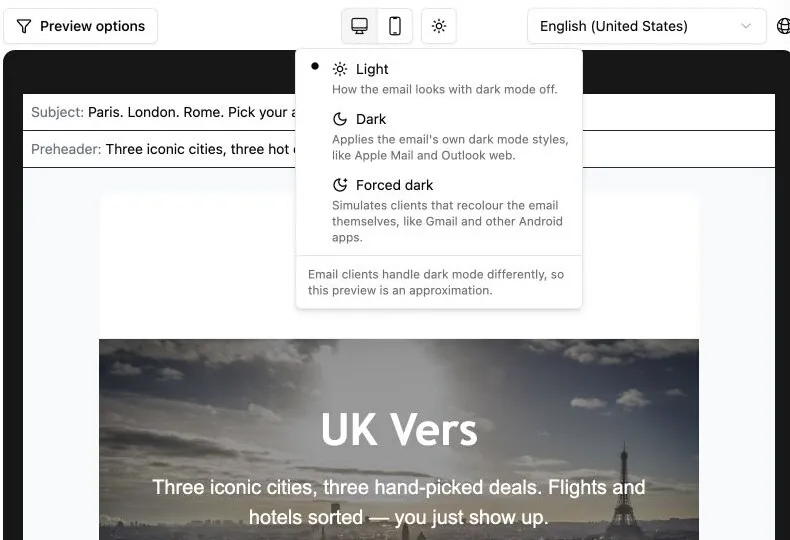
Preview on desktop and mobile
Section titled “Preview on desktop and mobile”- Open the email in the editor.
- Above the preview, click one of the device icons:
- Desktop: shows the email at a desktop width.
- Mobile: narrows the preview to the width of a mobile screen.
Switch between the two to check text wrapping, spacing, image sizes, and whether buttons and links are easy to tap.
Preview in dark mode
Section titled “Preview in dark mode”- Open the email in the editor.
- Above the preview, click the dark mode icon beside the device icons.
- Choose a mode:
- Light: how the email looks with dark mode off.
- Dark: applies the email’s own dark mode styles, as clients like Apple Mail and Outlook on the web do.
- Forced dark: approximates clients that recolour the email themselves, like Gmail and other Android apps.
Switch between the modes to check that text stays readable and that images, backgrounds, buttons and links are clear.