

How to edit an email with other people
This article shows you how to see who else has an email open and which components they’re editing.
Multiple users can open and edit the same email at the same time. Changes are saved automatically and appear in everyone else’s editor, so collaborators can work together without taking turns or refreshing the page.
See who is viewing an email
Section titled “See who is viewing an email”When another user has the email open, their profile image or initials appear in the editor’s top bar. Hover over an icon to see the user’s name, and which locale they’re viewing.
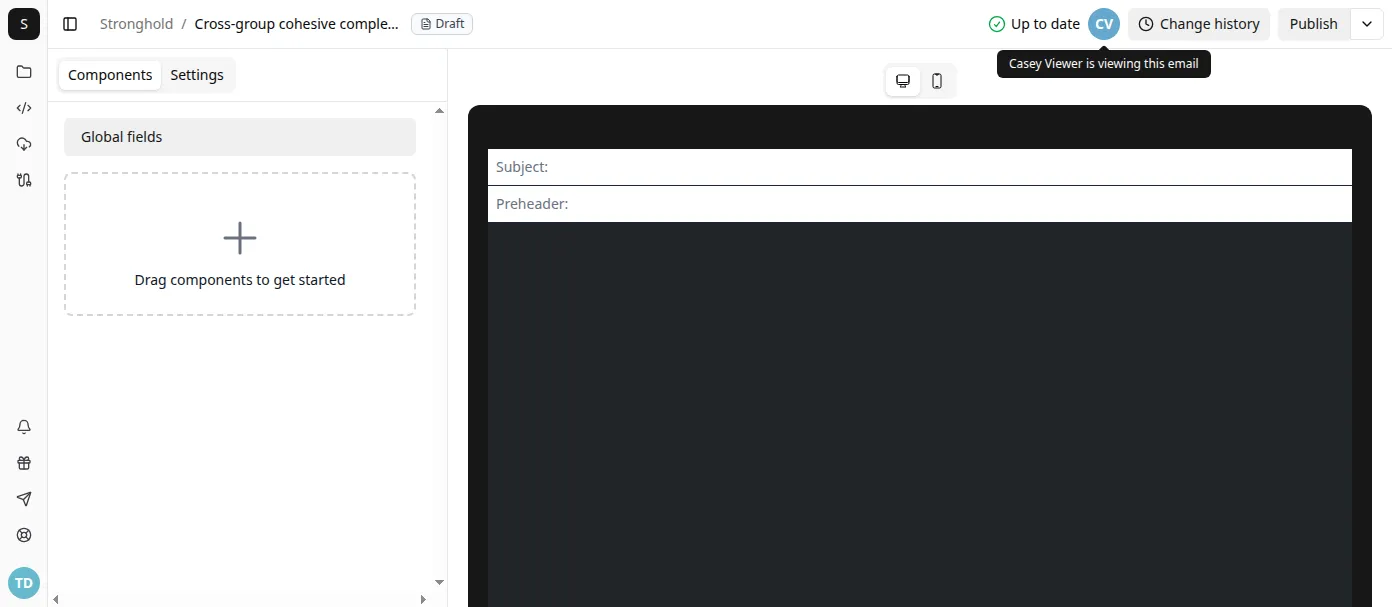
The icons update as users open and leave the email or switch between its locales.
See who is editing a component
Section titled “See who is editing a component”When another user opens a component, a smaller presence icon appears beside that component in the component list. Hover over the icon to see who is editing it.
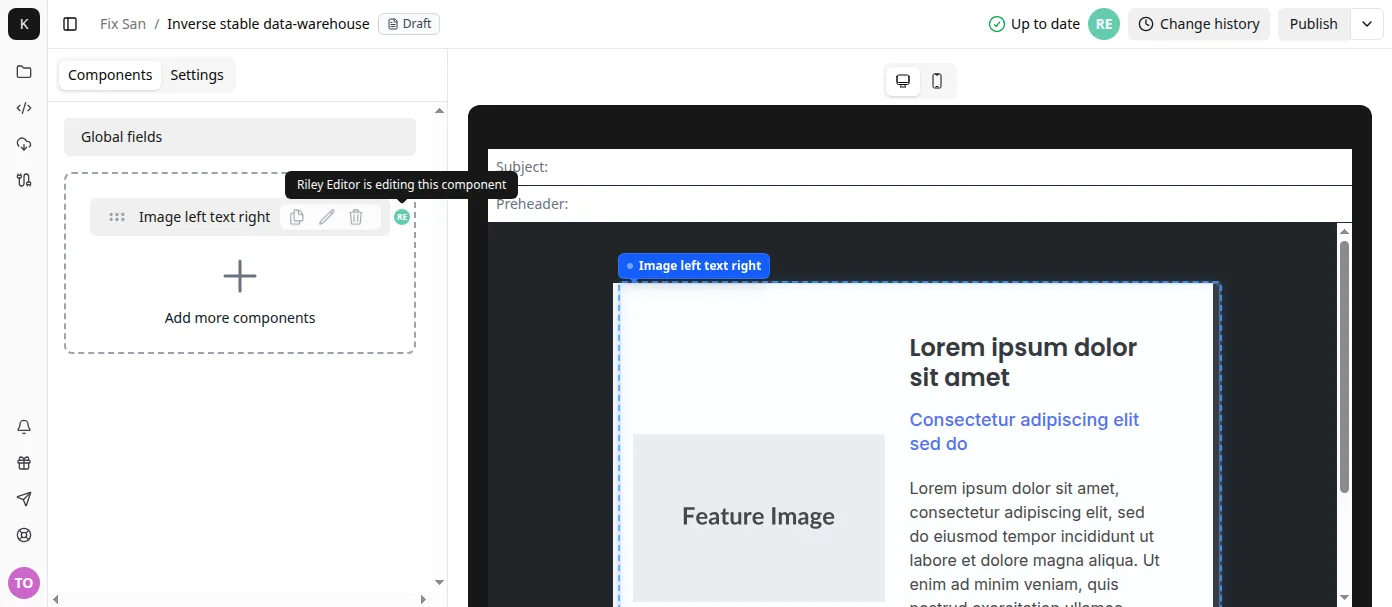
The same indicator is shown when someone is editing the email’s global fields. If you open a component that another user already has open, their presence icon also appears in the component panel header.
Presence indicators do not lock a component. More than one person can edit it, and each saved change is shared with everyone who has the email open. The indicators help collaborators see where other people are working and coordinate changes when necessary.
For feedback or discussion about a specific part of an email, use comments and mentions. You can review earlier saved versions from the email’s change history.