

Braze
This article shows you how to connect EmailShepherd to Braze, so you can export emails to Braze as email templates.
You set up the connector once for each workspace. After that, anyone who can export emails can send them to Braze without copying any code.
Get your Braze API key
Section titled “Get your Braze API key”-
Sign in to Braze.
-
Navigate to Settings > APIs and Identifiers > API Keys.
-
Click Create API Key.
-
Enter a name for the key, such as
EmailShepherd. -
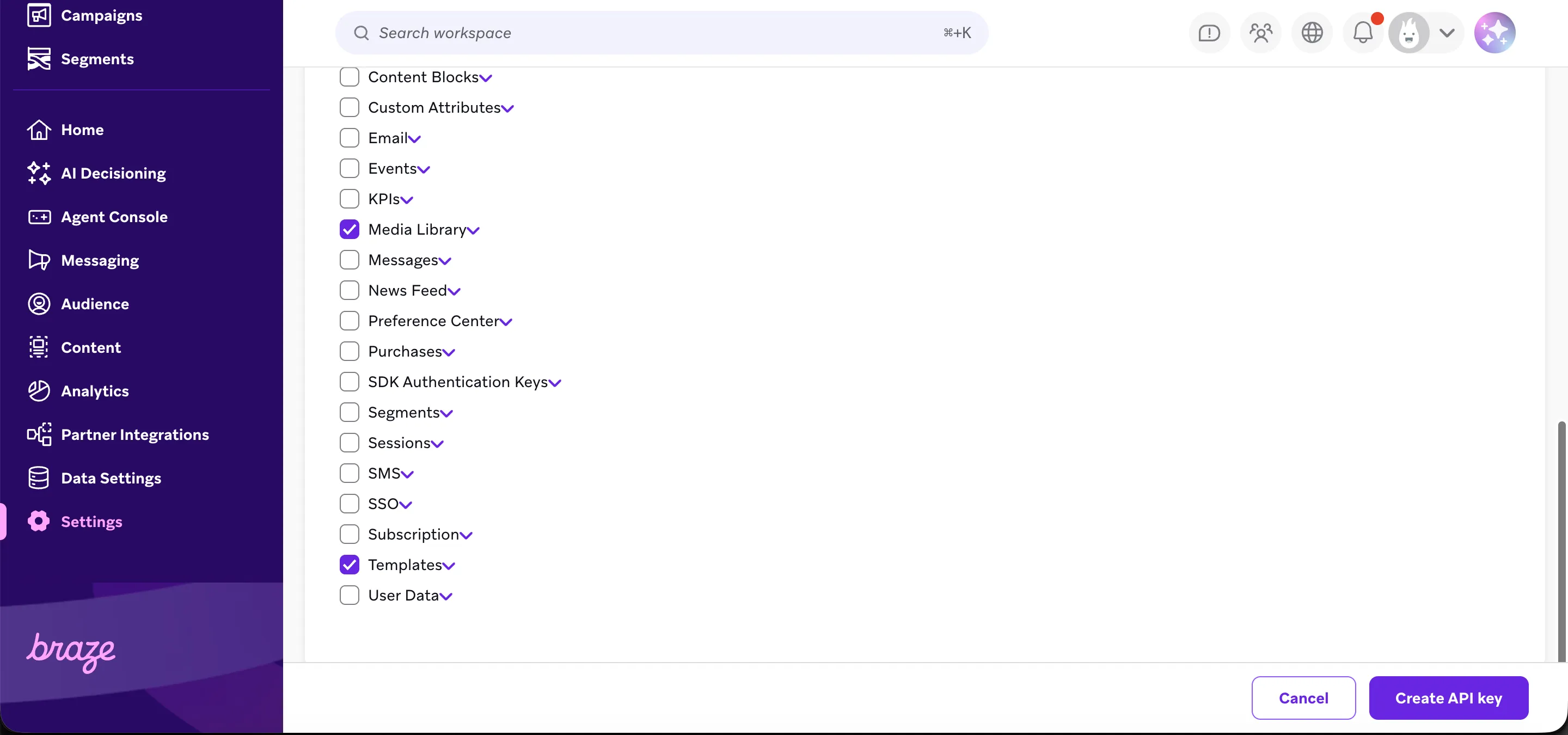
Under permissions, select the Templates permissions, so EmailShepherd can create and update email templates.
-
If you want EmailShepherd to upload your images to Braze, also select the Media Library permissions.
-
Click Create API Key.
-
Copy the API key and keep it somewhere safe until you’ve set up the connector.
Don’t give the key any other permissions. EmailShepherd doesn’t need them.
You also need to know your Braze instance, such as US-01 or EU-01. You can see it in the address of your Braze dashboard. See Braze’s list of instances.
Set up the connector in EmailShepherd
Section titled “Set up the connector in EmailShepherd”- In the sidebar, click Connectors.
- On the Export Connectors tab, click Add connector.
- In Connector Name, enter a name, such as
Braze. - In Choose Integration, select Braze.
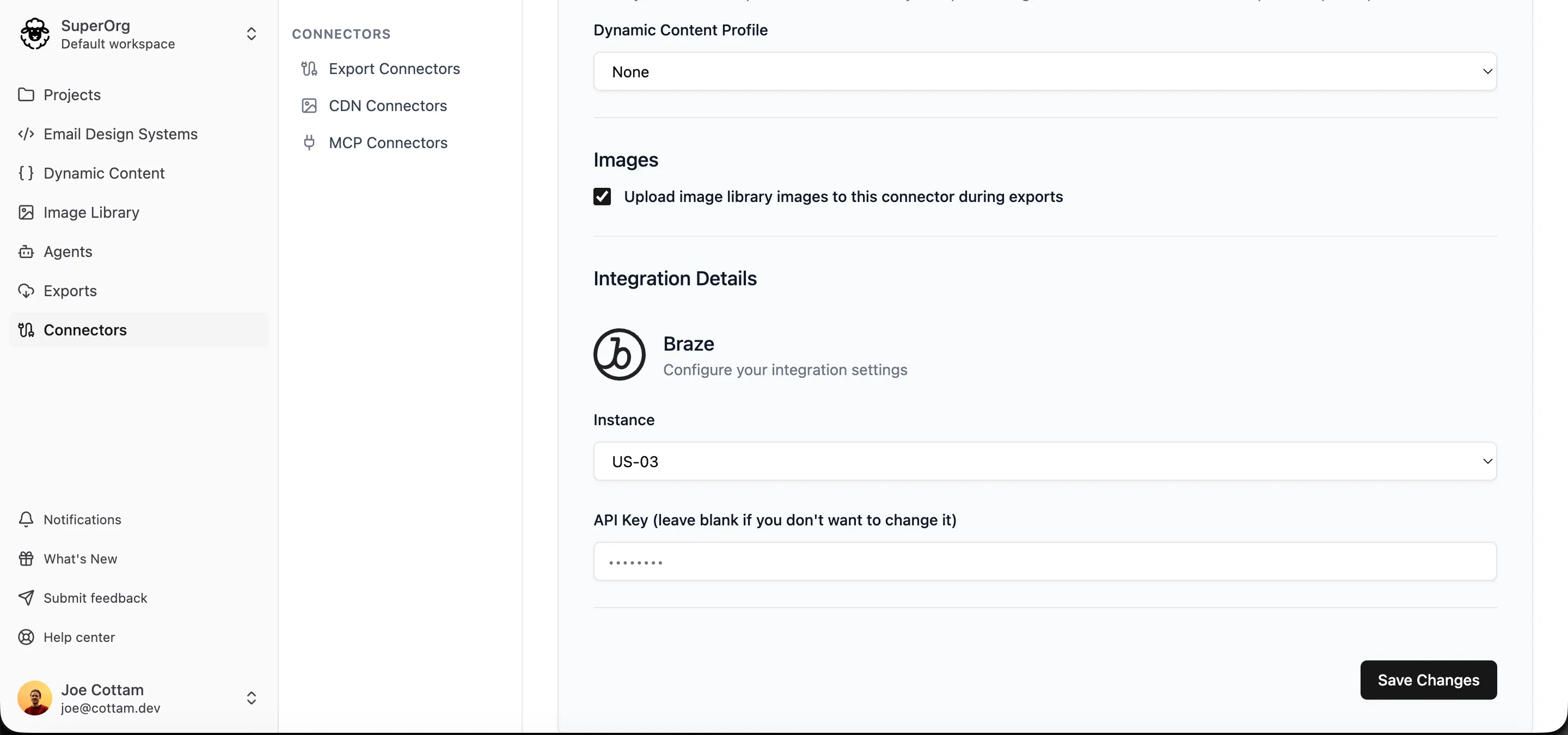
- In Instance, select your Braze instance.
- In API Key, paste the API key you created.
- In Dynamic Content Profile, choose a dynamic content profile to use every time you export to Braze. To choose one each time you export instead, leave it as None.
- Click Create Connector.
Choose where images are hosted
Section titled “Choose where images are hosted”By default, exported emails link to images hosted by EmailShepherd. To host your images in Braze instead, tick Upload image library images to this connector during exports when you set up the connector.
When this is on, each export uploads the images from your image library to your Braze media library, and the template links to the copies in Braze. Images you added by URL aren’t uploaded.
Set up personalization for Braze
Section titled “Set up personalization for Braze”Braze uses Liquid for personalization and dynamic content, such as {{${first_name}}}.
To export your personalization tags and conditionals in Braze’s syntax, set them up in a dynamic content profile for Braze, then choose it in the connector or when you export.
Export an email to Braze
Section titled “Export an email to Braze”See How to export an email to your ESP.
Each locale is exported as a separate email template in Braze. You can create a new template, or overwrite any existing template in Braze.