

How to preview personalization tags and conditional content
This article shows you how to use Preview options to check how personalized and conditional content will look in your email.
By default, the editor shows personalization tags as badges and shows every branch of each conditional, so you can edit everything together. Preview options let you see the email as one recipient would, without changing the email or its exported code.
Before you begin
Section titled “Before you begin”The Preview options button only appears above the email preview when the email uses at least one personalization tag or conditional. To add them, see How to use personalization tags in an email and How to use a conditional in an email.
Preview personalization tag values
Section titled “Preview personalization tag values”- Above the email preview, click Preview options.
- Select the Personalization Tags tab.
- Turn on Show example values.
- Click Done.
The preview replaces each personalization tag badge with the tag’s example value. Only the tags used in this email are listed.
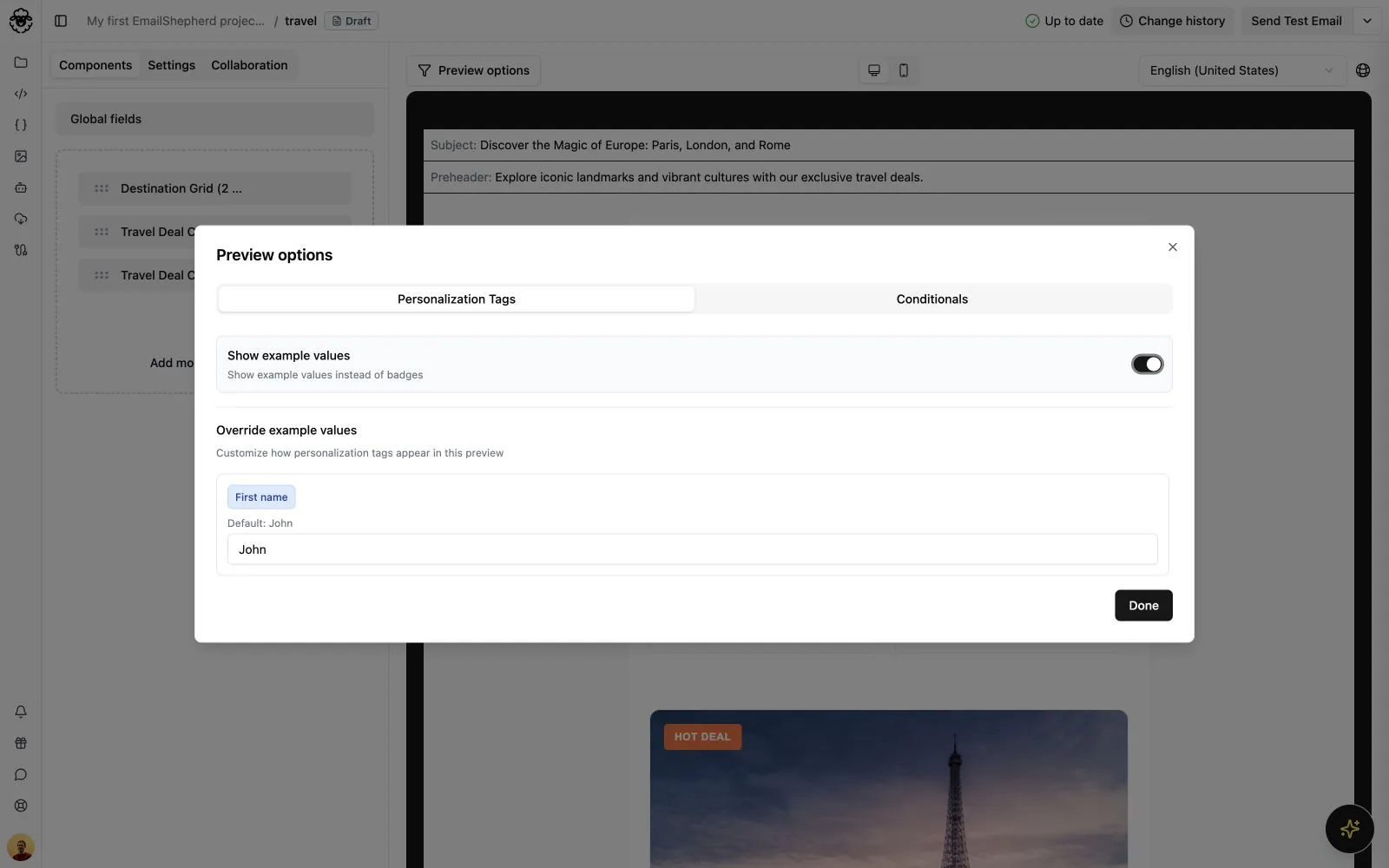
To try different content without changing a tag’s saved example value, edit it under Override example values. To go back to the saved example value, click Reset beside the tag.
To change a tag’s saved example value, see How to create a personalization tag.
Show specific conditional branches
Section titled “Show specific conditional branches”-
Above the email preview, click Preview options.
-
Select the Conditionals tab.
-
For each conditional you want to filter, open the menu beside it and choose what to show:
- Show all branches: show the content for every branch. This is the default.
- Hide all branches: hide the conditional content.
- A specific branch: show only that branch’s content.
If a conditional has only one branch, the options are Show and Hide.
-
Click Done.
The list includes both reusable and inline conditionals used in the email.
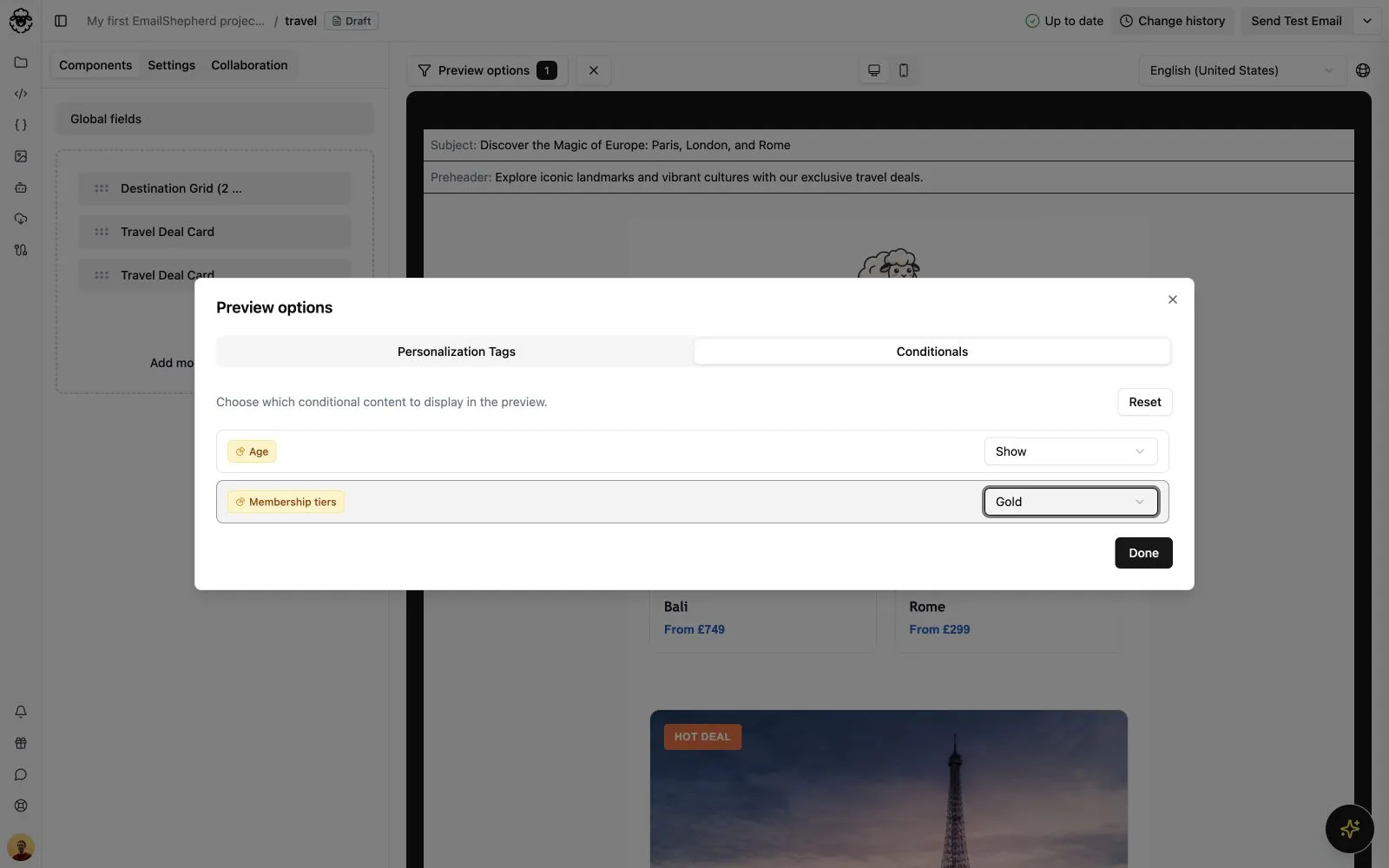
While a filter is on, the Preview options button shows how many conditionals are filtered. To show every branch again, click the × beside the button, or click Reset in the Conditionals tab.