

How to connect your own AI provider
This article shows you how to connect your organization’s own AI provider to EmailShepherd, and choose which models to use.
When you connect your own AI provider, EmailShepherd’s AI features use your API key and don’t use your EmailShepherd AI credits. Your provider bills you directly for what you use, and you choose which model handles each task. Your team keeps using the AI features in exactly the same way.
This only changes which AI powers the features inside EmailShepherd. It doesn’t connect EmailShepherd to an AI tool you use yourself, such as Claude or ChatGPT. To work with EmailShepherd from one of those tools, see How to use EmailShepherd from your AI tool.
Before you begin
Section titled “Before you begin”You need an API key from one of the supported providers, with billing set up on the provider’s side:
Each guide explains where to get a key and where to check your usage. Both individual and company API accounts work.
What your provider is used for
Section titled “What your provider is used for”Once connected, these features run on your provider and don’t use AI credits:
- AI Chat in the email editor
- AI chat in the Component Builder
- Background build agents
- AI reviews
- AI translations
AI image generation always runs on EmailShepherd AI and uses one AI credit per image, so keep some credits if your team generates images.
Some AI features don’t use AI credits at all, such as generating image descriptions for your image library. These always run on EmailShepherd AI, not on your provider.
Connect your provider
Section titled “Connect your provider”-
In the top-left of the sidebar, click your organization’s name, then select Organization settings.
-
Click AI Provider.
-
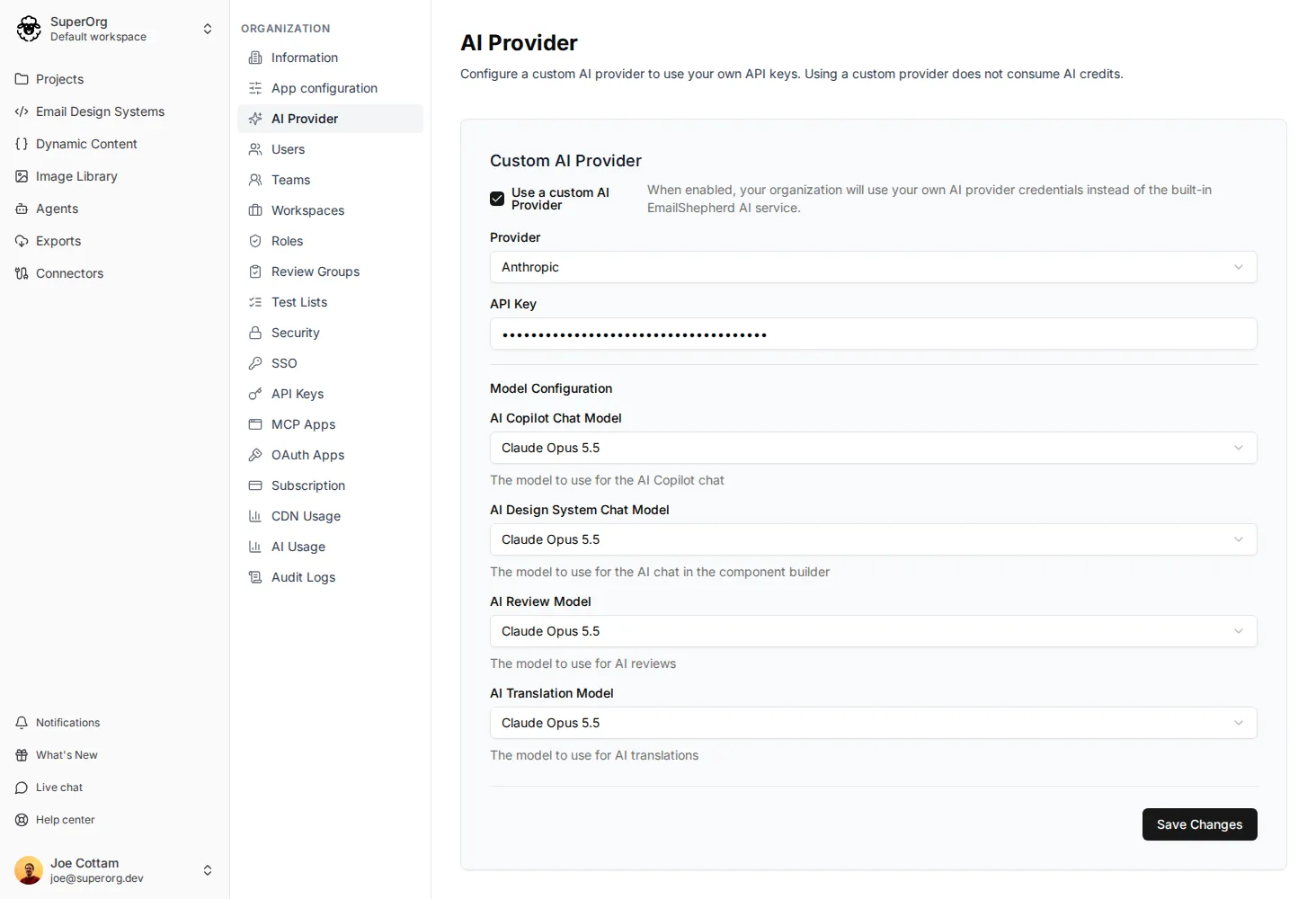
Select Use a custom AI Provider.
-
In Provider, select Anthropic, OpenAI or Gemini.
-
In API Key, paste your API key.
-
Under Model Configuration, choose a model for each task (see Choose your models).
-
Click Save Changes.
Your organization’s AI features now use your provider.
Choose your models
Section titled “Choose your models”Each task has its own model setting, so you can balance quality and cost. For example, you could use a more capable model for AI Chat and a faster, cheaper one for translations.
The list of models depends on the provider you selected.
Change or remove your provider
Section titled “Change or remove your provider”To replace your API key, go to Organization settings > AI Provider, paste the new key in API Key, and click Save Changes.
To stop using your own provider, clear Use a custom AI Provider and click Save Changes. AI features go back to using EmailShepherd AI credits.
Check your usage
Section titled “Check your usage”Usage billed by your provider doesn’t appear in EmailShepherd. Check it in your provider’s console. Each provider guide links to the right place.
To see the AI credits your organization still uses, such as for image generation, see How to check your AI credit usage.