

The EDS SDK
This article shows you how to set up the EDS SDK, work on your Email Design System (EDS) locally, and deploy your changes.
The EDS SDK lets developers work on an EDS on their own computer instead of in Component Builder. Use it to:
- edit your components in your own code editor, with type checking and autocomplete
- keep your EDS in Git, and review changes before they go live. See Deploying with GitHub Actions.
- let an AI coding agent make changes. See Using the EDS SDK with AI coding agents.
Before you begin
Section titled “Before you begin”You need:
- Node.js 20.19 or later installed on your computer.
- An EmailShepherd API key with the Email design systems: Read and Write and Workspaces: Read scopes. See How to create an API key.
- An existing EDS. If you don’t have one, create one first.
We recommend a code editor with good TypeScript support, such as VS Code or Cursor, and the Shopify Liquid extension for Liquid syntax highlighting.
Set up a repository
Section titled “Set up a repository”-
In EmailShepherd, click Email Design Systems in the sidebar, then click the EDS.
-
On the Components tab, click Edit with SDK.
-
Copy the command under Run this command in your terminal. It looks like this, with your EDS’s details filled in:
Terminal window npm create @emailshepherd/eds -- \--workspace-id 123 \--eds-id 456 \--project-dir my-email-design-system -
Run the command in your terminal, in the folder where you want the repository.
-
When asked, enter your API key.
The SDK downloads your EDS into a new folder, installs everything it needs and creates a Git repository. Your API key is saved on your computer, so you only need to enter it once.
You can also run npm create @emailshepherd/eds@latest on its own. You’ll be asked to choose the workspace and EDS, and to name the folder.
What’s in the repository
Section titled “What’s in the repository”src/├── eds.ts # Main EDS configuration (required)├── design_tokens.ts # Design tokens├── custom_styles.ts # Custom styles for rich text fields├── container_component/│ ├── index.ts # Container component settings and fields│ └── template.liquid # Container component template└── components/ ├── index.ts # The list of components, in order └── <component>/ ├── index.ts # Component settings and fields └── template.liquid # Component templateAGENTS.md # Instructions for AI coding agentsREADME.md.env # Your workspace and EDS IDspackage.jsontsconfig.jsonsrc/eds.tsbrings everything together. It’s the only file that must stay where it is. You can organize the rest however you like.- Each component has an
index.tswith its name, label, description and fields, and atemplate.liquidwith its template. - The order of components in
src/components/index.tsis the order people see them in the email editor.
Bring your own tools
Section titled “Bring your own tools”The SDK doesn’t force you to structure your EDS in any particular way. As long as src/eds.ts exports a valid EDS in the end, how you get there is up to you. Because the repository is a normal TypeScript project, you can pull in any JavaScript or TypeScript library you like, or build your templates with a custom build system or an email framework such as React Email or Maizzle.
Preview your EDS
Section titled “Preview your EDS”-
In your repository’s folder, run:
Terminal window npx emailshepherd dev -
Open http://localhost:5173 in your browser.
The preview shows every component in your EDS, rendered by EmailShepherd. It updates each time you save a file. To see how your components look with different content, change the values in the Preview Values panel. Click Reset All to go back to the default values.

To use a different port, add --port, for example npx emailshepherd dev --port 3000.
To save the rendered email as an HTML file, for example to check it in an email testing tool, run npx emailshepherd render. The HTML is saved to dist/rendered.html.
Check for errors
Section titled “Check for errors”Your code editor highlights mistakes in your component settings and fields as you type:

The preview shows errors too, including problems with your templates:
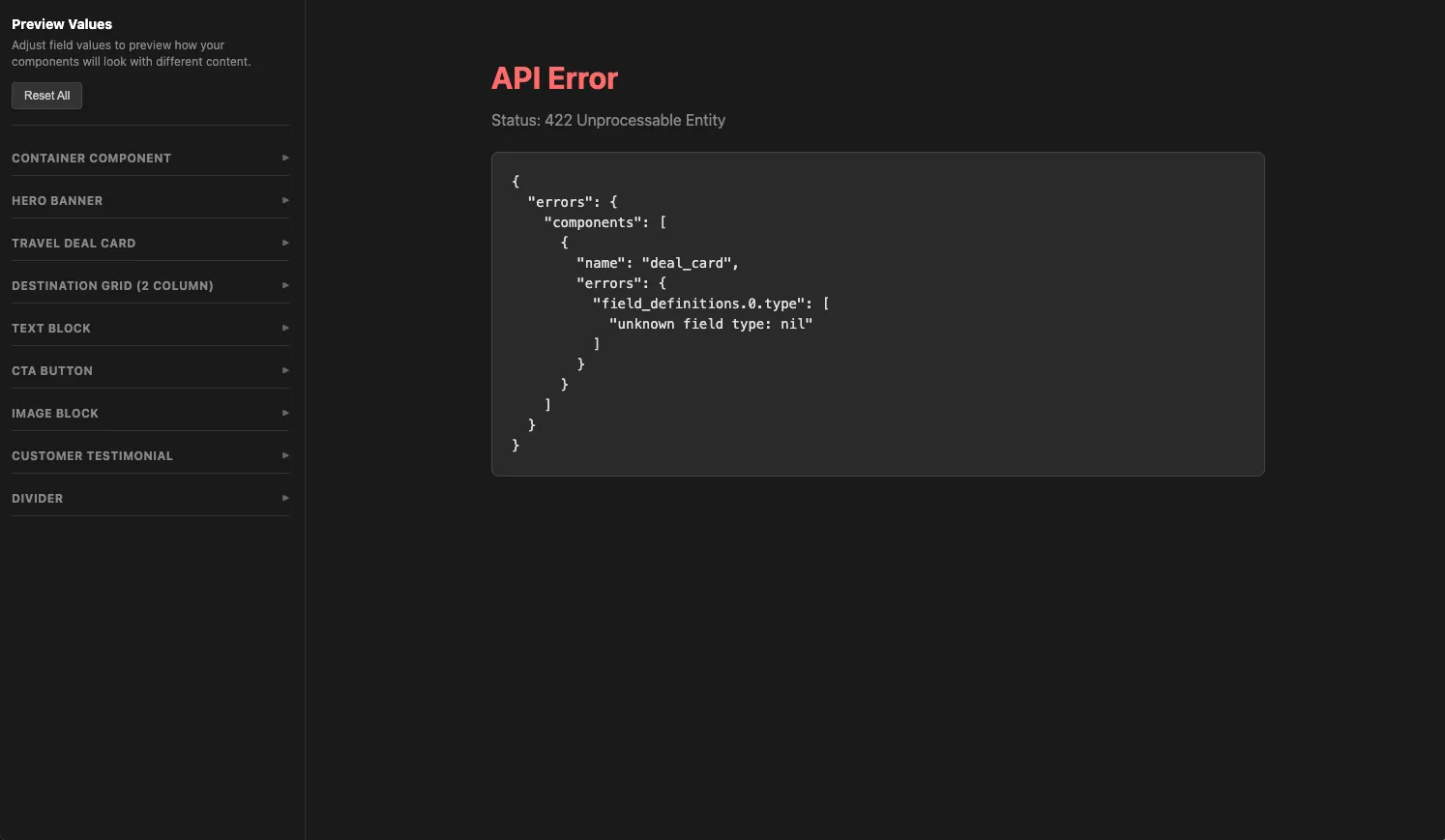
To check the whole EDS at once, run:
npx emailshepherd validateIf there are no problems, you’ll see No validation errors. Otherwise, the errors are listed so you can fix them.
Deploy your changes
Section titled “Deploy your changes”Deploying replaces the whole EDS in EmailShepherd with the version in your repository:
- Changes to components, fields, design tokens and custom styles are applied.
- New components are added, and components are put in the same order as your repository.
- Components that aren’t in your repository are deleted from the EDS, and from every email that uses them.
Deployed changes take effect immediately in every email that uses the EDS, including published emails. They don’t go through Component Builder’s drafts.
-
Check your EDS with
npx emailshepherd validate. -
Run:
Terminal window npx emailshepherd deploy
When it’s finished, you’ll see Email Design System deployed successfully.
Change or remove your saved API key
Section titled “Change or remove your saved API key”To save a different API key, for example on a new computer, run npx emailshepherd login.
To remove your saved API key, run npx emailshepherd logout.