How to download an email as a PDF or PNG
This article shows you how to download an email as a PDF or PNG.
A PDF or PNG shows what the email looks like, without any code. It’s useful for sharing an email with people who don’t use EmailShepherd, such as stakeholders who need to sign it off, or for adding it to a presentation.
Download a PDF or PNG
Section titled “Download a PDF or PNG”-
Open the email in the editor. If the email has more than one locale, select the locale you want to download.
-
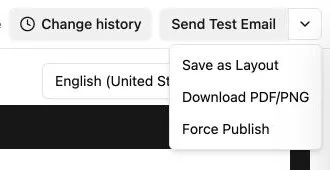
In the top-right corner, click the arrow next to the main button, then select Download PDF/PNG.
-
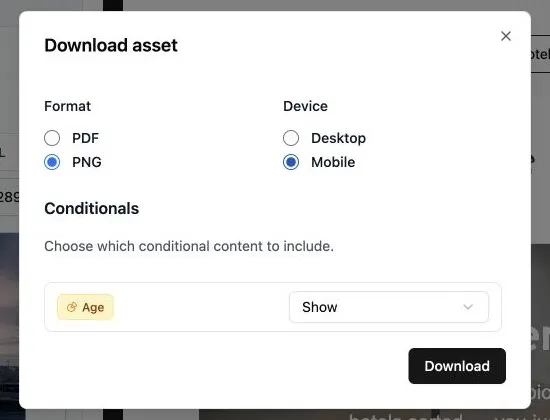
Under Format, select PDF or PNG.
-
Under Device, select Desktop or Mobile.
-
If the email uses conditional content, choose what to include under Conditionals. Depending on the conditional, you can show or hide its content, or select which version to show.
-
Click Download.