

How to invite a user
This article shows you how to invite a new user to your organization, and how to give an existing user access to more teams and workspaces.
When you invite someone, you choose three things:
- Role: what they can do, such as edit emails or manage Email Design Systems.
- Workspaces: which workspaces they can access, if your organization uses workspaces.
- Teams: which teams they belong to. Users can only see the projects and emails of the teams they’re a member of.
Before you begin
Section titled “Before you begin”Decide which role, teams and workspaces the user needs:
- To choose a role, see Roles and permissions for what each role can do.
- To understand how teams and workspaces control access, see Workspaces, teams and projects.
If the team the user needs doesn’t exist yet, create it first.
Invite a user
Section titled “Invite a user”- In the top-left of the sidebar, click your organization’s name, then select Organization settings.
- Select the Users tab.
- Click Invite new user.
- Enter the user’s First name, Last name and Email.
- In Role, select the role for the user. See Roles and permissions for what each role can do.
- In Workspaces, select the workspaces the user needs access to. You must select at least one.
- In Teams, select the teams the user should join. Only teams in the workspaces you selected are listed.
- Click Send invitation.
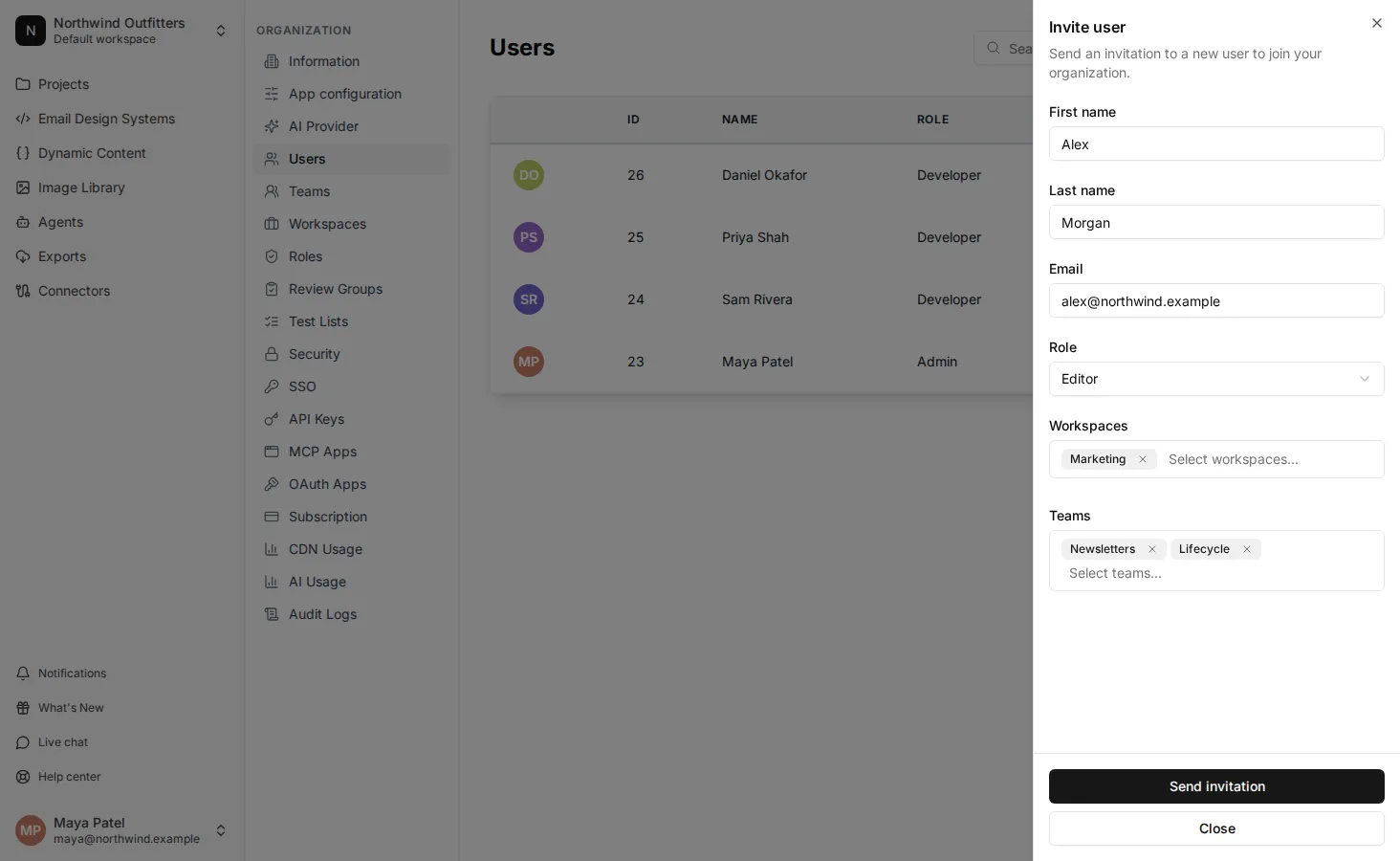
The user gets an email inviting them to join your organization. New users click the link in the email to set a password and sign in. If they already have an EmailShepherd account, they sign in as normal and your organization appears in their account.
Resend an invitation
Section titled “Resend an invitation”If the user can’t find their invitation email:
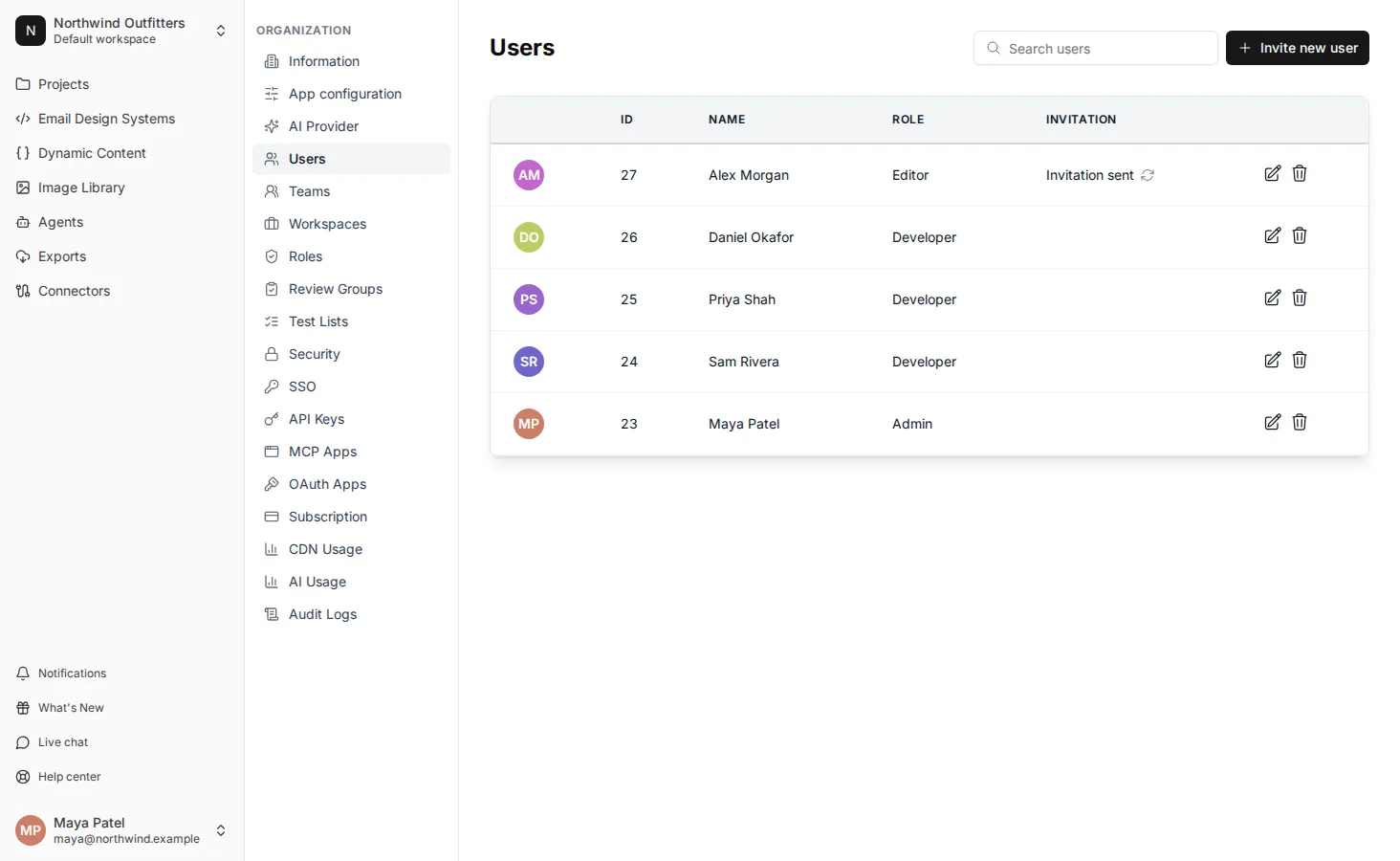
- In Organization settings, select the Users tab.
- Find the user. Their Invitation column shows Invitation sent until they accept.
- Click the resend icon next to Invitation sent.
Give an existing user access to more teams or workspaces
Section titled “Give an existing user access to more teams or workspaces”To give someone who’s already in your organization access to another team or workspace, add them as a member:
Change a user’s role
Section titled “Change a user’s role”- In Organization settings, select the Users tab.
- Beside the user, click the edit icon.
- In Role, select the new role, then click Update.