

Rich text formatting and custom styles
This article shows you how to control the formatting people can use in a rich text field, and how to create custom styles.
You do all of this in Component Builder. Changes only reach emails when you apply them.
Choose the built-in formatting options
Section titled “Choose the built-in formatting options”Each rich text field can offer bold, italic, links, bulleted lists and numbered lists.
- Open the component in Component Builder.
- On the Fields tab, click the rich text field.
- Under Formatting > Built-in styles, select the options people can use.
- Click Save.
Create a custom style
Section titled “Create a custom style”Custom styles are extra formatting options, such as a brand highlight color. You create them once for the Email Design System, then choose which rich text fields can use them.
- In Component Builder, in the left panel, click Custom styles. You can also click Manage custom styles in a rich text field’s settings.
- Click Add custom style.
- Enter:
- Name: an identifier for the style, used in the HTML.
- Label: the name people see in the rich text editor.
- Choose how the style works:
- Single style: in CSS Style, enter the CSS the style applies, such as
color: #1F6F5C; font-weight: bold;. - Multiple options: click Add option for each variation, and enter its Option name, Option label and Option CSS. People pick one of the options when they apply the style.
- Single style: in CSS Style, enter the CSS the style applies, such as
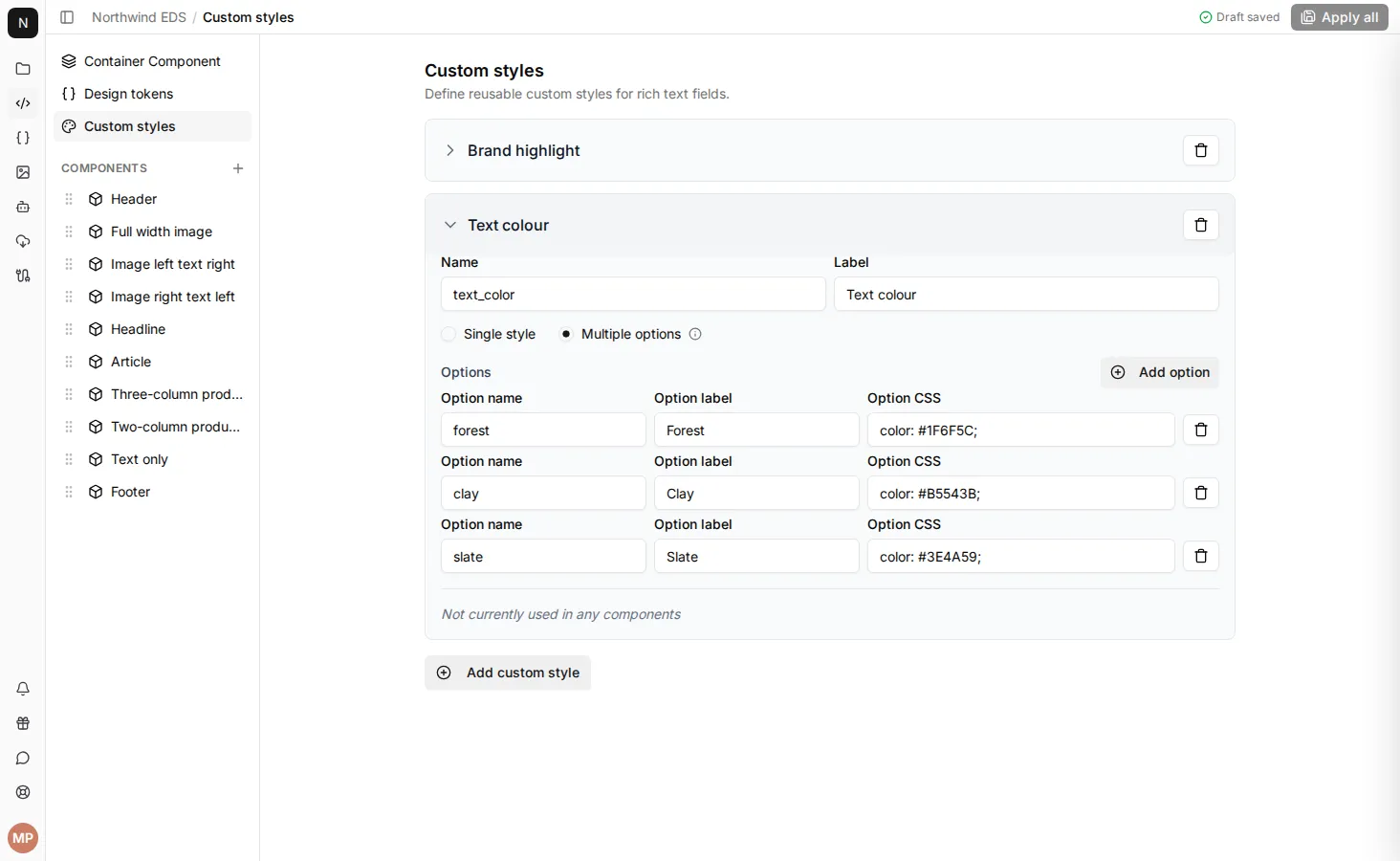
Multiple options suit styles that come in a set of variations. For example, instead of one custom style per brand color, create one Text colour style with an option for each color. People can apply several custom styles to the same text, so a Text colour style and a Font size style can be combined without a style for every combination.
Add a custom style to a rich text field
Section titled “Add a custom style to a rich text field”- On the Fields tab, click the rich text field.
- Under Formatting, either:
- Add it as a formatting option: under Custom styles, select the style. People can then apply it from the Custom Styles menu in the rich text editor.
- Use it to change a built-in option: next to a built-in option such as Bold, choose the style instead of No override style. Its CSS is then applied whenever that option is used. Only single styles can be used this way.
- Click Save.
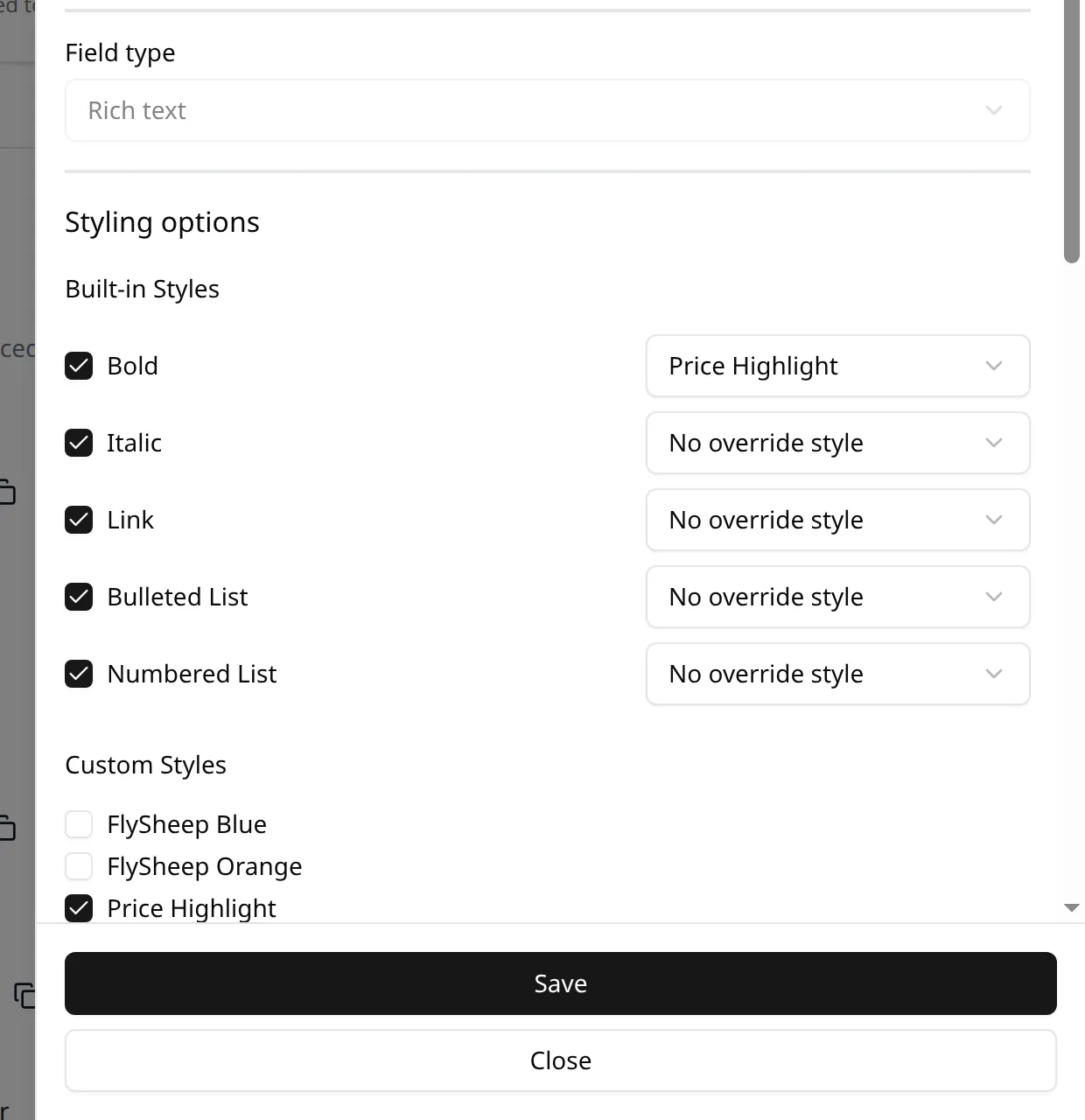
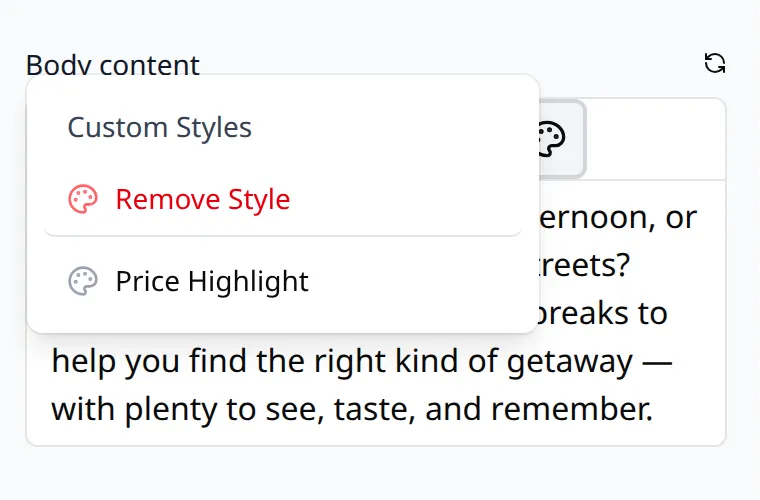
In the email editor, people apply custom styles from the Custom Styles menu. For a style with multiple options, they choose the option from a second menu.
Style rich text with CSS
Section titled “Style rich text with CSS”Rich text fields output predictable HTML tags and classes, so you can also style them from your template’s CSS. See Rich text HTML for the tags and classes each option produces.