

How to create a review group
This article shows you how to create a review group, which you can then use when submitting emails for approval.
Review groups define who needs to approve your emails and in what order. Create reusable groups for different types of campaigns or departments.
Create a review group
Section titled “Create a review group”-
Click your organization name at the top of the sidebar, then click Organization settings.
-
Click Review Groups.
-
Click Add Review Group.
-
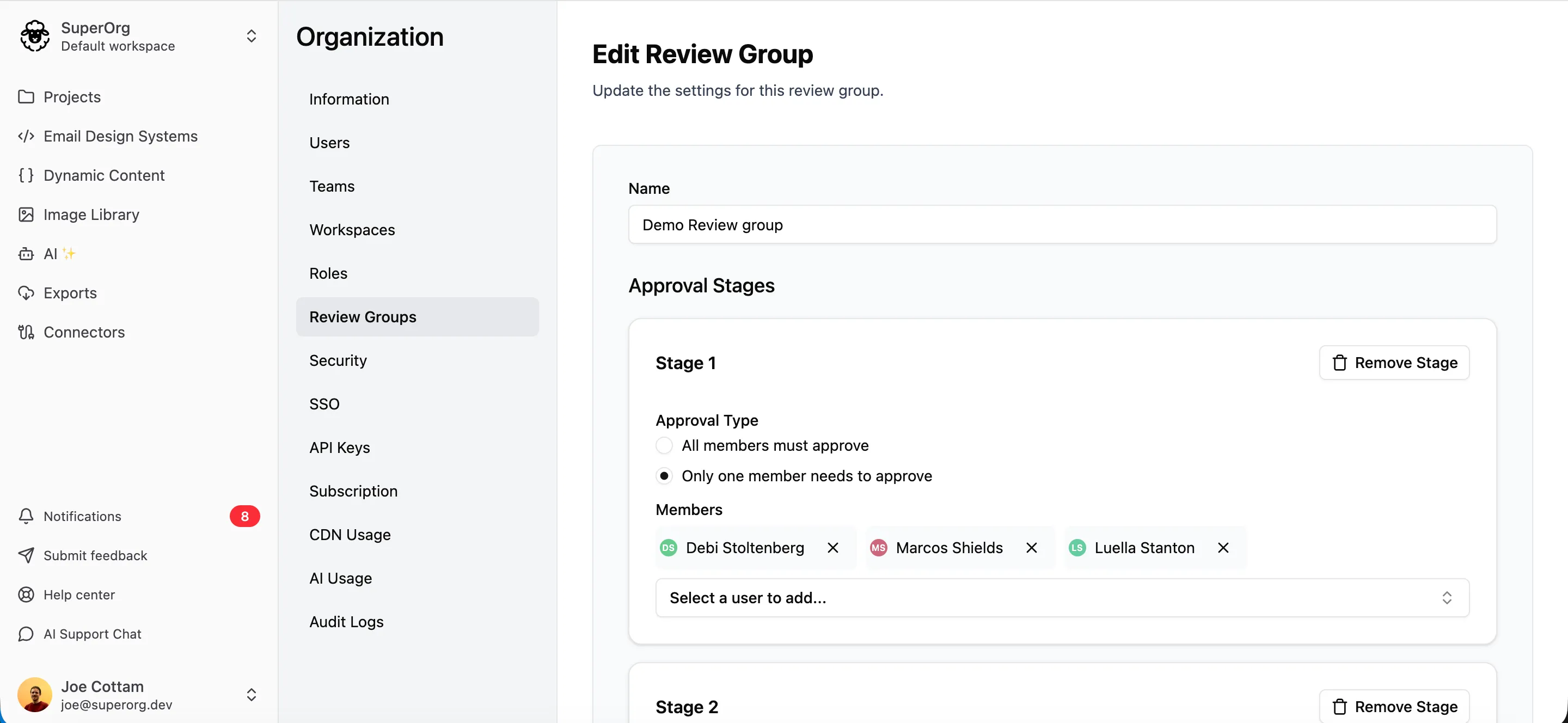
In Name, enter a name for the group, e.g. “Legal sign-off”.
-
Set up the first stage (see Set up the stages).
-
To add another stage, click Add Stage.
-
Click Create Review Group.
Set up the stages
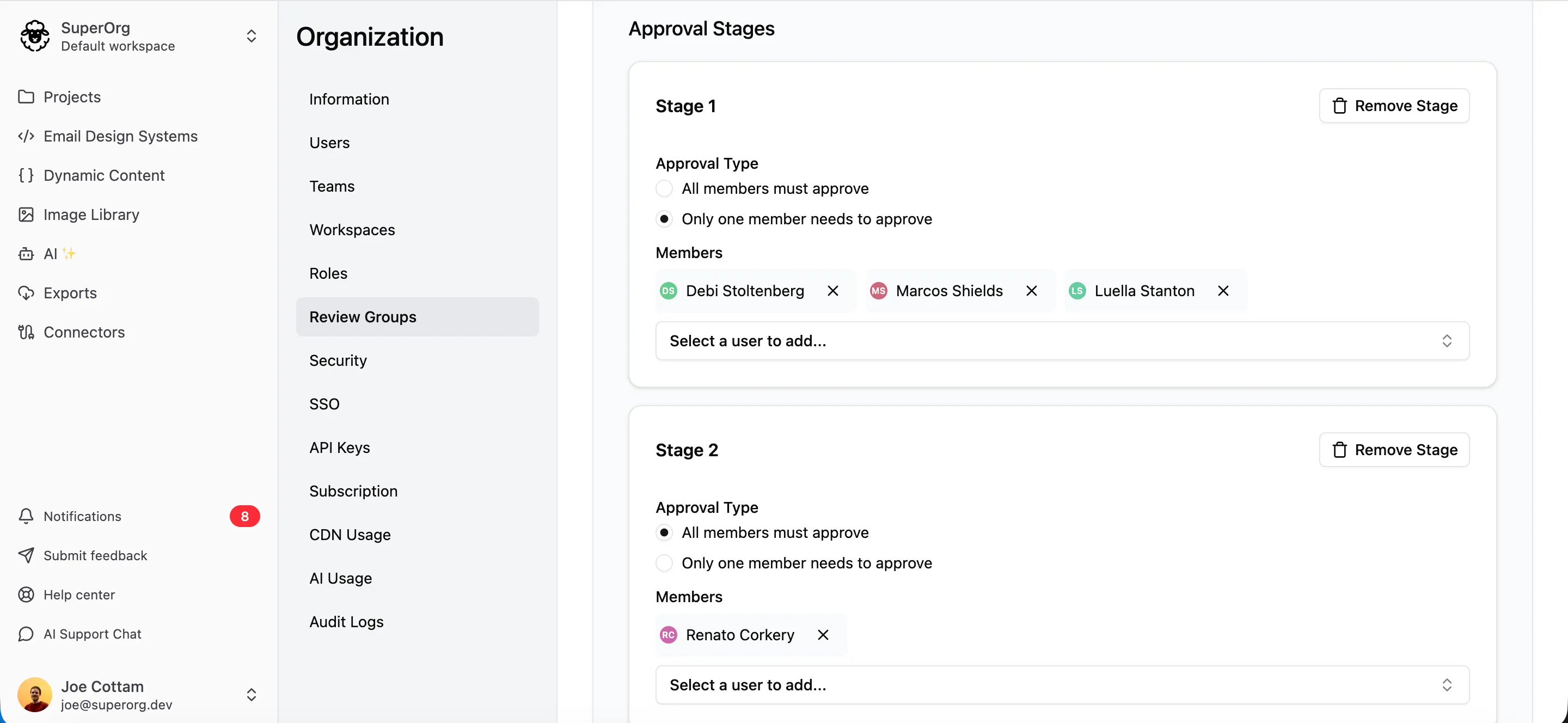
Section titled “Set up the stages”Review groups can have as many stages as needed. Stages run in order: stage 2 reviewers are only notified after stage 1’s approval criteria are met.
For each stage:
- Under Approval Type, choose:
- All members must approve: every reviewer in the stage must approve.
- Only one member needs to approve: one approval from the stage is enough.
- In Members, select each person who should review in this stage. A person can only be in one stage.
Example uses:
- Simple: 1 stage with 1 approver, e.g. just your manager.
- Department review: 1 stage where only one member of the Legal team needs to approve.
- Multi-stage: stage 1 is the Content team (only one member needs to approve), stage 2 is Legal (all members must approve), stage 3 is a VP (1 person).
Once you’ve created a review group, anyone can select it when they submit an email for approval.