

How to create a test list
This article shows you how to create and manage test lists.
A test list is a saved group of users, such as your QA team. When you send a test email, you can select the test list instead of picking each user one by one.
Create a test list
Section titled “Create a test list”- In the top-left of the sidebar, click your organization’s name, then select Organization settings.
- Select the Test Lists tab.
- Click Add Test List.
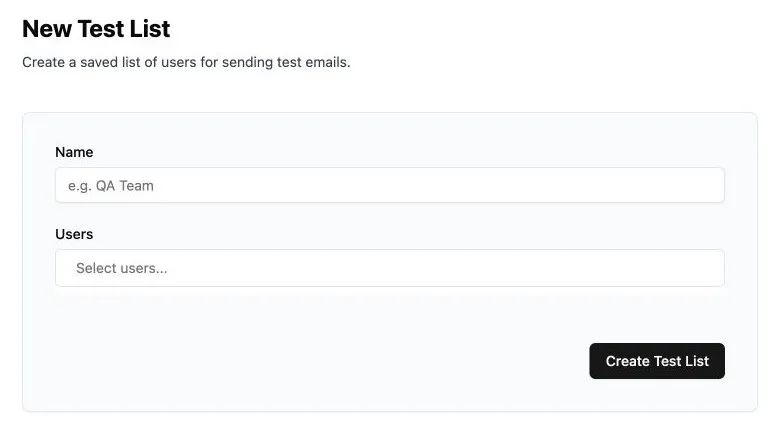
- In Name, enter a name for the list, e.g. “QA Team”. Names can be up to 30 characters and must be different from your other test lists.
- In Users, select up to 15 users.
- Click Create Test List.
Change or delete a test list
Section titled “Change or delete a test list”- In the top-left of the sidebar, click your organization’s name, then select Organization settings.
- Select the Test Lists tab.
- Beside the test list, click one of the actions:
- Manage: change the list’s name or users, then click Update Test List.
- Delete: delete the test list, then confirm.