

How to submit an email for approval
This article shows you how to submit an email for approval, track the review, and resubmit the email if reviewers request changes.
Approval workflows help you manage the review and approval process for emails before they’re published and exported. Only published emails can be exported, and once an email is published, it can no longer be edited.
Email statuses
Section titled “Email statuses”Every email has one of the following statuses:
- Draft: the starting status, while the email is being edited.
- In Review: submitted for approval, waiting for reviewers.
- Changes Requested: a reviewer has asked for changes.
- Approved: all required approvals have been received.
- Published: final, ready for export. The email can’t be edited.
The email’s status is shown next to its name at the top of the editor.
Before you begin
Section titled “Before you begin”To use a saved list of reviewers, an Admin needs to create a review group first. You can also pick reviewers yourself when you submit.
Submit an email for approval
Section titled “Submit an email for approval”-
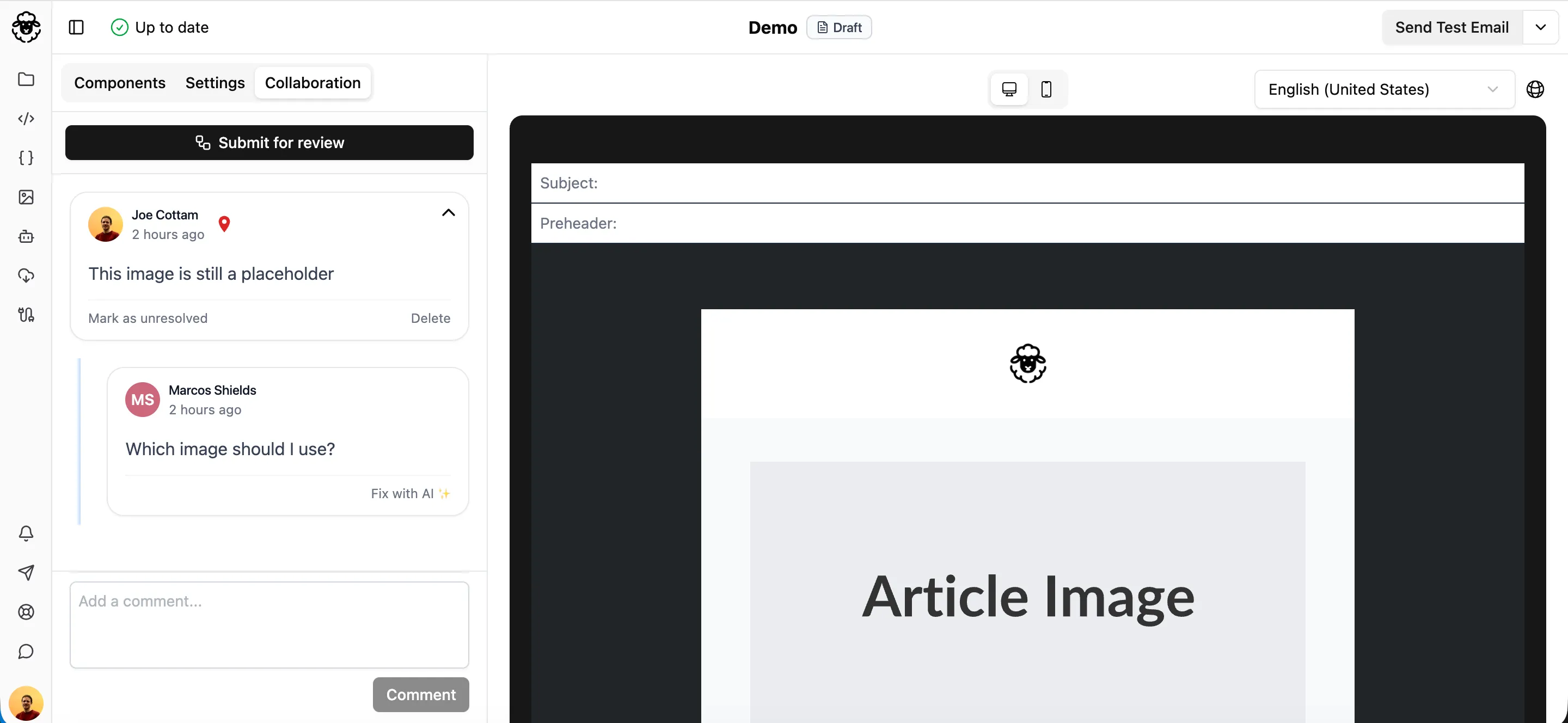
In the editor, click the Collaboration tab.
-
Click Submit for approval.
-
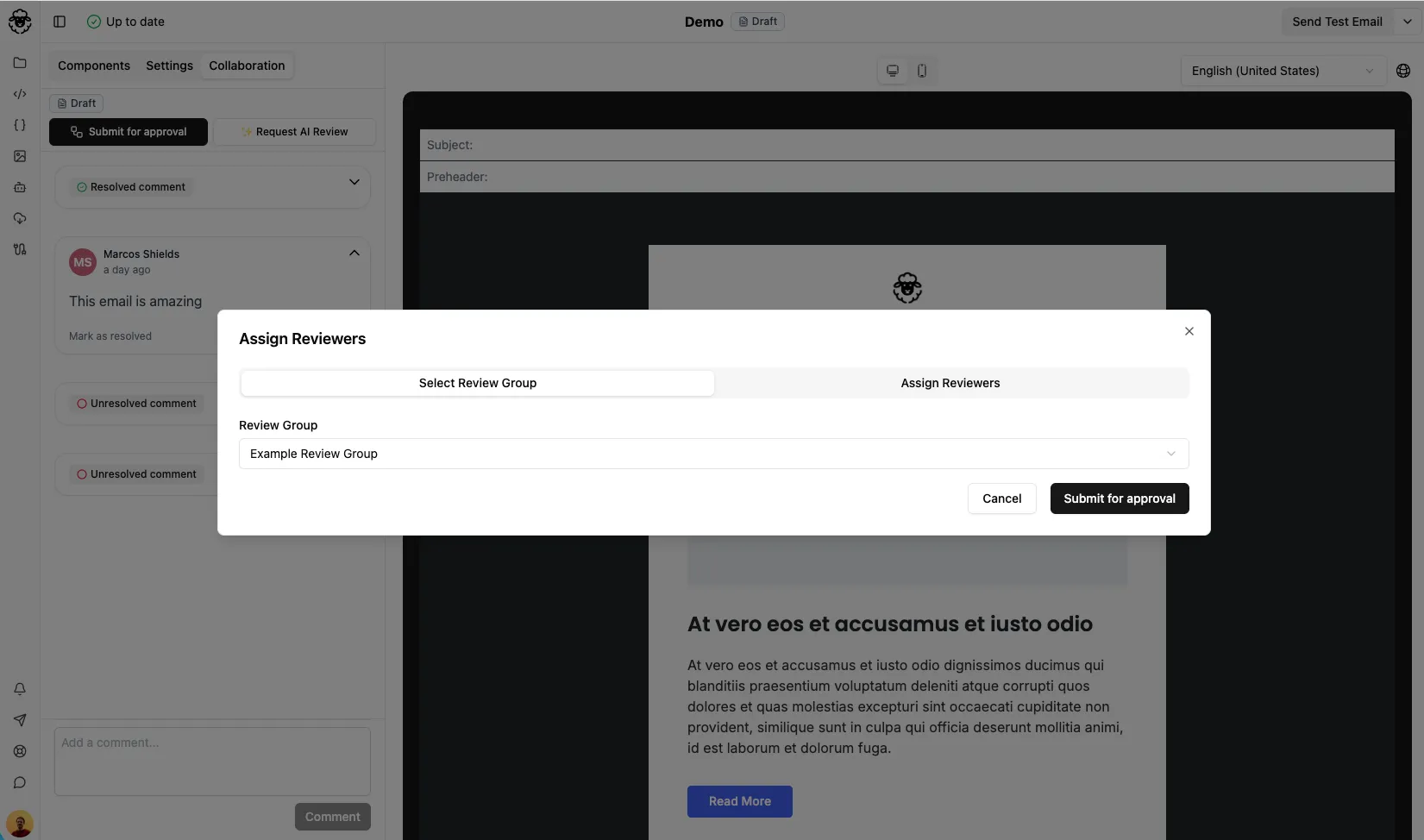
Choose who will review the email:
- Select Review Group: select a saved group in Review Group.
- Assign Reviewers: set up the stages and reviewers for this email only. This group isn’t saved for future use.
-
Click Submit for approval.
The email status changes to In Review and first-stage reviewers are notified.
Track the review
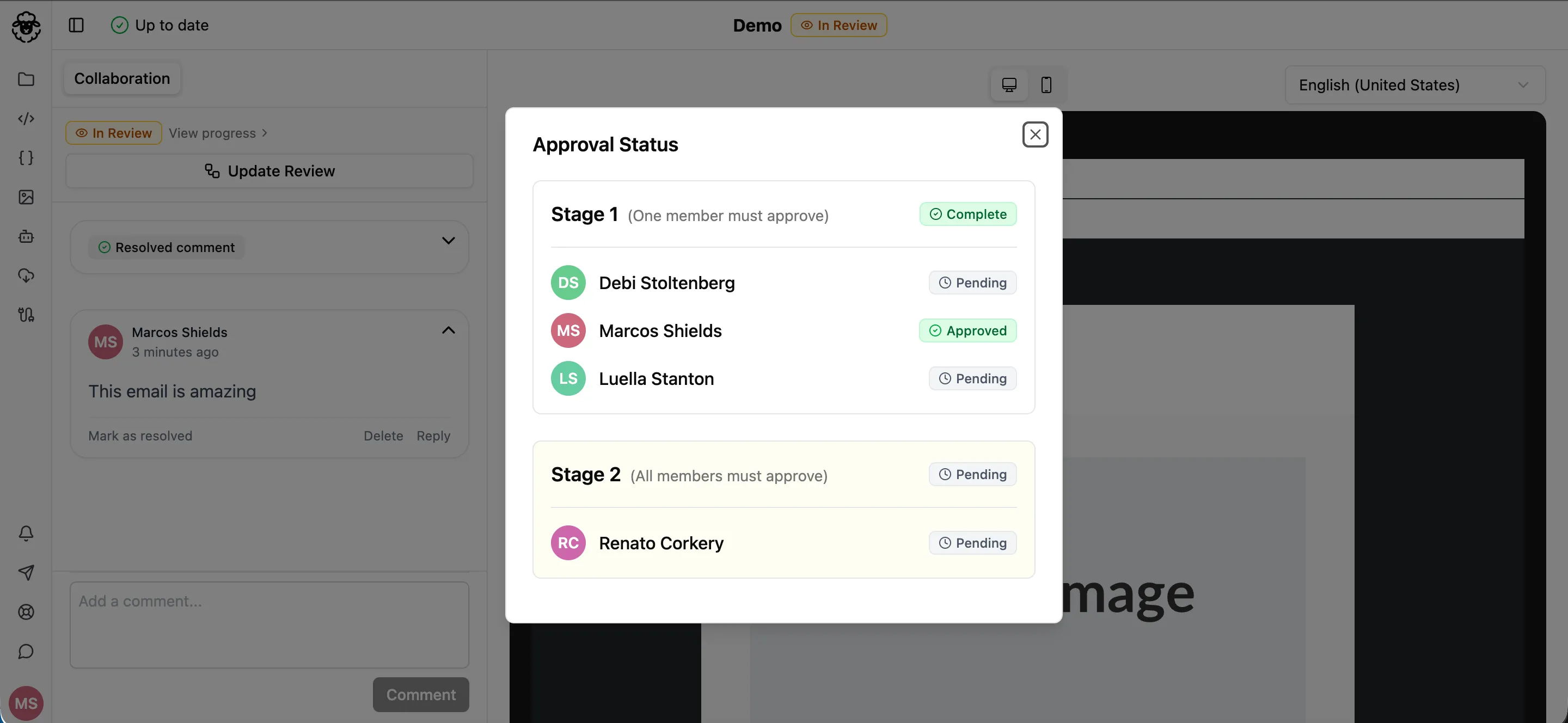
Section titled “Track the review”The bar at the top of the Collaboration tab shows how far the review has got, e.g. “Review in progress · Stage 1 · 1/3 approved”.
To see more detail, click the bar. The Approval Status window shows:
- Which stage the review is at.
- Each reviewer’s status: Approved, Changes requested or Pending.
Resubmit after changes are requested
Section titled “Resubmit after changes are requested”When any reviewer requests changes, the review resets for all reviewers and the email status changes to Changes Requested.
- Make the requested changes.
- In the Collaboration tab, click Resubmit for approval.
First-stage reviewers are notified again and the review starts over.
Once every stage has approved, the email status changes to Approved and you can publish the email.