

Audit logs
This article shows you how to view your organization’s audit logs and what each part of an entry means.
The audit logs are a record of the actions people take in your organization, such as creating, publishing or deleting an email, approving a review, or adding a user. Use them to check who made a change and when, or to keep a record for governance and compliance.
View the audit logs
Section titled “View the audit logs”- In the top-left of the sidebar, click your organization’s name, then select Organization settings.
- Select the Audit Logs tab.
The newest activity is shown first. Use the page controls at the bottom of the list to see older activity.
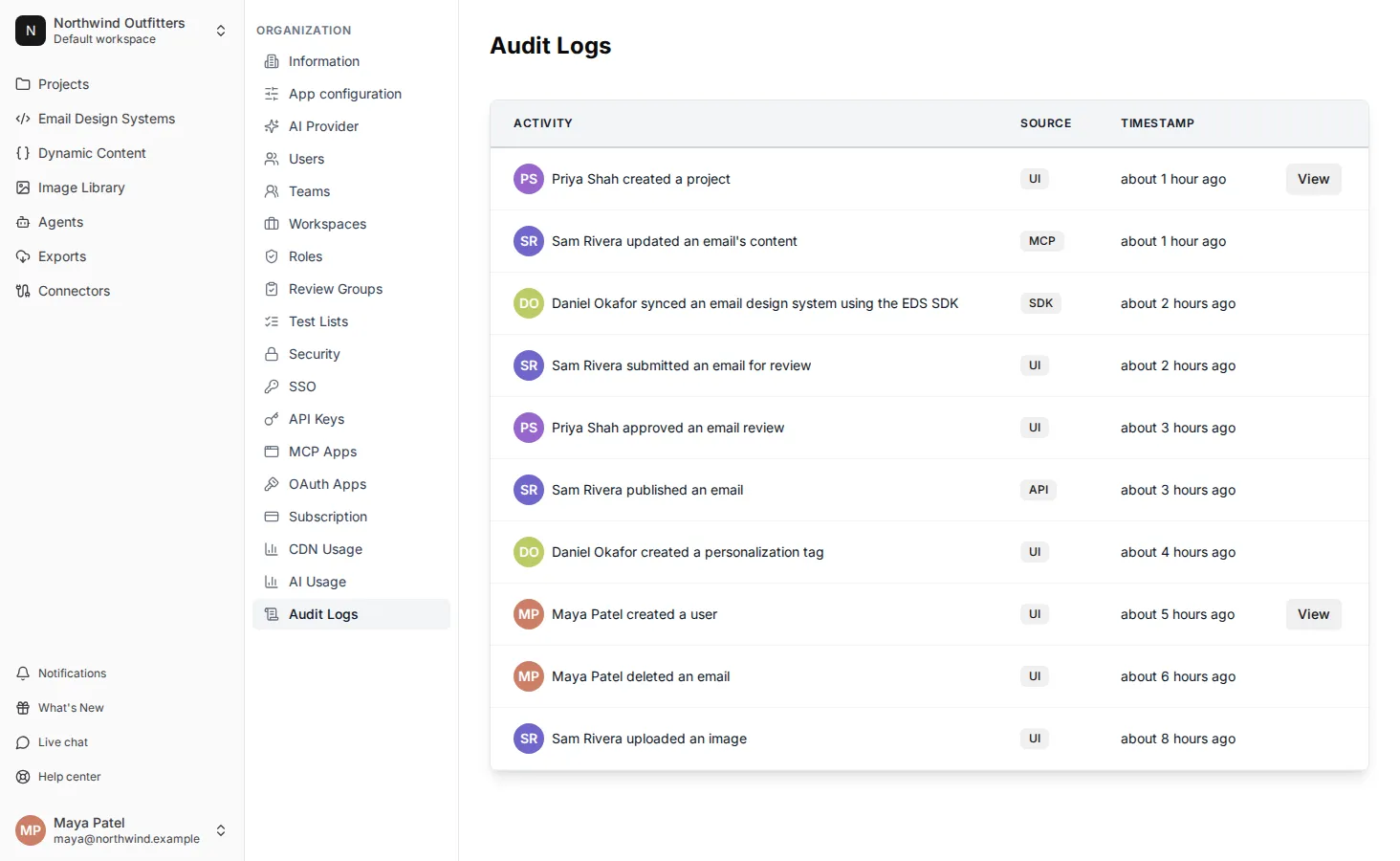
The audit logs cover your whole organization, including every workspace.
Read an audit log entry
Section titled “Read an audit log entry”Each entry has these columns:
- Activity: who took the action and what they did, e.g. “Sam Rivera published an email”.
- Source: where the action came from (see below).
- Timestamp: when the action happened.
When the item still exists, click View to open it, e.g. the email or project that was changed.
Sources
Section titled “Sources”The Source column shows how the action was made:
| Source | Where the action came from |
|---|---|
| UI | The EmailShepherd app in a browser. |
| API | The EmailShepherd API, using an API key. |
| MCP | An AI tool connected through the EmailShepherd MCP server. |
| OAuth | An app connected to EmailShepherd with OAuth. |
| SDK | The EDS SDK, e.g. when a developer syncs an Email Design System from their local repo. |