

How to publish an email
This article shows you how to publish an approved email, and how Admins can force publish an email or convert a published email back to a draft.
Only published emails can be exported. Once an email is published, it can no longer be edited.
Before you begin
Section titled “Before you begin”The email must be approved. See How to submit an email for approval.
Publish an approved email
Section titled “Publish an approved email”- Open the email in the editor.
- Click Publish in the top bar.
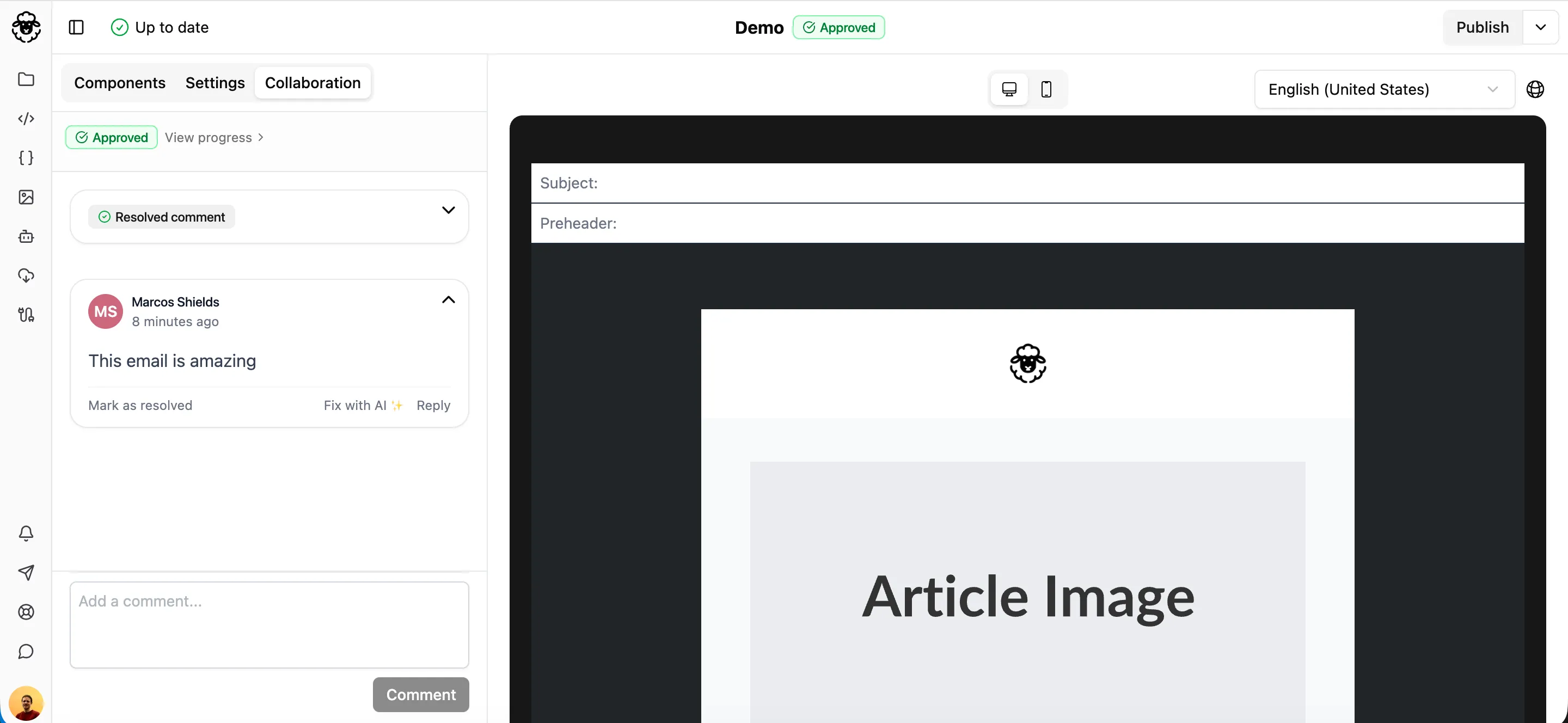
The email status changes to Published, and the email can now be exported.
Force publish an email
Section titled “Force publish an email”Force publishing skips the approval workflow and publishes the email straight away. It’s useful in an emergency, or when a required reviewer is unavailable.
- Open the email in the editor.
- In the top bar, click Force Publish. If you don’t see it, open the dropdown beside the main button.
Convert a published email to draft
Section titled “Convert a published email to draft”Convert a published email back to a draft if it needs changes.
- Open the email in the editor.
- In the top bar, open the dropdown beside the main button.
- Select Convert to Draft.