

Security settings
This article shows you how to change your organization’s security settings.
Security settings apply to every user in your organization. Use them to log users out after a period of inactivity, and to make sure everyone signs in with two-factor authentication (2FA).
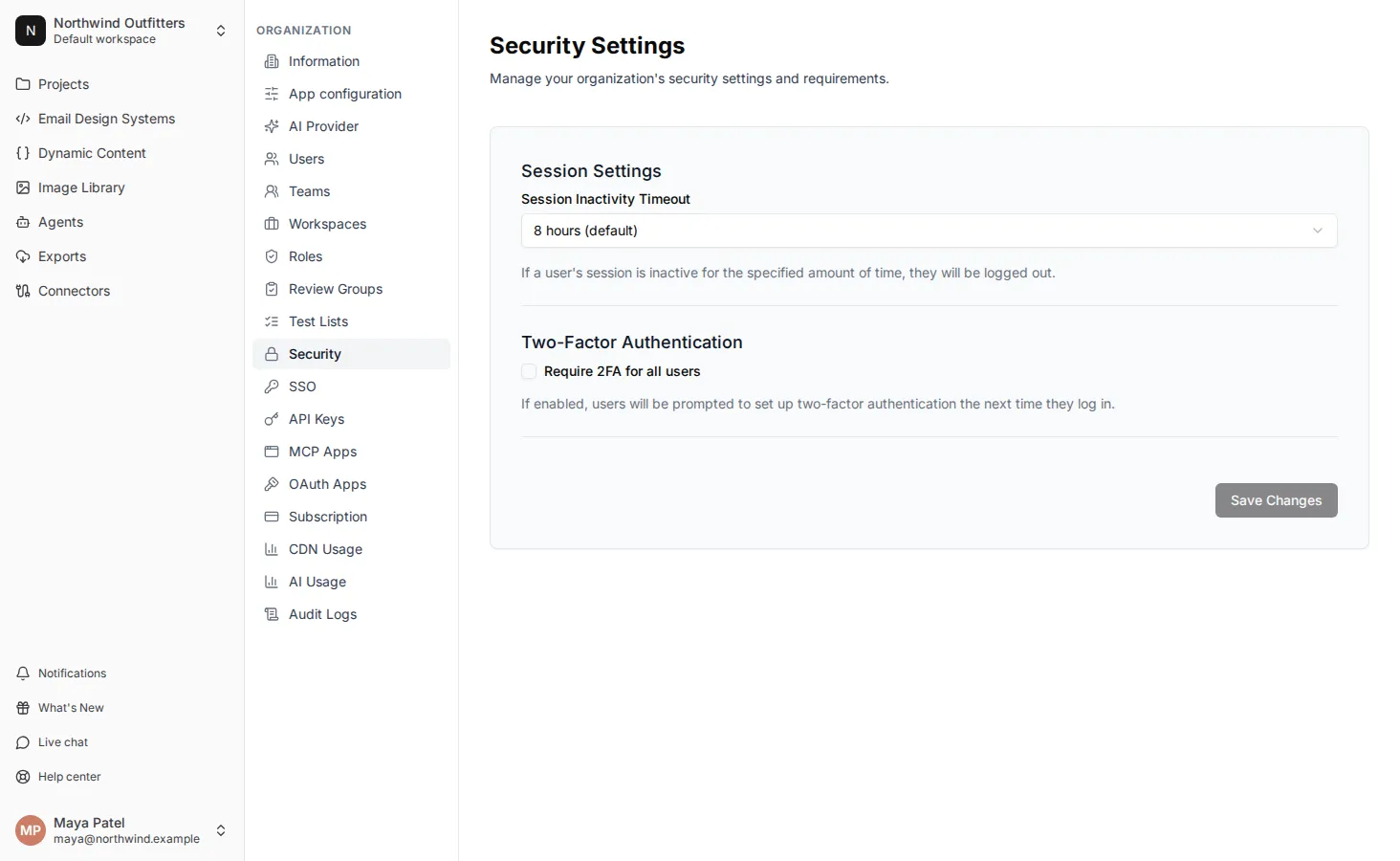
Set the session inactivity timeout
Section titled “Set the session inactivity timeout”The session inactivity timeout is how long a user can be inactive before they’re logged out.
- In the top-left of the sidebar, click your organization’s name, then select Organization settings.
- Select the Security tab.
- In Session Inactivity Timeout, select how long users can be inactive, from 30 minutes to 24 hours. The default is 8 hours.
- Click Save Changes.
Require two-factor authentication
Section titled “Require two-factor authentication”When you require 2FA, every user in your organization must sign in with a code from an authenticator app as well as their password.
- In the top-left of the sidebar, click your organization’s name, then select Organization settings.
- Select the Security tab.
- Select Require 2FA for all users.
- Click Save Changes.
Users who haven’t set up 2FA are asked to set it up the next time they log in.