

How to export an email to your ESP
This article shows you how to export an email to your ESP (email service provider), such as Braze or Iterable.
When you export an email to your ESP, EmailShepherd creates a template in your ESP with the email’s HTML, or updates one you’ve exported before. You don’t need to download or copy any code.
Before you begin
Section titled “Before you begin”- The email must be published. See How to publish an email.
- A connector for your ESP must be set up in the workspace. Every ESP has a setup page under ESP Connectors, e.g. Braze.
Export an email
Section titled “Export an email”- Open the email in the editor.
- In the top-right corner, click Export.
- Under Connectors, select your ESP’s connector.
- Choose any other options you need:
- Dynamic Content Profile: the dynamic content profile to export with, so personalization tags and conditionals use your ESP’s syntax.
- Image hosting: where images from the image library are hosted. Images you added by URL aren’t changed.
- Use The EmailShepherd CDN: the email links to images hosted by EmailShepherd.
- Use a CDN Connector: the images are uploaded to your own CDN, and the email links to them there. Then, in CDN Connector, select the connector. You need a CDN connector set up first.
- Minify HTML: makes the exported HTML smaller. See How to minify exported HTML.
- Inline CSS: applies CSS from style blocks to individual elements. See How to inline CSS in exports.
- Under Templates, choose what to do for each locale:
- Create new: create a new template in your ESP. The name is filled in from the email’s name and locale, e.g.
Spring_collection_announcement_en-US. You can change it. - Overwrite existing: select one of the templates already in your ESP from the list. Its content is replaced with this email. Use this to update a template instead of creating another one.
- Skip: don’t export this locale.
- Create new: create a new template in your ESP. The name is filled in from the email’s name and locale, e.g.
- Click Start export.
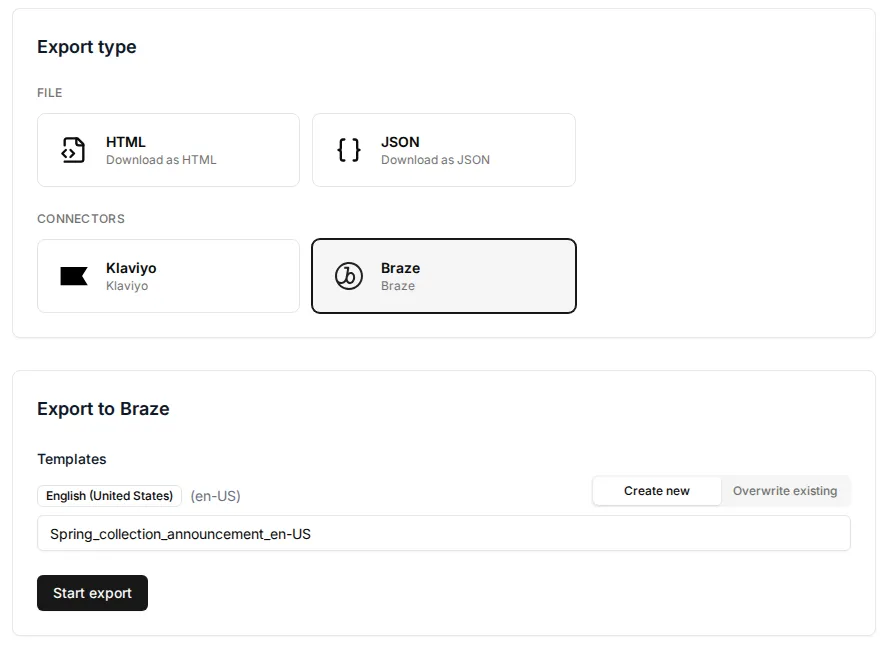
The export takes a few seconds. When it’s complete, a button appears that takes you to the template in your ESP, e.g. Open in Braze.
View past exports
Section titled “View past exports”To see every export in the workspace, click Exports in the sidebar. Click an export to see its details.