

How to translate an email with a spreadsheet
This article shows you how to translate an email using a CSV spreadsheet.
A translation spreadsheet contains all of an email’s translatable content, with one row for each locale. It’s useful when you work with a translator or translation agency, or prefer to translate in a spreadsheet application. You can use it to add new locales and to update existing ones.
Before you begin
Section titled “Before you begin”- Finish the content in your email’s default locale.
- Check which field types are included in the spreadsheet in your translatable field types. Subject lines and preheaders are always included.
Download the spreadsheet
Section titled “Download the spreadsheet”- Open the email in the editor.
- In the toolbar above the preview, click the globe icon (Locales).
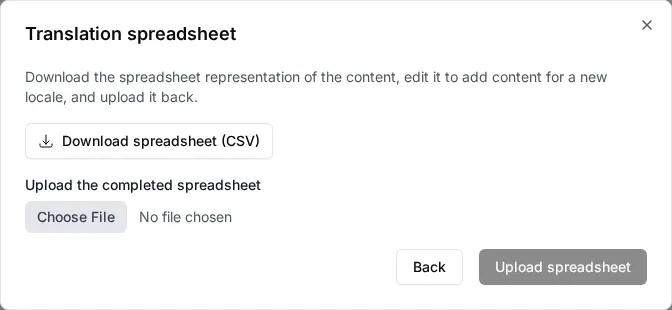
- Click Import / export translation spreadsheet.
- Click Download spreadsheet (CSV).
Translate the content
Section titled “Translate the content”- Open the CSV in a spreadsheet application, such as Excel or Google Sheets. Each row holds one locale’s content. The locale column shows the locale code, such as
en-USorfr-FR, and the other columns hold the content. - Add or update translations:
- To add a new locale, copy the default locale’s row, change the locale value to the new locale’s code, and replace the content with your translations.
- To update an existing locale, edit the content in that locale’s row.
- Save the file as a CSV.
Don’t change the column headings in the first row, or the spreadsheet won’t upload.
Leave any HTML tags, such as <strong>, and any personalization tags in place, and only translate the text around them. Otherwise, the translated locale loses that formatting or personalization.
Upload the translated spreadsheet
Section titled “Upload the translated spreadsheet”- In the editor, click the globe icon (Locales), then click Import / export translation spreadsheet.
- Click Choose file and select your CSV.
- Click Upload spreadsheet.
The editor reloads with the uploaded content. Any new locales in the file are added to the email. Next, review each locale.
If the upload says the headers don’t match, the email’s components or fields have changed since you downloaded the spreadsheet. Download a new spreadsheet, copy your translations into it, and upload it again.