

How to fill in a component from a feed
This article shows you how to fill in a component’s fields with content from a feed, such as a product’s name, price and image.
A feed fetches data from one of your organization’s APIs. When a component is connected to a feed, you can enter a value, such as a product ID, and the component’s fields are filled in for you.
Before you begin
Section titled “Before you begin”The component needs to be connected to a feed. To set one up, see How to create a feed.
Fill in a component from a feed
Section titled “Fill in a component from a feed”-
Open the email and add the component, or open one that’s already in the email.
-
Click Feed: followed by the feed’s name. Fields that the feed fills in are marked with an icon.
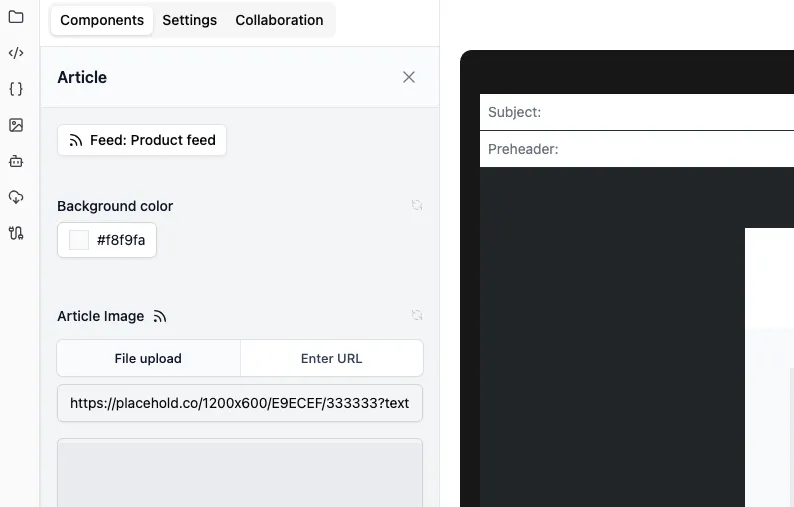
-
Enter a value for each parameter, e.g. the product ID.
-
Click Fetch Data. To check the values before you use them, click View details.
-
Click Apply.
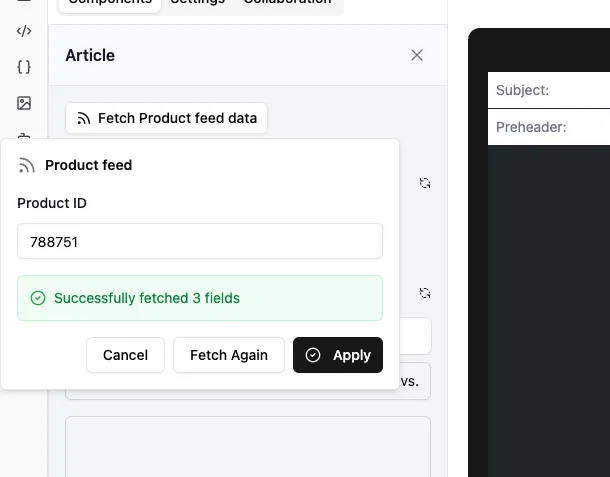
The fields are filled in with the fetched values. You can still edit them afterwards. To fetch different data, click Fetch Again.