

Guest feedback
This article shows you how to share an email with people outside EmailShepherd, what they see when they open it, and how to read and reply to their feedback.
Guest feedback lets you get comments from people who don’t have an EmailShepherd account, such as clients, agency partners or stakeholders in other teams. You share a link to the email, and anyone with the link can preview it and comment on it. Their comments appear in the editor next to your team’s, so all the feedback on an email is in one place.
Share an email
Section titled “Share an email”- Open the email in the editor.
- In the top bar, click Share.
- Under General access, select Anyone with the link.
- Next to the Link field, click Copy.
- Click Done.
Send the link to the people you want feedback from, or email it to them from EmailShepherd.
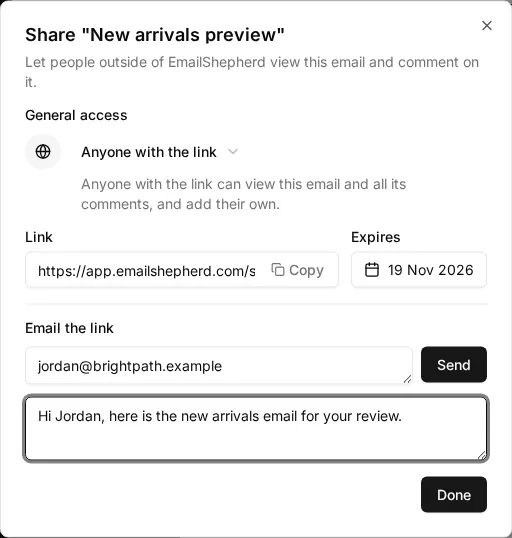
Each email has one link. Anyone who has it can view the email and every comment on it, including your team’s, and add their own comments.
Email the link to guests
Section titled “Email the link to guests”You can send the link from EmailShepherd instead of copying it.
- In the top bar of the editor, click Share.
- Under Email the link, enter one or more email addresses, separated by commas or spaces.
- Optionally, add a message.
- Click Send.
Each person gets an email from you with your message and a View email button that opens the link. Everyone you’ve sent the link to is listed under Sent to.
Change when the link expires
Section titled “Change when the link expires”Links expire 30 days after you share the email. You can choose an earlier date, up to 30 days from today.
- In the top bar of the editor, click Share.
- Click the date under Expires.
- Pick a date. The link stops working at the end of that day.
To give guests more time after a link expires, share the email again. The link stays the same, and it expires 30 days later.
Stop sharing an email
Section titled “Stop sharing an email”- In the top bar of the editor, click Share.
- Under General access, select Restricted.
The link stops working straight away. Anyone who opens it sees a message saying the email is no longer shared. If you share the email again later, the same link works again.
What guests see
Section titled “What guests see”When a guest opens the link, they see a preview of the email and its comments. They don’t need to sign in.
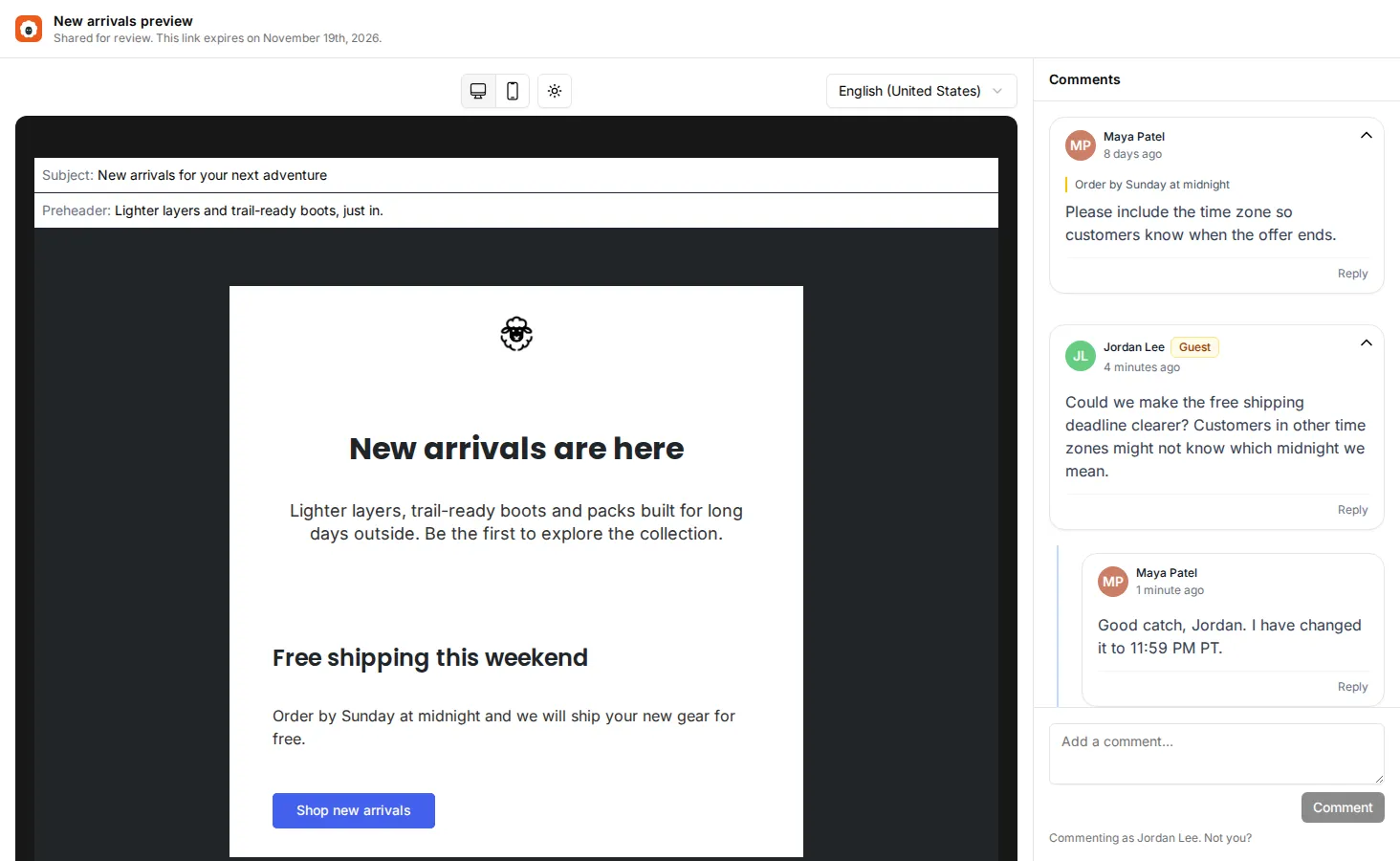
Guests can:
- Preview the email on desktop and mobile, and in dark mode.
- Switch language, if the email has more than one locale.
- Choose which conditional content to show with Preview options, if the email uses conditionals.
- Read all the comments on the email.
- Add comments in the sidebar, and reply to comments that aren’t resolved.
Guests can’t edit the email, mention people, resolve comments or approve the email.
The first time a guest comments, they’re asked for their name and email address, so your team knows who the feedback is from.
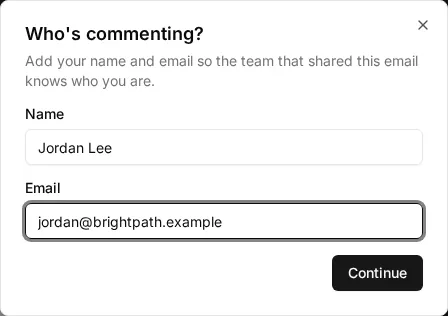
When someone replies to a comment thread a guest is in, the guest gets an email with a link back to the shared email.
Read and reply to guest feedback
Section titled “Read and reply to guest feedback”Guest comments appear in the editor along with your team’s comments.
- Open the email in the editor.
- Click the Collaboration tab.
Guest comments show the guest’s name, their email address and a Guest label.
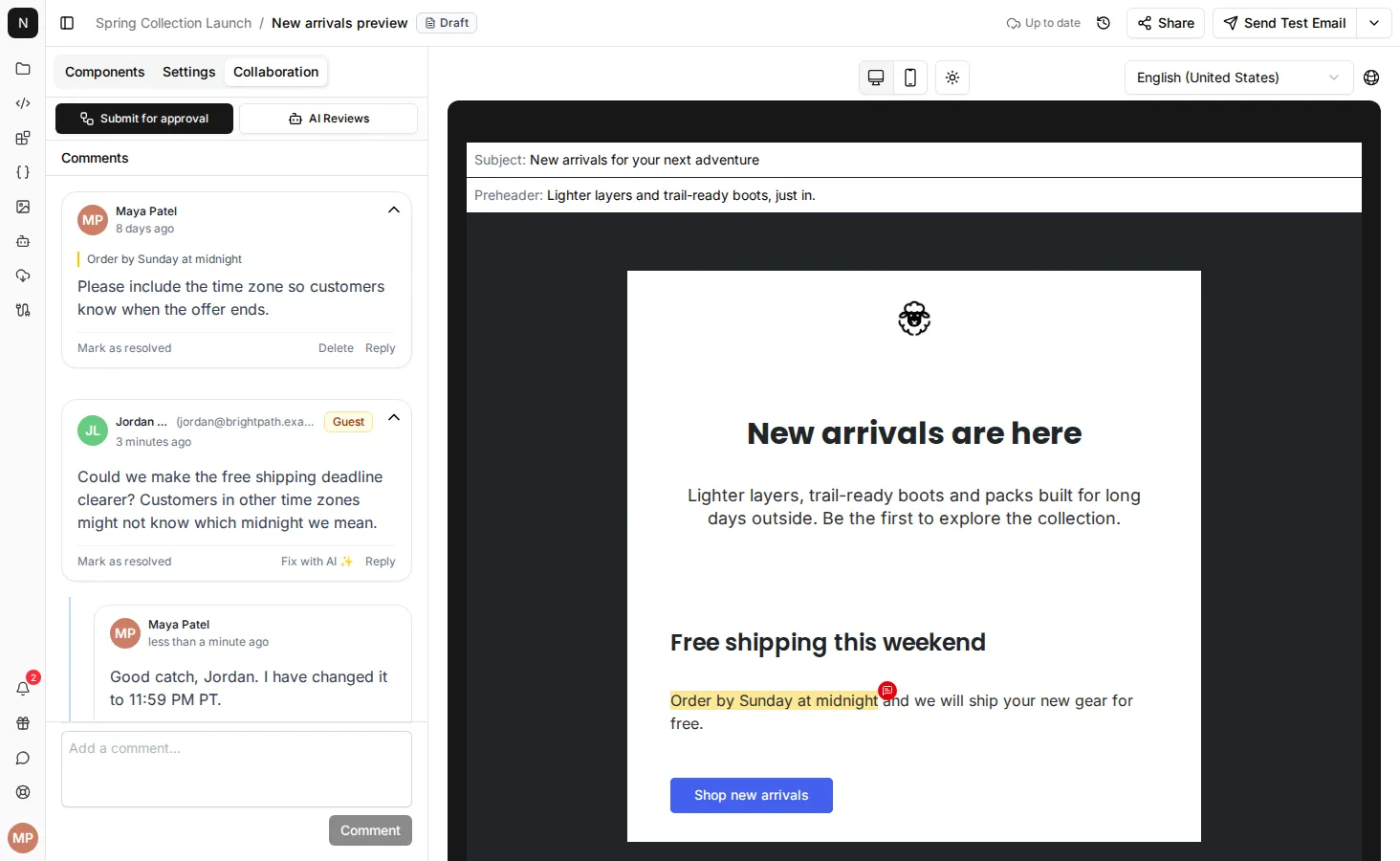
You can reply to guest comments and resolve them like any other comment. See How to comment on an email and mention teammates.
Get notified about guest comments
Section titled “Get notified about guest comments”When a guest comments, the person who shared the email gets a notification in the app and by email. To stop the emails, turn off Guest comments in your account settings.